
Entering a trade is only half the job. Knowing when and how to exit shapes your actual outcome just as much as your entry. BloFin gives you several ways to close a position depending on your situation: exit immediately, automate the close at a target, or scale out gradually while the trade runs.
If you haven't placed your first trade yet, start with How to Place Your First Trade on BloFin.
This guide covers every method of closing a position on BloFin, how each one works, when to use it, and what to consider before you exit.
How to close a spot position
In spot trading, closing a position simply means selling the asset you bought. If you bought BTC, you close the trade by selling BTC. You can use any of the available order types to do this, depending on how urgently you need to exit and whether you want price control.
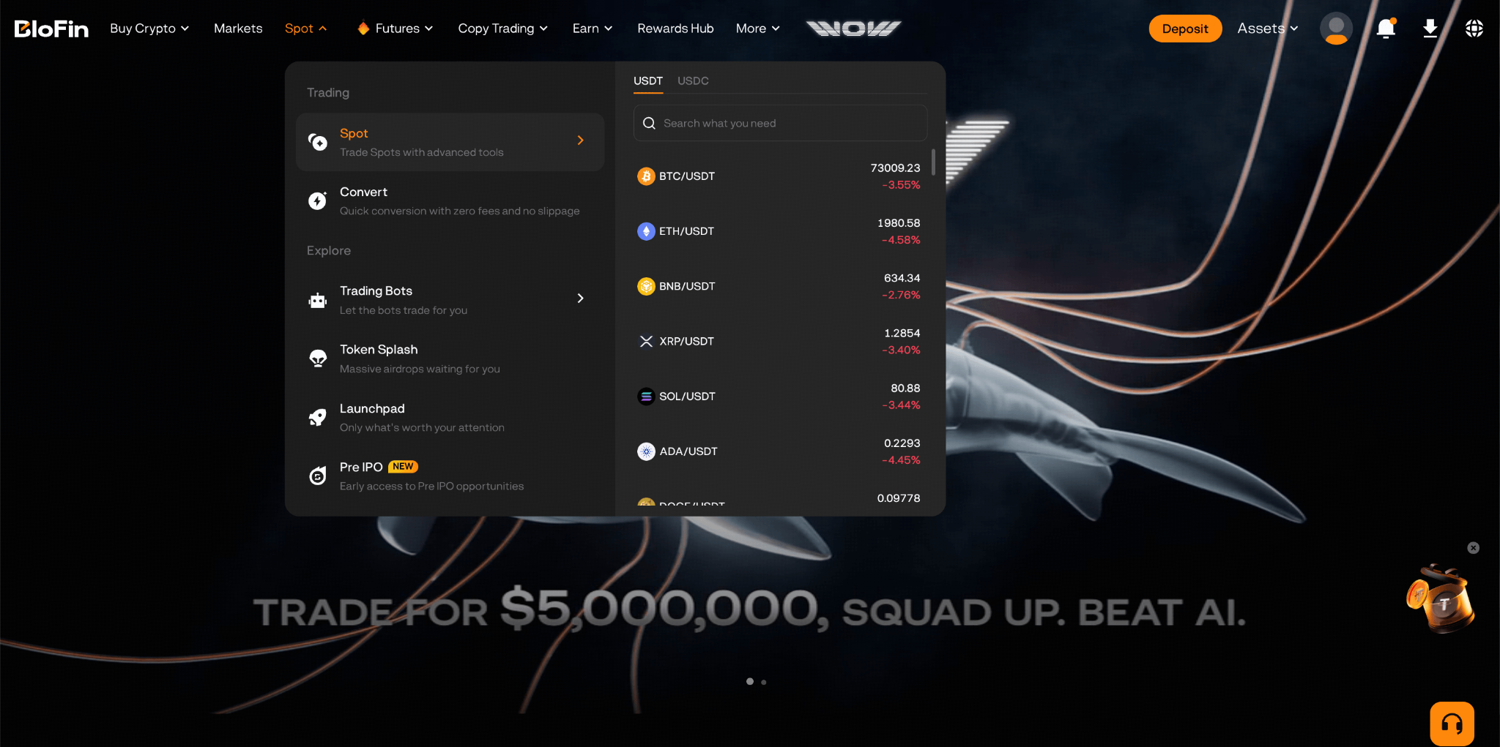
Step 1: Log in to your BloFin account and hover your cursor over the Spot tab in the top navigation bar. Then, select Spot.
Step 2: Hover over the BTC/USDT pair and use the search bar or the asset list to find the trading pair you want to close. In the order panel, select Sell.
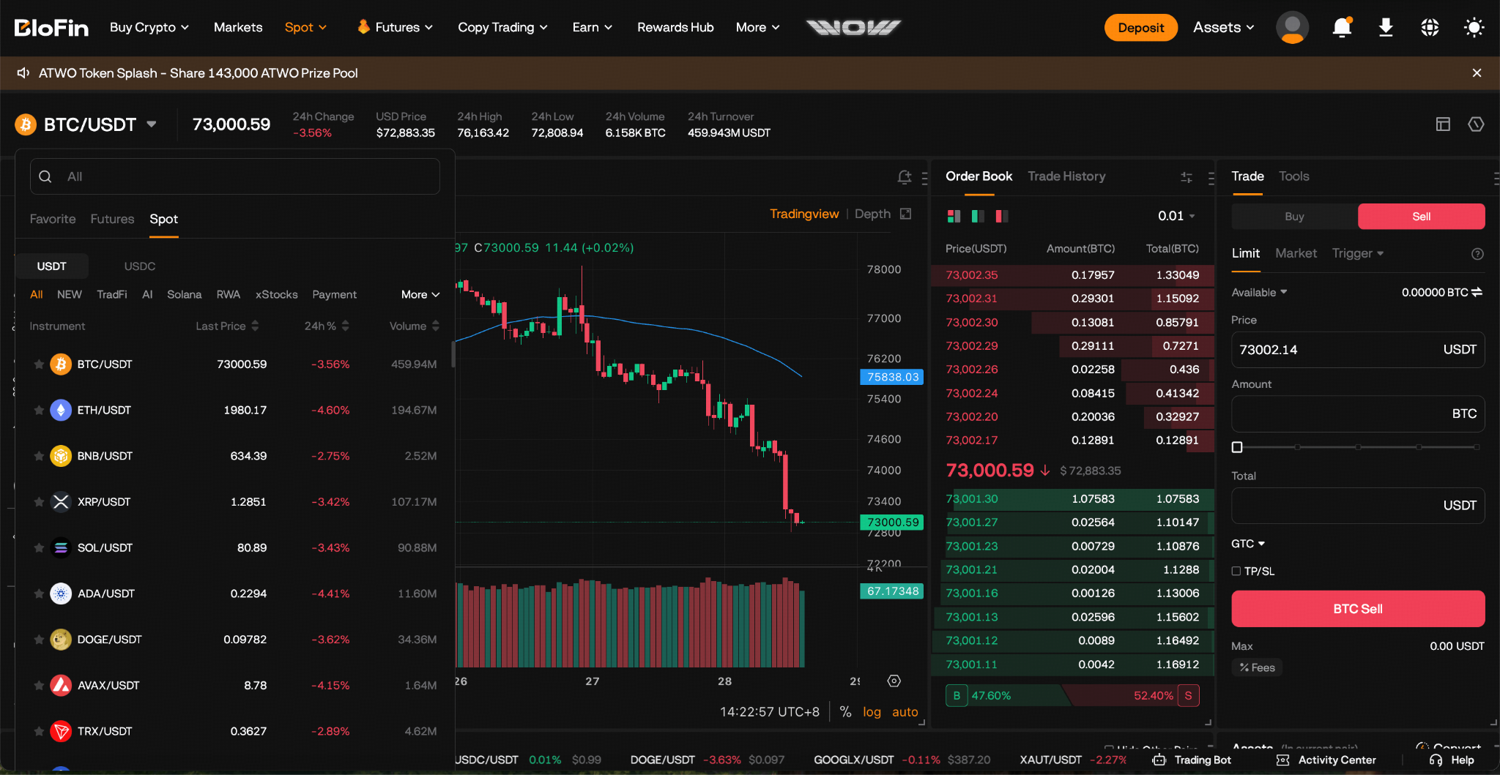
Step 3: Choose your order type:
Limit: sets the price you want to sell at. The order sits on the book until the market reaches your level. Better for exits where you have a specific target price in mind.
Market: sells immediately at the best available price. Use this when you need to exit fast.
Trigger: activates a sell order only when the market reaches a specified trigger price. Useful for setting a conditional exit without watching the screen.
TP/SL: sets an automatic exit at a take-profit or stop-loss level. The position closes when the market hits your specified price.
Scaled order: splits your sell across multiple price levels. Useful if you want to exit a larger spot position gradually rather than at a single price.
Step 4: Enter the amount you want to sell.
Step 5: Click Sell to submit.
How to close a futures position
Futures positions stay open until you actively close them, they hit a TP/SL trigger, or they're liquidated. The Positions tab is the clearest place to manage this.
Closing from the Positions tab (recommended)
The Positions tab gives you a full view of each open trade before you close: entry price, current P&L, position size, and estimated liquidation price. It's the clearest way to manage exits.
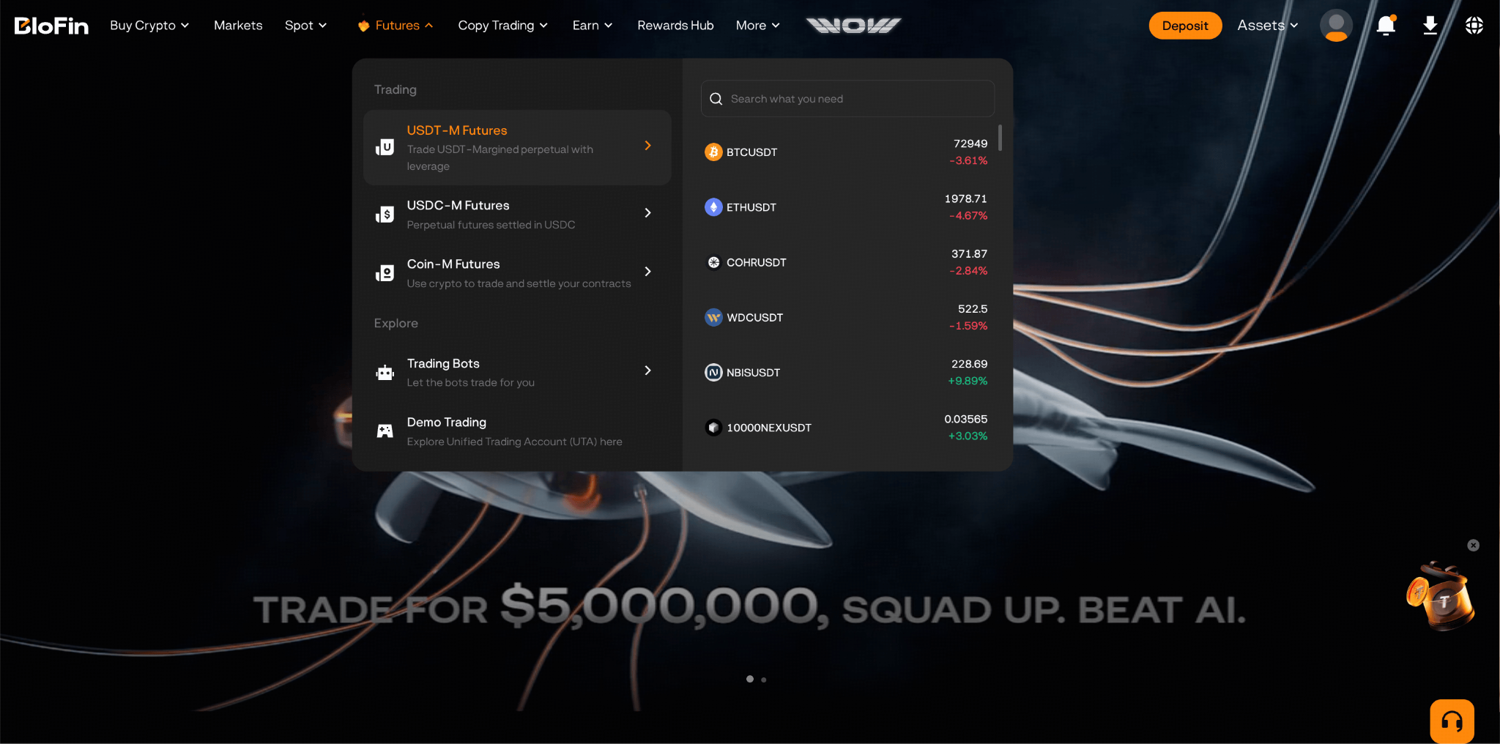
Step 1: Log in to your BloFin account and hover your cursor over the Futures tab in the top navigation bar. Then, select your contract type (USDT-M is the most common).
Step 2: At the bottom of the futures trading screen, click on the Positions tab.
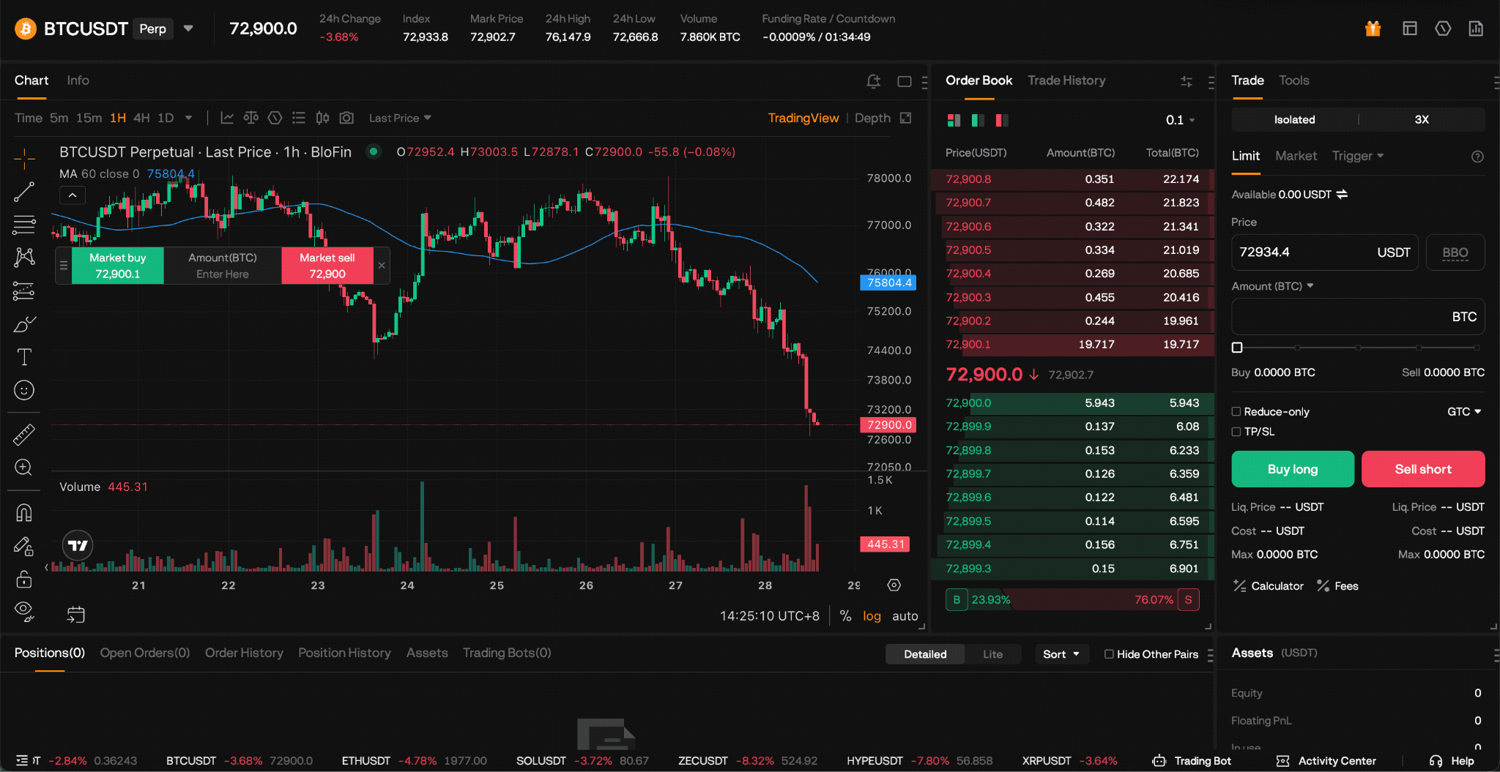
Step 3: Find the position you want to close and click Close.
Step 4: Choose your closing order type: Limit (you control the exit price) or Market (closes immediately at the best available price).
Step 5: Enter the price (for limit orders) and the amount you want to close.
Step 6: Tap Confirm.
Closing from the trading page
Step 1: Navigate to the same futures pair as your open position.
Step 2: To close a long, place a Sell order. To close a short, place a Buy order.
Step 3: Enter the price and size, and confirm.
This is faster if you're already in the order panel, but you'll need to know your exact position size beforehand. The Positions tab approach is generally cleaner.
Limit vs market close: What it means for your fees
Closing with a limit order means the order sits on the book and fills as a maker order, which carries a lower fee (0.0200% on futures). Closing with a market order fills immediately as a taker order at 0.0600%. If you're closing a large position and price isn't urgent, a limit close is the more cost-effective choice.
Partial close: Scaling out of a position
You don't have to exit everything at once. A partial close lets you take some profit or reduce exposure while keeping the rest of the position open.
To partially close, follow the same steps as a standard close but enter only the portion of the position you want to exit in the Amount field. The remaining position stays open with its original margin and leverage settings.
Scaling out is a common approach when a trade is going well. Closing a portion locks in realized gains while leaving room to benefit if the market continues in your favour.
Close All: Exiting everything at once
The Close All function in the Positions tab closes every open futures position in one action using market orders.
Step 1: In the Positions tab, click Close All.
Step 2: Confirm. All open positions close immediately at market price.
Because Close All uses market orders, the exact fill prices depend on available liquidity at the time of execution. It's designed for situations where you need to exit the market quickly rather than optimize each exit price.
Reverse: Flipping your position in one move
The Reverse function closes your current futures position and immediately opens an equal position in the opposite direction, both executed as market orders. If you're long and want to go short without placing two separate orders, Reverse does it in a single action.
To use it, find the option on your open position in the Positions tab and confirm.
Note: if your available balance can't cover an equal opposite position, a smaller one will be opened based on what's available. The reversed position size is also subject to market order limits.
Closing automatically with TP/SL
Setting a TP/SL means you don't need to watch the market for your exit. BloFin gives you two modes for futures.
Entire Position TP/SL closes the full position when the market hits your trigger price. You set a take-profit trigger, a stop-loss trigger, or both. When triggered, the position closes as a market order. You can only have one entire position TP/SL active per position at a time.
Partial Position TP/SL closes only a specified portion of the position. Useful for locking in partial gains while keeping some exposure. You can have multiple partial TP/SL orders on the same position. You can also choose whether the exit executes as a limit order (at your set price) or a market order (immediately when triggered) by ticking the Limit option.
For spot, TP/SL can be set when placing your sell order to automatically close at your target price.
TP/SL orders execute on the server side, so they trigger even when you're offline. The position closes when the market hits your specified level regardless of whether you're logged in.
How to add TP/SL to an existing futures position
Step 1: Go to the Positions tab and find the position.
Step 2: Click the TP/SL option next to it.
Step 3: Choose Entire Position or Partial Position.
Step 4: Enter your trigger prices and, for partial TP/SL, the amount you want to close.
Step 5: Confirm.
When to close: Thinking through your exit
There's no universal rule, but having a plan before you enter makes the exit decision significantly easier.
Set your exit at entry. Define your profit target before entering and set a take-profit at that level. Removes the guesswork and emotion from the exit.
Scaling out as the trade moves in your favour. Close a portion at each target level and let the remainder run. Locks in gains progressively while keeping upside exposure.
Closing before a major event. Protocol updates, economic announcements, and other known catalysts can cause sharp price moves. Reducing or closing exposure ahead of known events is a straightforward risk management approach.
Closing when the trade thesis no longer holds. Sometimes the market structure changes before your target or stop-loss is reached. If the reason you entered the trade is no longer valid, that's often a more reliable exit signal than waiting for a predetermined price level.
After you close: What's next
Once a position is closed, a few natural next steps are worth considering.
Your closed position details, including entry price, exit price, realized P&L, and fees paid, are visible in Order History and Position History. Reviewing this after each trade builds an accurate picture of your performance over time and highlights patterns worth adjusting.
If you have funds sitting idle in your Futures Account after closing, you can transfer them back to your Funding Account and put them to work through BloFin Earn while you decide on your next trade. Simple Earn lets you earn daily interest on USDT, ETH, and BTC with flexible terms.
If you're not ready to actively trade again but want to stay in the market, Copy Trading lets you follow experienced traders automatically without needing to manage positions yourself.
Frequently asked questions
What's the fastest way to close a futures position?
A market close from the Positions tab. Tap the position, select Close, choose Market, and confirm. It fills immediately at the best available price.
Can I close just part of my position?
Yes. When closing from the Positions tab, enter a partial amount in the quantity field. The rest of the position stays open with the same leverage and margin.
What's the difference between Entire Position and Partial Position TP/SL?
Entire Position TP/SL closes the full position when the trigger price is hit. Partial Position TP/SL closes only a specified portion, leaving the rest open. You can set multiple partial TP/SL orders on the same position. You can only have one entire position TP/SL active per position.
Does TP/SL work when I'm offline?
Yes. BloFin executes TP/SL orders server-side. You don't need to be logged in. The position closes when the market hits your trigger price.
What's the difference between a limit close and a market close?
A limit close places an order at a price you specify and fills as a maker order at a lower fee (0.0200% for futures). A market close fills immediately as a taker order at 0.0600% for futures. If the exact exit price matters, use a limit close. If speed matters more, use a market close.
What does the Reverse function do?
Reverse simultaneously closes your current futures position and opens an equal one in the opposite direction, both as market orders. It's a way to flip your market direction in one step rather than placing two separate orders.
Can I close multiple specific positions at once without using Close All?
Close All exits every open position. To close a specific selection, you'll need to close each one individually from the Positions tab. There isn't currently a way to select a subset for simultaneous closure.
Where can I see my closed trades?
Go to Order History for filled orders and Position History for closed futures positions. Both show entry price, exit price, realized P&L, fees paid, and timestamps.
Disclaimer: This content is for educational purposes only and does not constitute financial, investment, legal, or tax advice. Crypto assets are highly volatile and carry significant risk of loss. Always verify local regulations and consult a qualified professional before making financial decisions.