
Leverage Adjustment Upgrade: Modify Your Leverage With Open Orders
June 24, 2026 at 05:08 PMBloFin has upgraded its leverage adjustment feature. You can now modify the leverage of a position even when you have open (unfilled) orders on the same contract — there's no need to cancel your pending orders first. When you adjust your leverage, BloFin automatically recalculates your margin and syncs the leverage on your related open orders for you.
This article explains what's new, how to adjust your leverage step by step, and what happens to your margin and orders.
What's New in This Upgrade?
Previously, leverage adjustment was blocked whenever you had open (unfilled) orders on the same trading pair — specifically, under Cross margin mode when you had open orders on the same trading pair, and under Isolated margin mode when you had open orders on the same trading pair in the same direction. With this upgrade, both scenarios are now fully supported. You can change your leverage directly while those orders remain open, with no need to cancel them — and no margin-mode conditions for you to manage. BloFin will automatically recalculate the margin for your position and open orders based on the new leverage, and update the leverage on your related open orders accordingly.
Key Points About Adjusting Leverage With Open Orders:
1. No need to cancel pending orders: The feature supports all order types — limit, market, trigger, TP/SL, and more — so you don't have to cancel any open orders before adjusting your leverage.
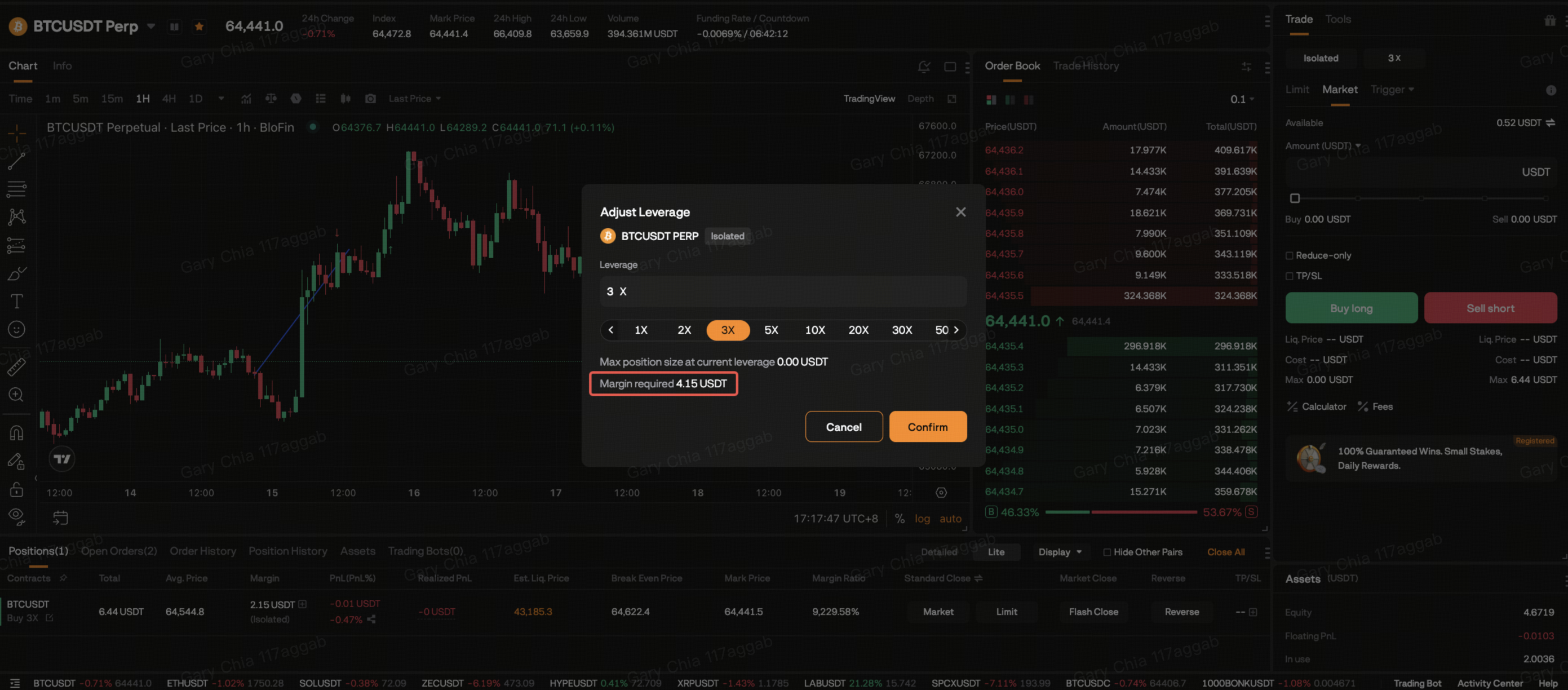
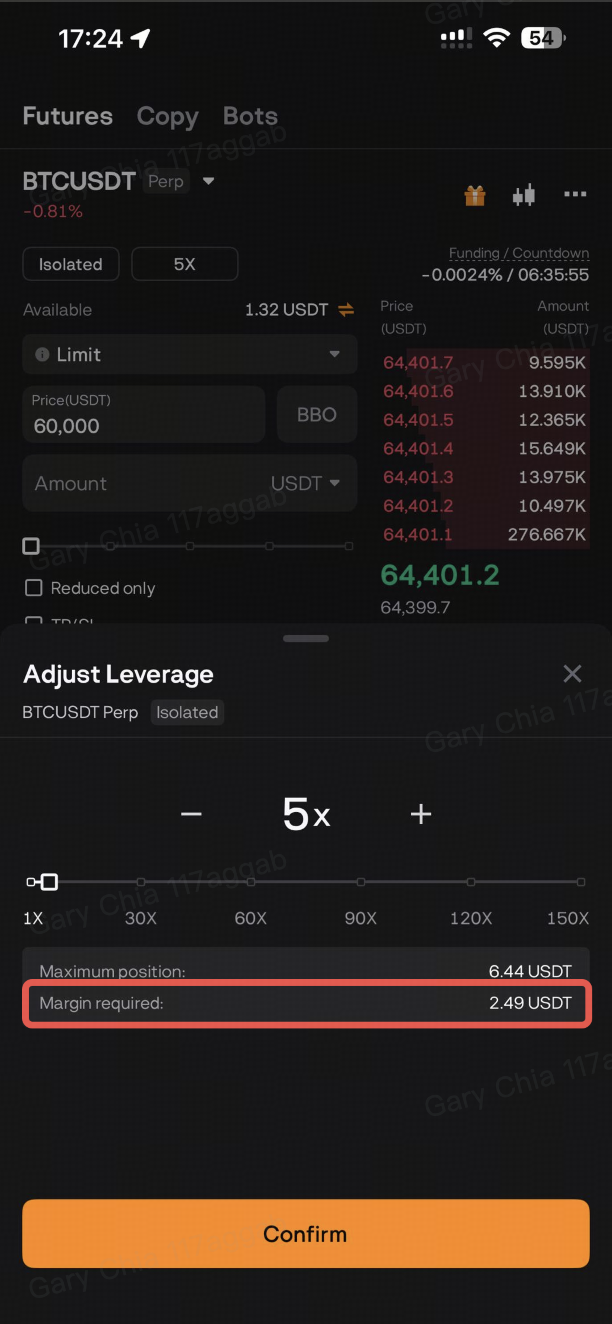
2. Real-time margin preview: While you adjust your leverage, the "Margin Required" field in the Adjust Leverage pop-up window dynamically displays the total margin needed for both your position and its corresponding open orders at the new leverage, giving you full visibility into your margin and capital efficiency before confirming.
3. Open orders stay in sync: The leverage on your related open orders is updated automatically to match your position's new leverage.
4. Works under both Cross and Isolated margin modes: You can now adjust leverage with open orders in place under both margin modes — scenarios that were previously restricted. There are no margin-mode conditions for you to manage; just adjust your leverage as usual.
How to Adjust Leverage on Web
Step 1: Navigate to Futures Trading
- Tap Futures and select your preferred trading pair (e.g., BTCUSDT).
Step 2: Set Your New Leverage
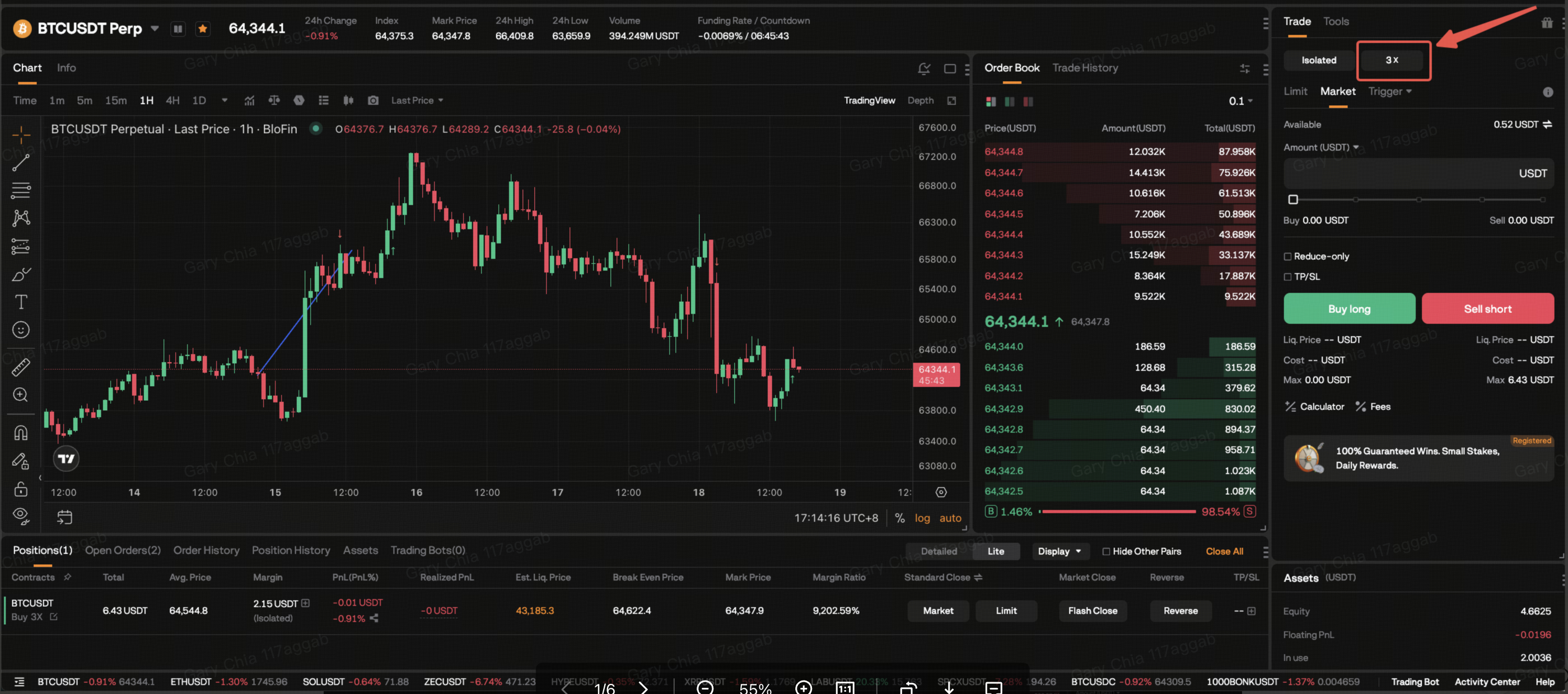
- Click the Leverage Adjustment button on the right side of the interface, typically displayed as a multiplier (e.g., 3x).
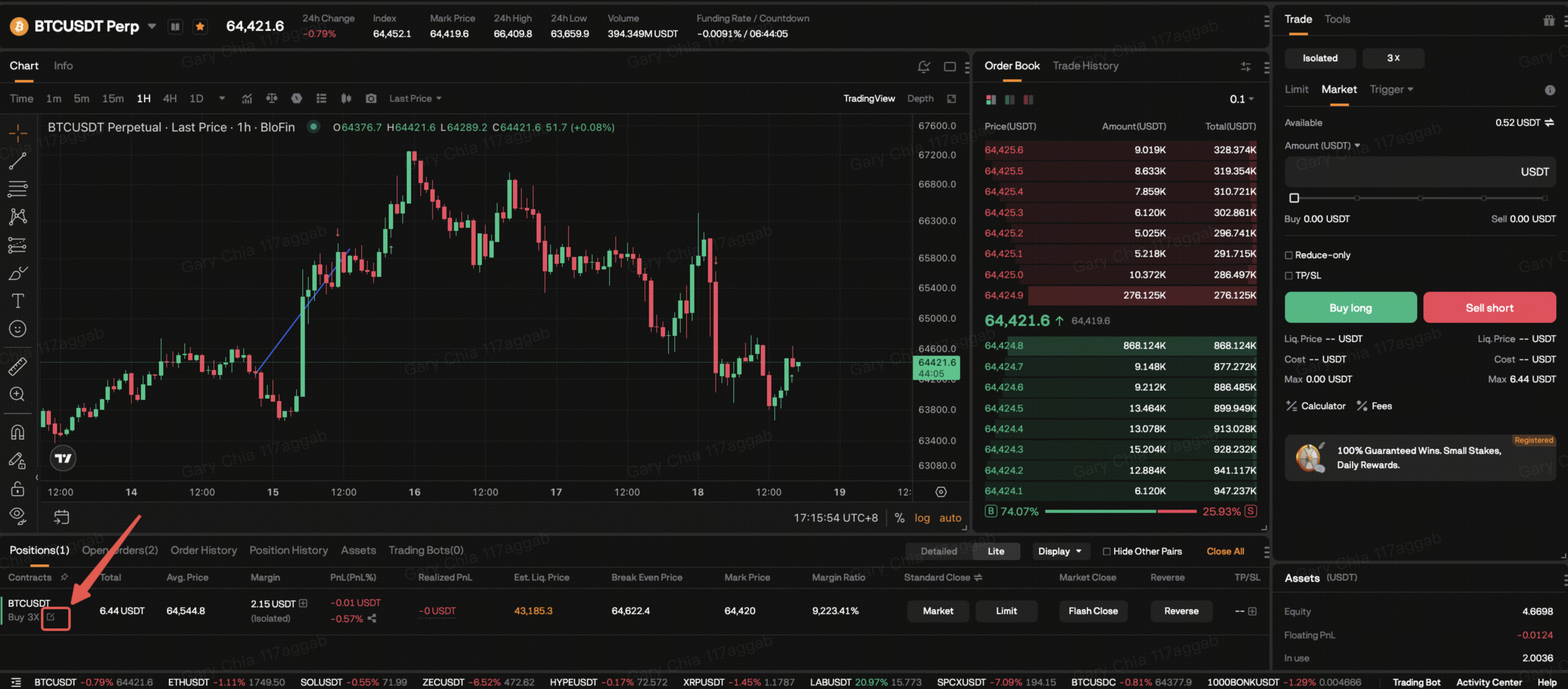
Or click the Leverage Adjustment button under the Contracts section in the Positions panel of the trading page.
- Use the slider or manually enter your desired leverage level, then check the "Margin Required" field to see the total margin needed for your position and open orders at the new leverage.
Step 3: Confirm
- Click Confirm to save and apply the new leverage. You'll see a "Success" message once the change is applied.
How to Adjust Leverage on App
Step 1: Navigate to Futures Trading
- Open the Futures trading section and select your preferred trading pair (e.g., BTCUSDT).
Step 2: Set Your New Leverage
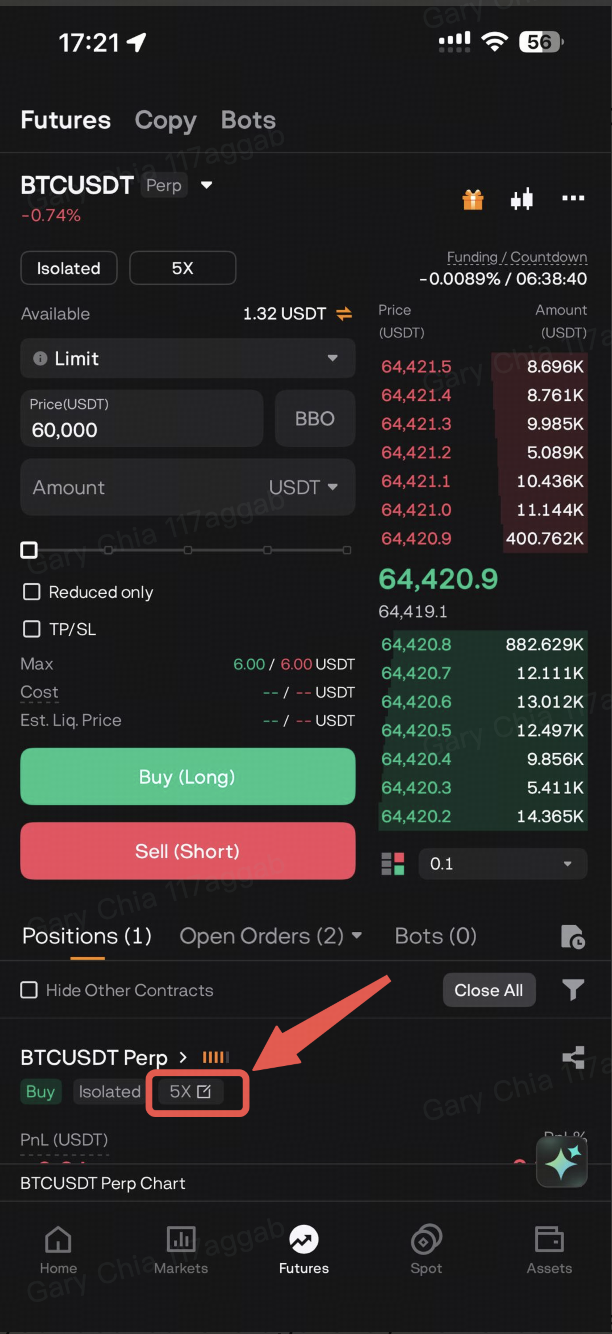
- Tap the Leverage Adjustment button on the top of the interface, typically displayed as a multiplier (e.g., 3x).
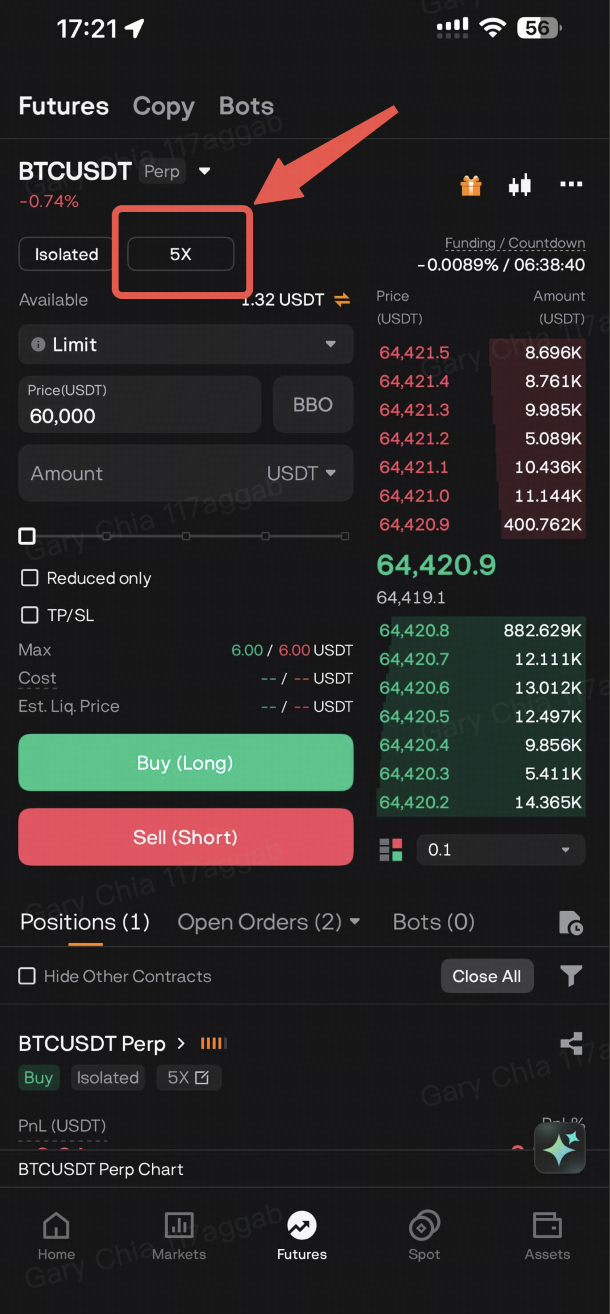
Or tap the Leverage Adjustment button in the Positions panel of the trading page.
- Use the slider or manually enter your desired leverage level, then check the "Margin Required" field to see the total margin needed for your position and open orders at the new leverage.
Step 3: Confirm
- Tap Confirm to save and apply the new leverage.
Tips for Adjusting Leverage
1. Watch your margin: Lowering your leverage increases your margin requirement — make sure you have enough available balance before you decrease it.
2. Mind your liquidation price: Higher leverage reduces your margin buffer and brings your estimated liquidation price closer to your entry price.
3. Check your surplus margin (Isolated): When you increase leverage on an Isolated position, the freed-up margin stays in the position. You can manually transfer it out if you'd like to use it elsewhere.