
How to Set up a BloFin Trading Signal Bot with TradingView?
June 7, 2025 at 06:21 PMWith the launch of Signal Bots, TradingView users and signal suppliers can now publish and set up a Signal Bot with their TradingView signals. Follow the step-by-step guide below to start trading with signals on BloFin.
Kindly use the following link to access a comprehensive guide detailing the specifications for alert messages: Alert Message Specifications.
Should you encounter any difficulties, please consult the guide containing a list of frequently asked questions in FAQs. This resource is designed to assist you in resolving any issues you may encounter while using the product.
Step 1: Access the Signal Bot
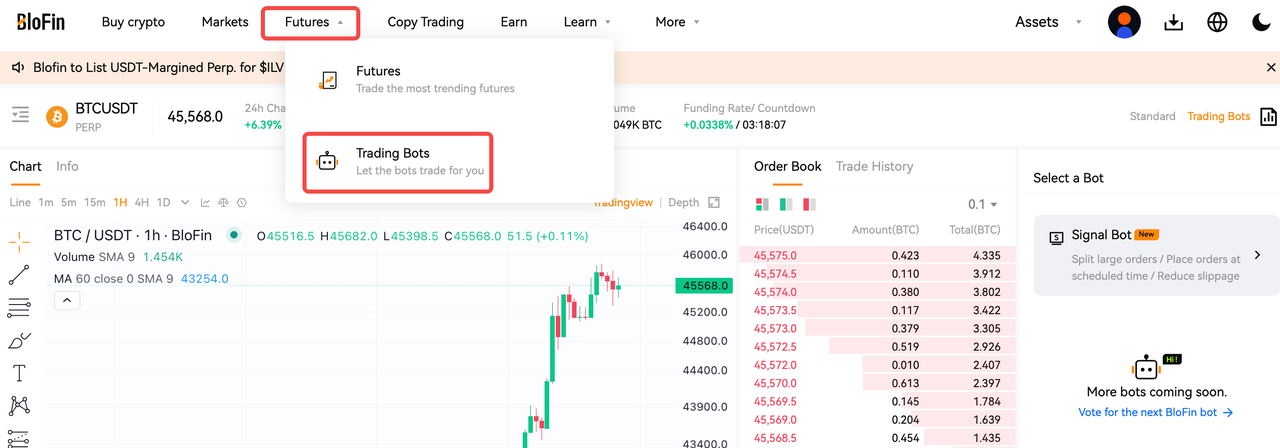
- Log in to your BloFin account, and navigate to Futures -> Trading Bots.
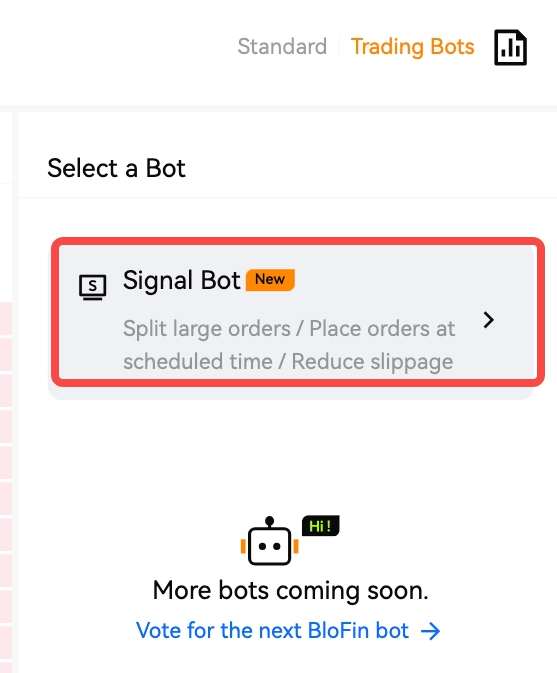
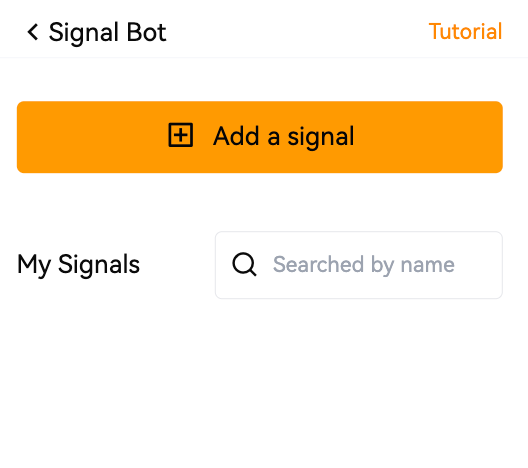
- Select the Signal Bot -> Add a Signal to enter the [Add a TradingView signal] interface.
Step 2: Create your Signal
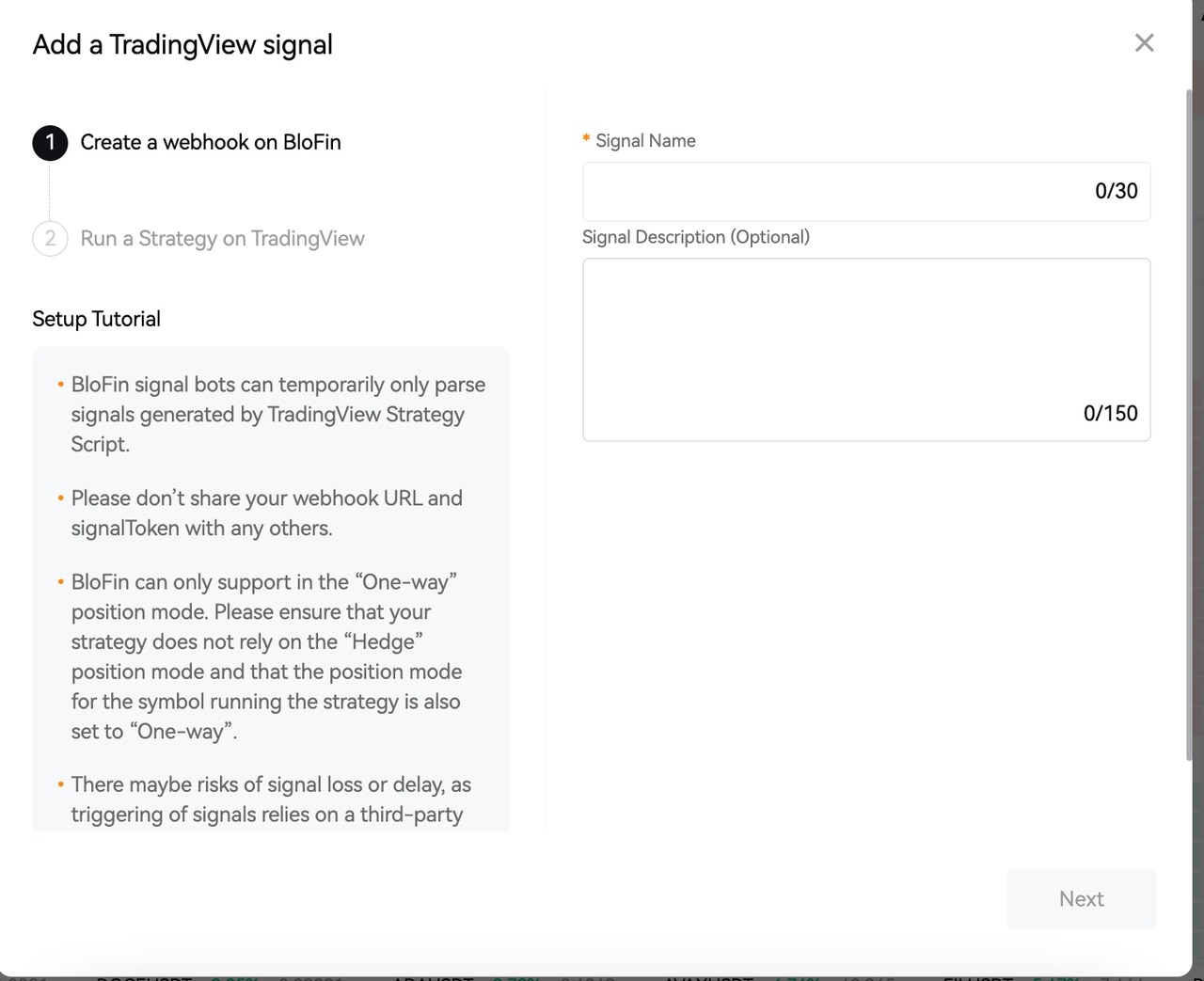
- We have simplified the experience to help users quickly set up their TradingView signals. Create a webhook on BloFin. On the [Add a TradingView Signal] interface, you may name your signal (up to 30 characters long) and insert an optional description of the signal (up to 150 characters long). Once done, click 'Next'.
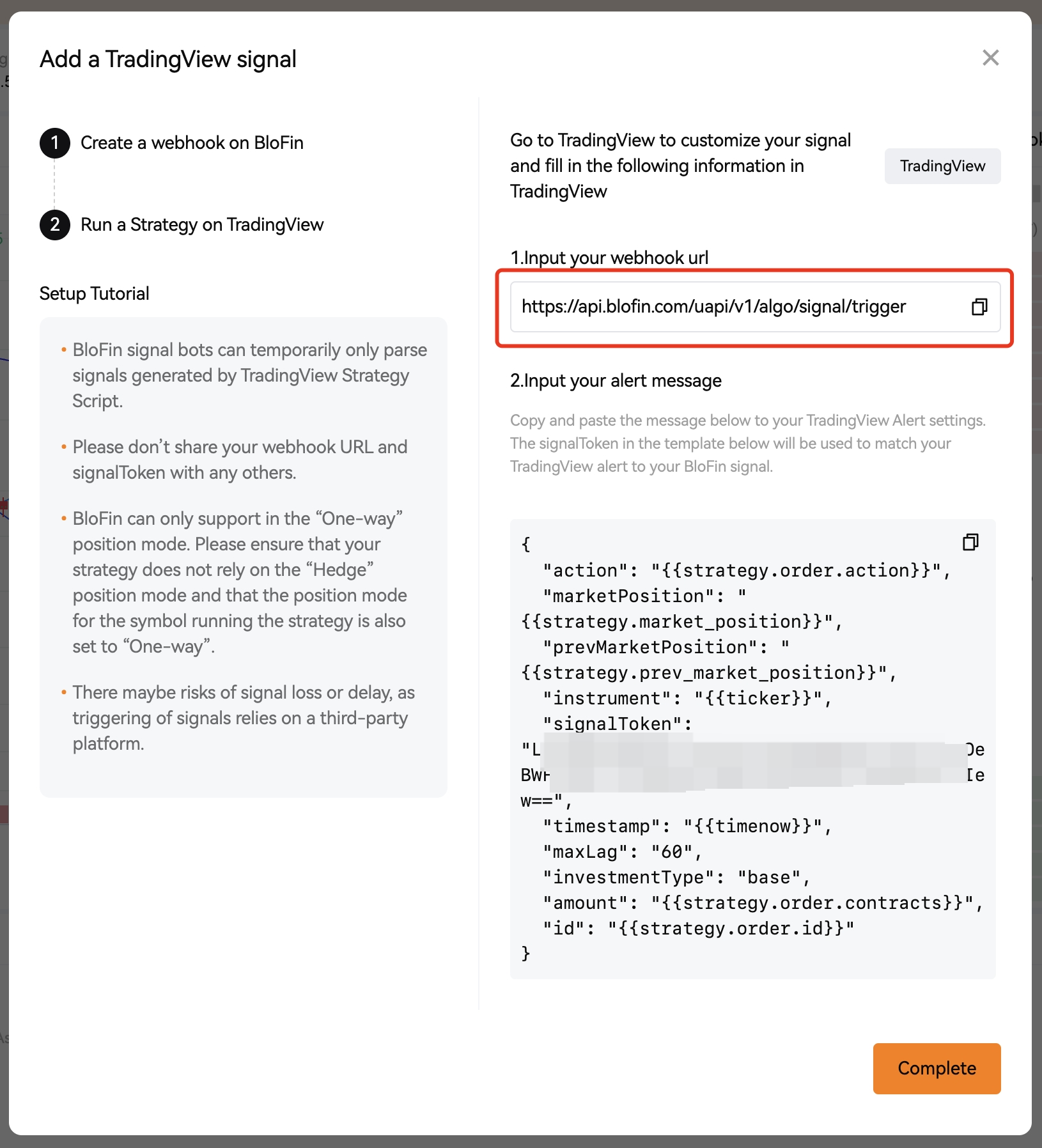
- Run a Strategy on TradingView. The next page prompts you to add the Webhook URL and AlertMsg Specification that is auto-generated by BloFin. From here, click [TradingView] to directly access the TradingView website to customize your signal and fill in the Webhook URL and AlertMsg Specification.
"TradingView": Geared towards users who utilize TradingView strategy scripts, particularly those employing strategy.*() functions for signal transmission.
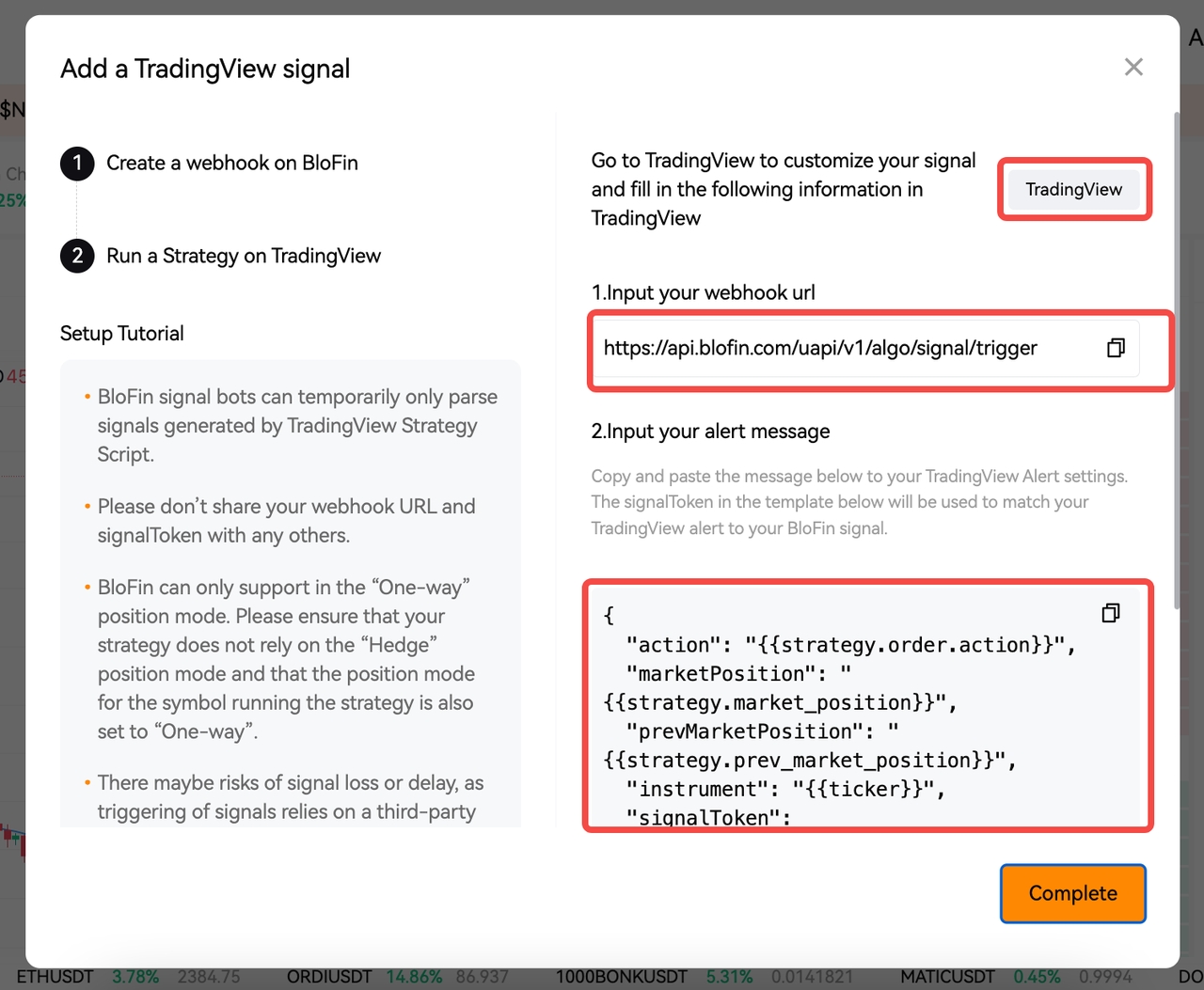
Step 3: Configure TradingView alerts
Kindly use the following link to access a comprehensive guide detailing the specifications for alert messages: Alert Message Specifications.
To begin, open TradingView and pick the trading pair you want to work with. (Please ensure you're selecting the appropriate perpetual swap contract.)
You can access the complete list of perpetual swaps supported on BloFin through the pair selection list available on the Trade page.
TradingView Strategy Scripts Guide: For Pinescript strategy creators who utilize the strategy.*() functions
Step 1: Configure your strategy script in Pine Editor, and click "Save" and "Add to chart". Alternatively, if you have an existing strategy script, add it to your chart.
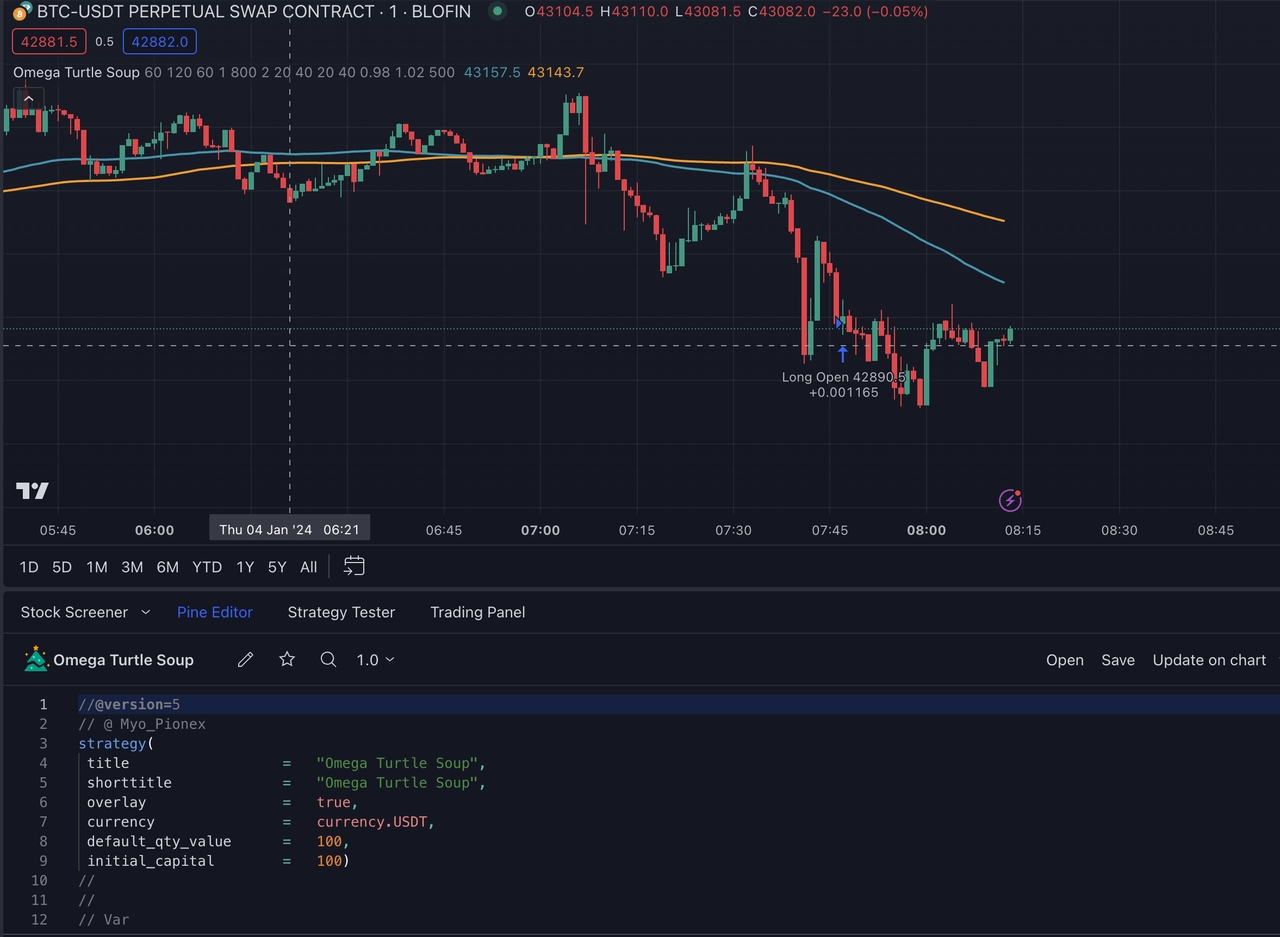
Step 2: Select the gear icon associated with the strategy you've added to your chart. Adjust your strategy properties like your order size according to your preferences. Once done, click "OK" to finalize the settings.
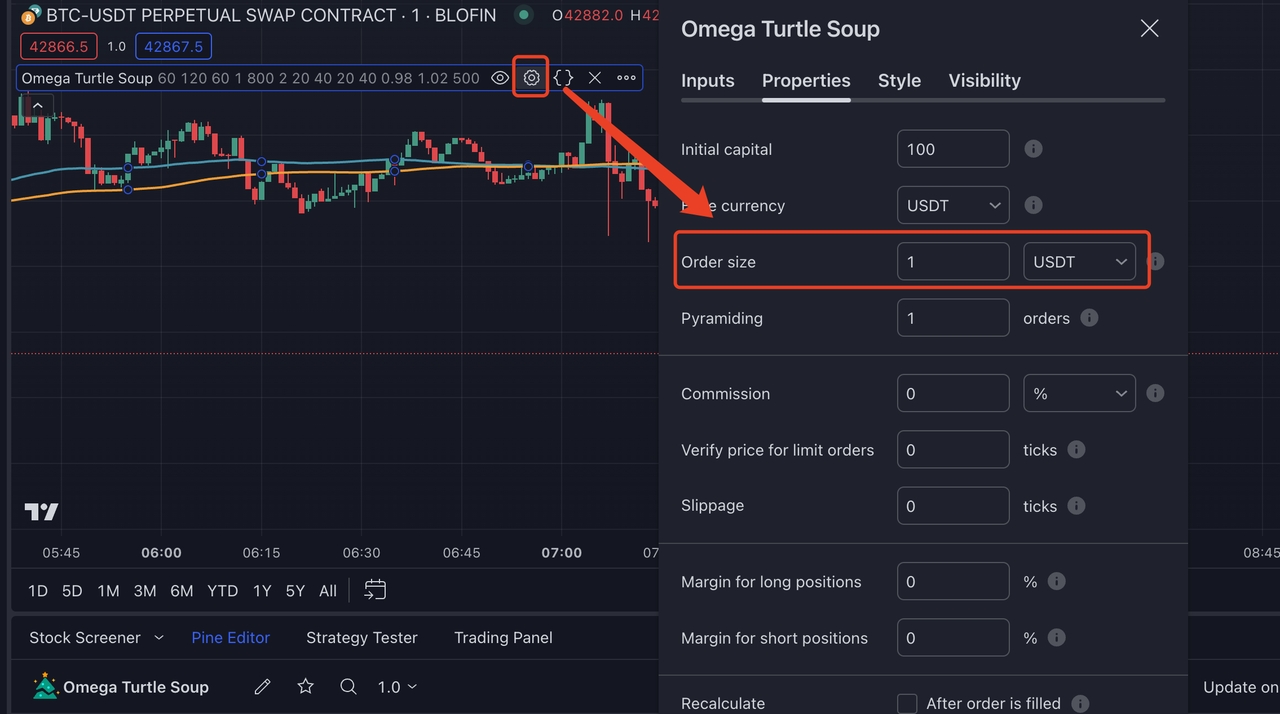
How do I align my TradingView strategy order settings with BloFin?
In your TradingView strategy, you have three options for configuring order parameters: You can define your "order size" in terms of USDT, the number of contracts, or as a percentage of equity based on your Initial Capital. While all of these approaches can ultimately be adapted for use on BloFin, it's essential to have a clear understanding of how each method operates on TradingView and how it translates onto the BloFin platform. Here's a concise overview of the different scenarios to guide you through this process.
- Order size: USDT
This approach is straightforward and user-friendly. You input your order size directly in absolute terms using your quote currency, USDT. When conducting TradingView backtesting, this value will serve as the basis for all your order placements.
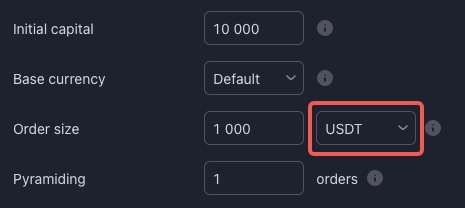
To ensure seamless compatibility with BloFin, remember to set your "investmentType" to "base" and configure "amount" as "{{strategy.order.contracts}}". By following these specifications, your order on BloFin will align precisely with your intended TradingView strategy.
{
"id": "{{strategy.order.id}}",
"action": "{{strategy.order.action}}",
"marketPosition": "{{strategy.market_position}}",
"prevMarketPosition": "{{strategy.prev_market_position}}",
"instrument": "{{ticker}}",
"signalToken": "********", //enter the signalToken for your signal
"timestamp": "{{timenow}}",
"maxLag": "60",
"investmentType": "base",
"amount": "{{strategy.order.contracts}}"
}
- Order size: Contracts
A pivotal distinction to recognize is that the concept of "contracts" is defined differently on TradingView and BloFin. On TradingView, a contract represents a single unit of the perpetual swap at the prevailing price (equivalent to one unit of base currency i.e. one contract of BTCUSDT perp is equivalent to purchasing 1 BTC worth). Conversely, on BloFin, the "contract sizes" are unique for each perpetual swap contract (e.g. One contract of BTCUSDT perp is equivalent to purchasing 0.001 BTC worth). More information about BloFin contract sizes is available here.
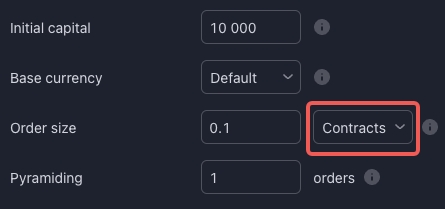
To ensure seamless alignment with BloFin, it's vital to configure your "investmentType" as "base" and set "amount" to "{{strategy.order.contracts}}". Notably, on TradingView, the "{{strategy.order.contracts}}" placeholder effectively corresponds to the amount in the base currency. This choice of "investmentType" as "base" facilitates direct compatibility. Adhering to these specifications guarantees that your orders on BloFin perfectly mirror your intended TradingView strategy.
{
"id": "{{strategy.order.id}}",
"action": "{{strategy.order.action}}",
"marketPosition": "{{strategy.market_position}}",
"prevMarketPosition": "{{strategy.prev_market_position}}",
"instrument": "{{ticker}}",
"signalToken": "********", //enter the signalToken for your signal
"timestamp": "{{timenow}}",
"maxLag": "60",
"investmentType": "base",
"amount": "{{strategy.order.contracts}}"
} - Order size: % of equity
When utilizing "% of equity," it's crucial to comprehend that your equity commences with the value you specify as your Initial Capital. Subsequently, your equity is defined and evaluated through your TradingView backtesting.
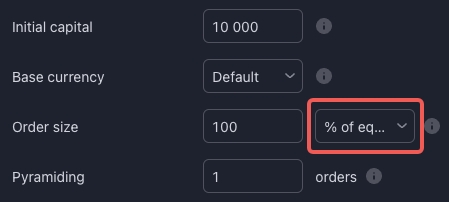
While it's possible to emulate this by configuring "investmentType" as "base" and "amount" as "{{strategy.order.contracts}}" (as depicted below), it's essential to bear in mind that the values derived from this method are heavily influenced by backtesting calculations. In a real-world scenario, discrepancies between backtesting and live trading can occur, as backtesting is designed for approximate estimations rather than precise order execution. Therefore, it's advisable to set your order size definitions in either USDT or contract terms on TradingView.
{
"id": "{{strategy.order.id}}",
"action": "{{strategy.order.action}}",
"marketPosition": "{{strategy.market_position}}",
"prevMarketPosition": "{{strategy.prev_market_position}}",
"instrument": "{{ticker}}",
"signalToken": "********", //enter the signalToken for your signal
"timestamp": "{{timenow}}",
"maxLag": "60",
"investmentType": "base",
"amount": "{{strategy.order.contracts}}"
}
Step 3: Click on the "Alert" on the top toolbar, and change "Condition" to the script just added to the chart with "Order fills only". The expiration could also be selected as an "Open-ended alert" for convenience.
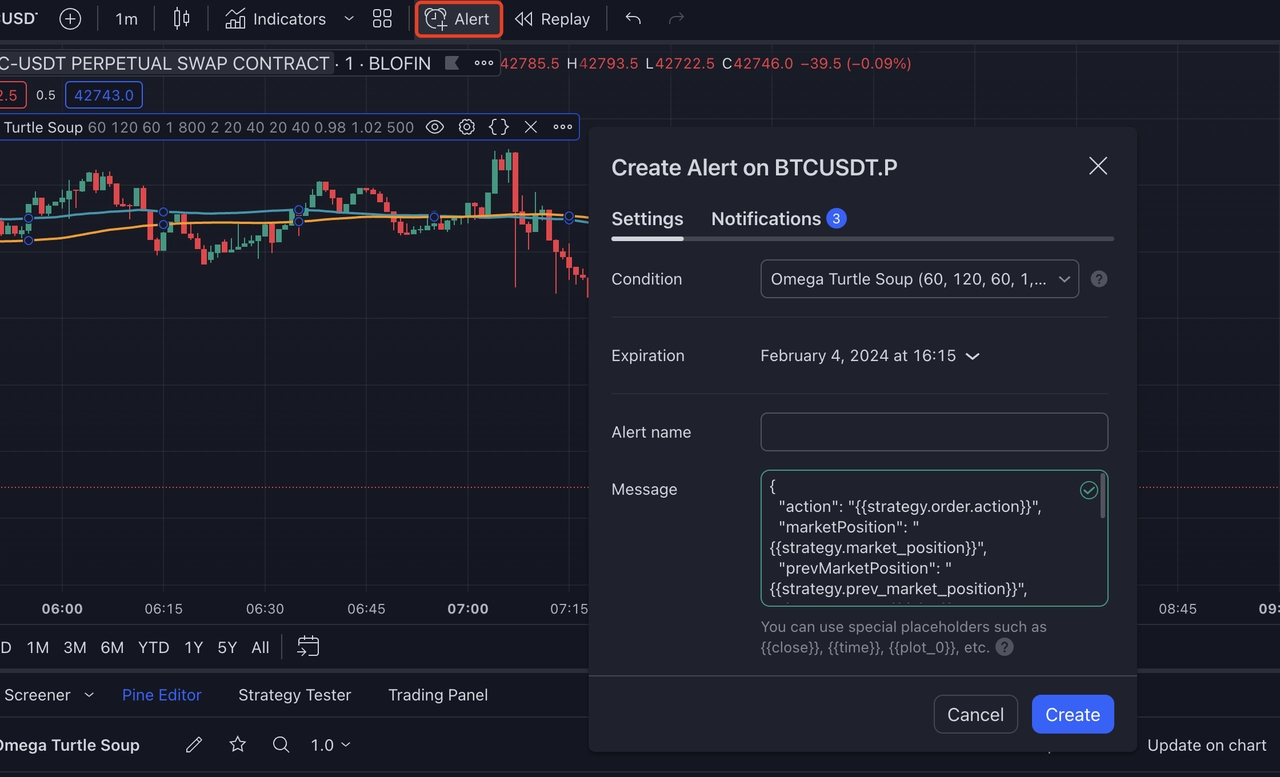
Step 4: Retrieve the alert message template from the TradingView tab within the BloFin Alert Message Specification on your BloFin Signal. Subsequently, paste this template into the "Message" section of your TradingView alert, along with a corresponding Alert Name of your choosing.
If you wish to make any modifications to the recommended template for your alert message, you're welcome to do so, ensuring that the changes adhere to our Alert Message Specifications provided here.
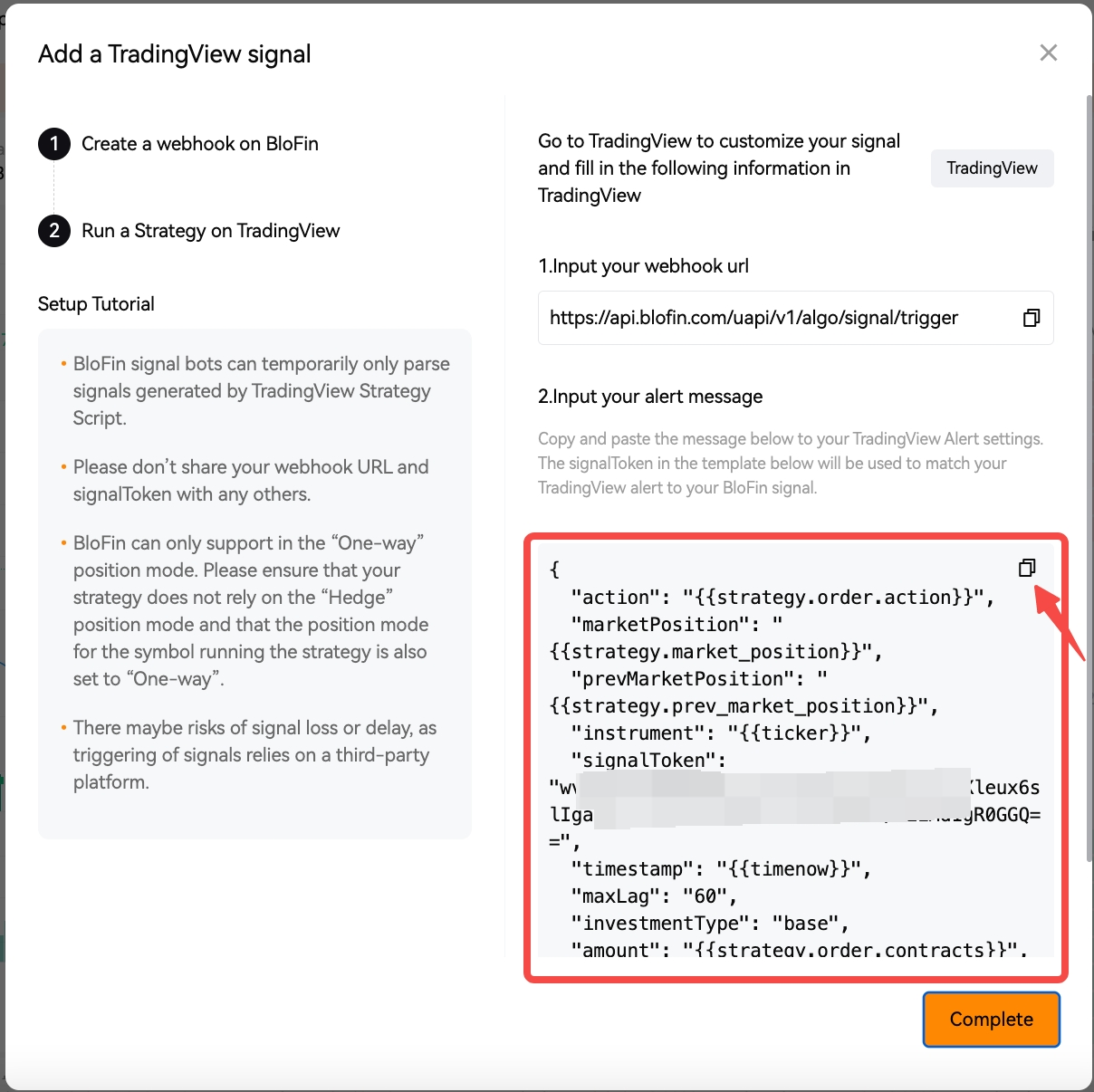
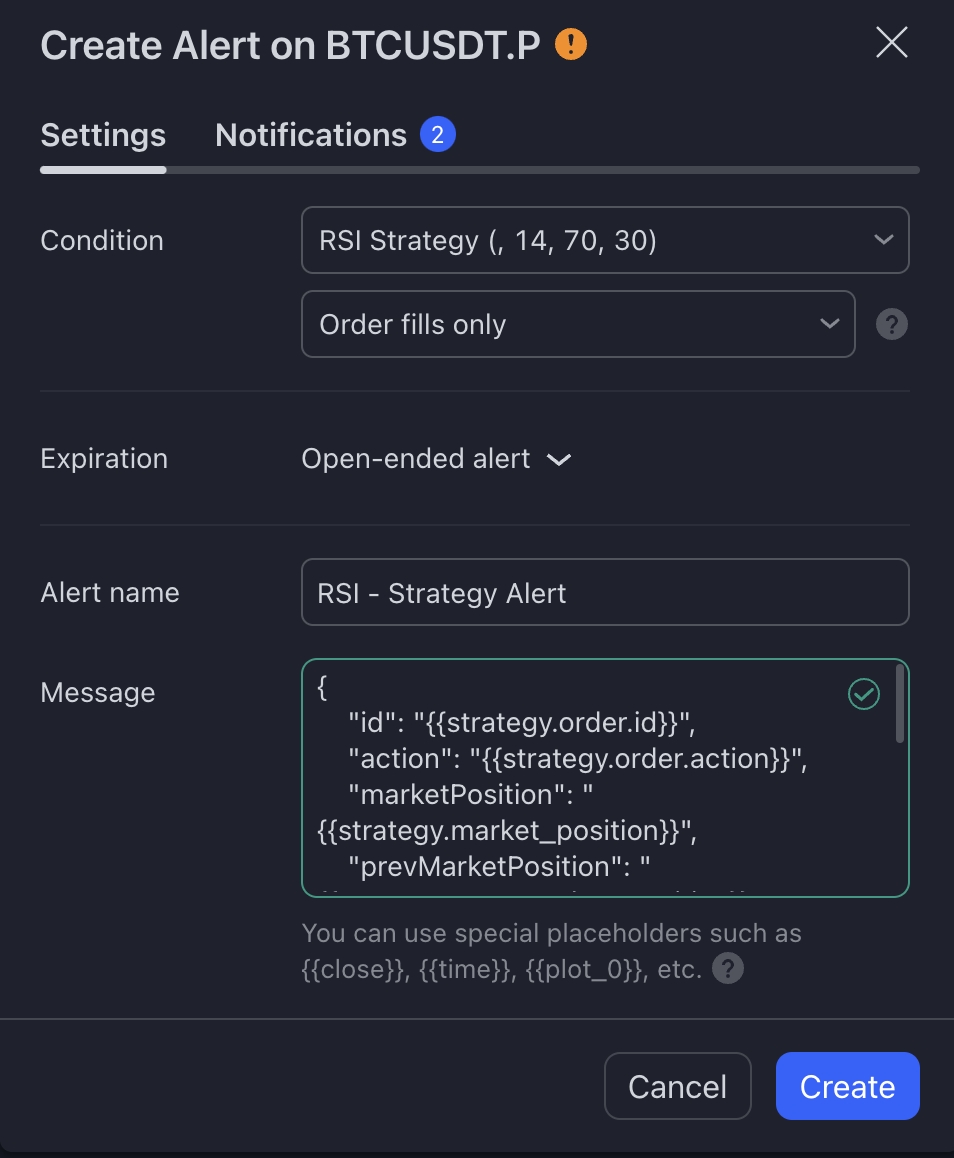
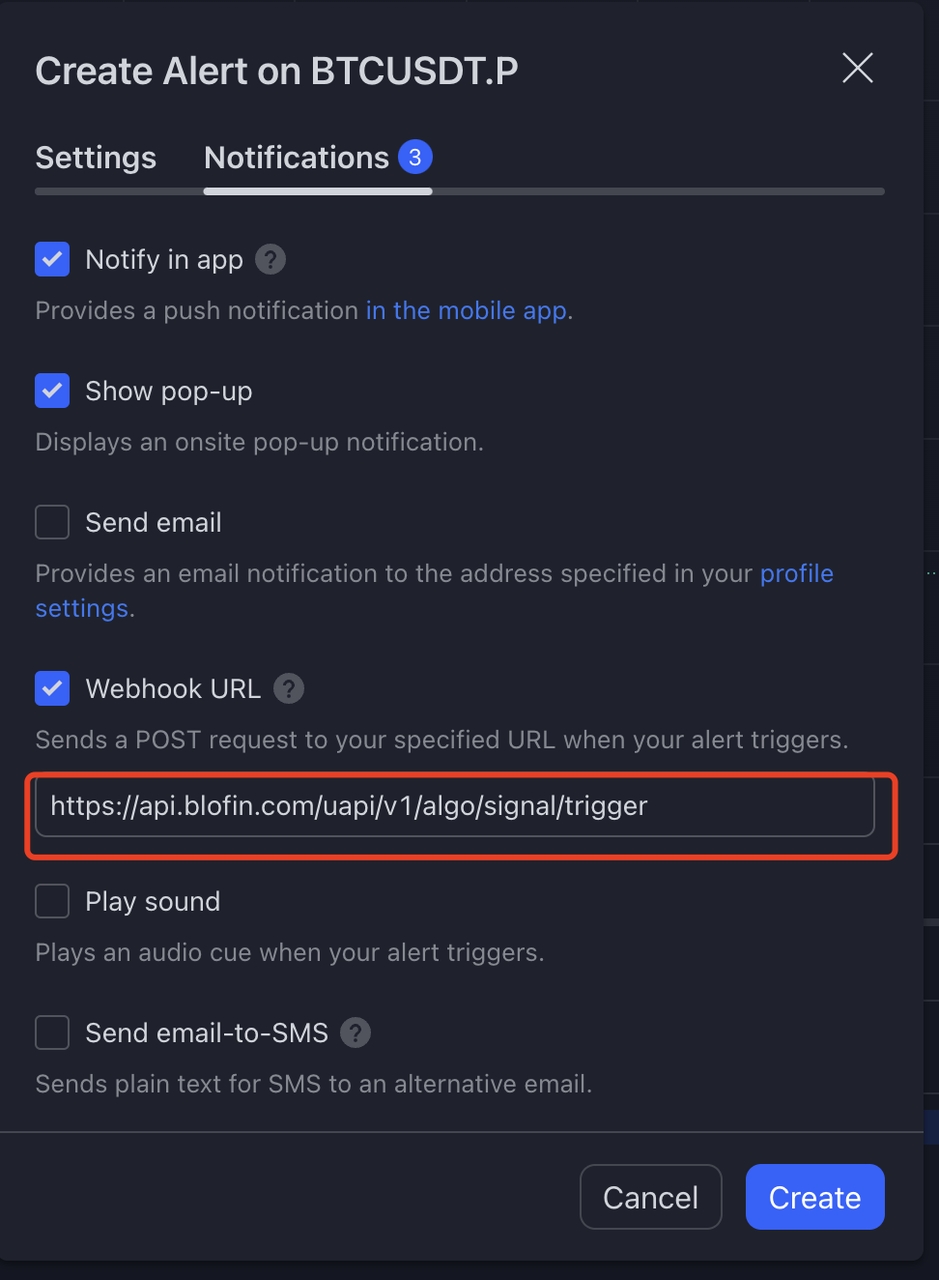
Step 5: Choose the Webhook URL section* in "Notifications". Paste the webhook URL copied from BloFin to TradingView then click "Create".
*Please note you will need a paid TradingView subscription to be able to access this feature.
Step 4: Set up your Trading Bot
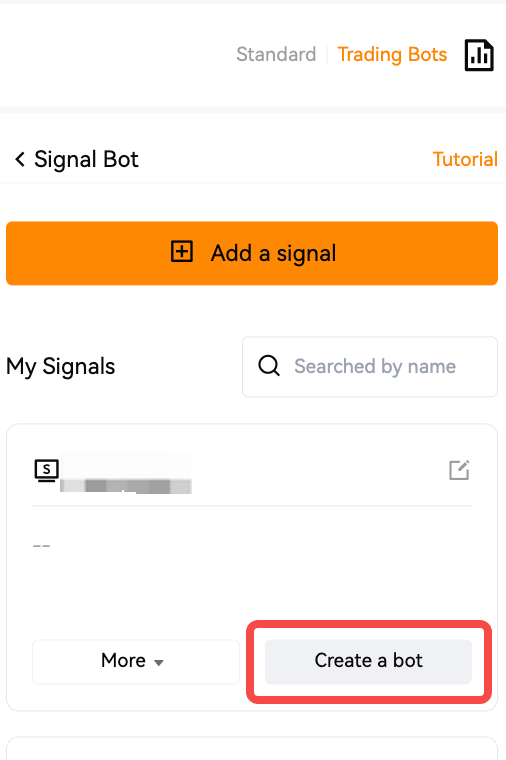
The maximum amount of trading bots each user can create is 20. Now that you have successfully published your signal on BloFin, the next step is to connect it to our Signal Bot! To get started, click ‘Create a Bot’ which will bring you to the Bot creation page.
To get started, you'll need to provide the minimum required settings for your bot. These settings include the applicable trading pairs, leverage ratio, and the amount of funds (margin) you want to invest.
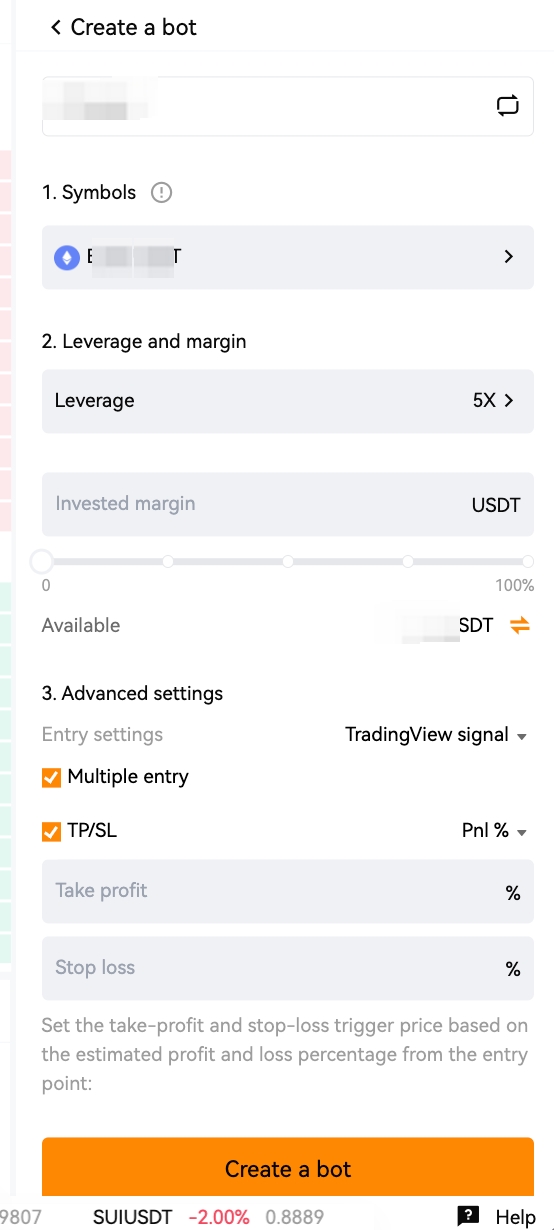
Symbols: Select trading pairs. Choosing the right trading pairs is essential for your bot to identify suitable opportunities, simply specify the trading pairs that align with your trading strategy.
Leverage and Margin: Determine the leverage ratio you'd like to apply to your trades. Note that the use of leverage can amplify your potential returns but also comes with increased risk. Make sure to choose a ratio that aligns with your risk tolerance and trading goals. Once you've defined your trading pairs and leverage ratio, it's time to decide on the amount of funds you're willing to invest into the bot.
Notes:
-
- The default leverage is 5x, you can adjust it as you want. For the maximum leverage for each trading pair, please click here to learn more.
- that the minimum margin amount is 50 USDT.
- The investment margin amount can not be less than the available assets in your futures account. Click the [Transfer] icon, you can transfer assets to your Futures account.
-
Advanced settings
In addition to the basic settings, the bot offers advanced customization options for further fine-tuning your trading preferences.
Entry Settings: it enables you to define the investment amount per order, which determines the portion of your funds allocated to each trade. Adjusting this setting allows you to manage risk and control position sizes according to your trading strategy. There are 5 modes to select:
Tradingview signal: default choice.
Contracts: a fixed number of contracts when opening a position.
Fixed margin: fixed margin when opening a position.
% of the margin: open a position based on % of the initial invested margin.
% of free investment: open a position based on % of available margin in your futures account, the margin will vary as the changes in available assets.
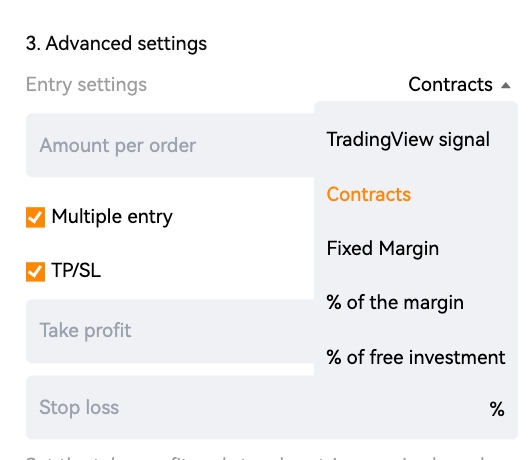
Multiple Entry: the bot is allowed to open positions multiple times, which is enabled by default.
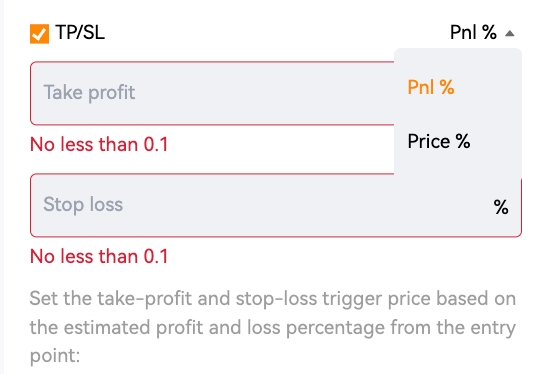
TP/SL Settings: you can set Take Profit (TP) and Stop Loss (SL) levels based on PnL% or Price% as part of the exit settings. Take Profit establishes the price level at which your bot will automatically close a trade to secure profits, while Stop Loss defines the price level at which your bot will exit a trade to limit potential losses. Once the TP/SL orders are triggered, they will be executed as market orders.
After filling in your desired bot parameters, select 'Confirm' to finish creating your Bot.
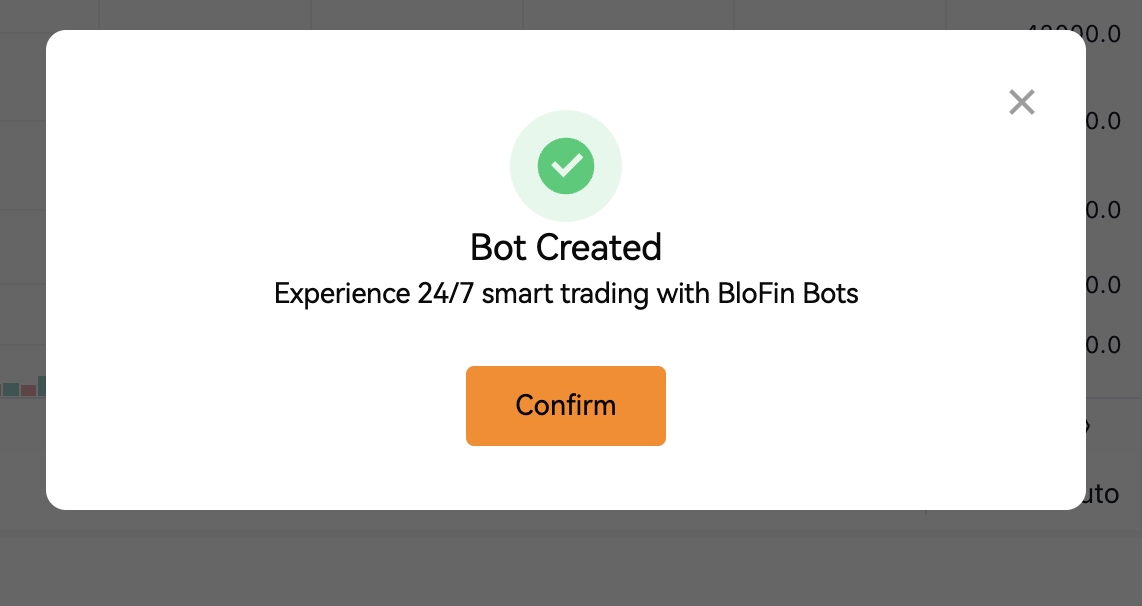
Step 5: Monitor and manage your newly created Signal Bot
You've successfully created your Signal Bot. This powerful tool will now listen to signals from your selected signal source and execute your trades instantaneously in real time, taking your trading to the next level.
You have full control and visibility over your Signal Bot. At any time, you can monitor its performance and access detailed information.
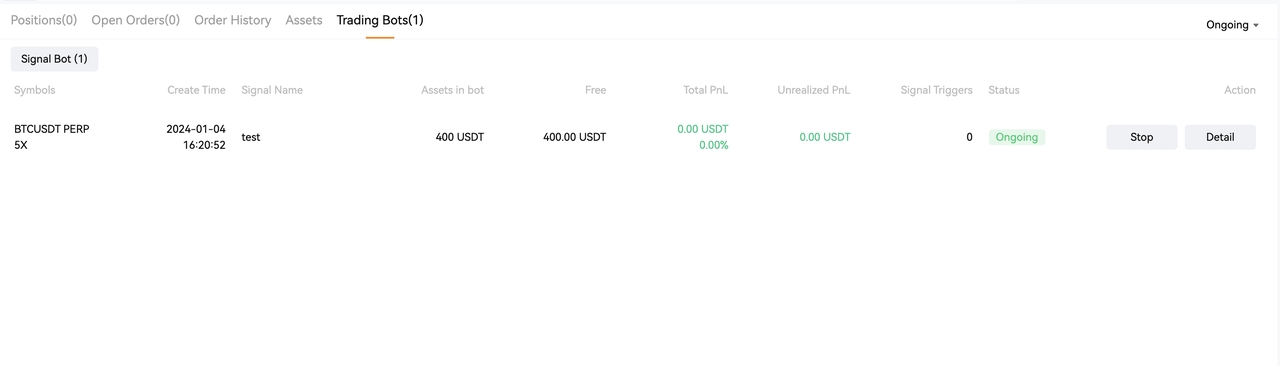
On the [Futures] page, click [Trading Bots], and you can view the ongoing Trading Bots list.
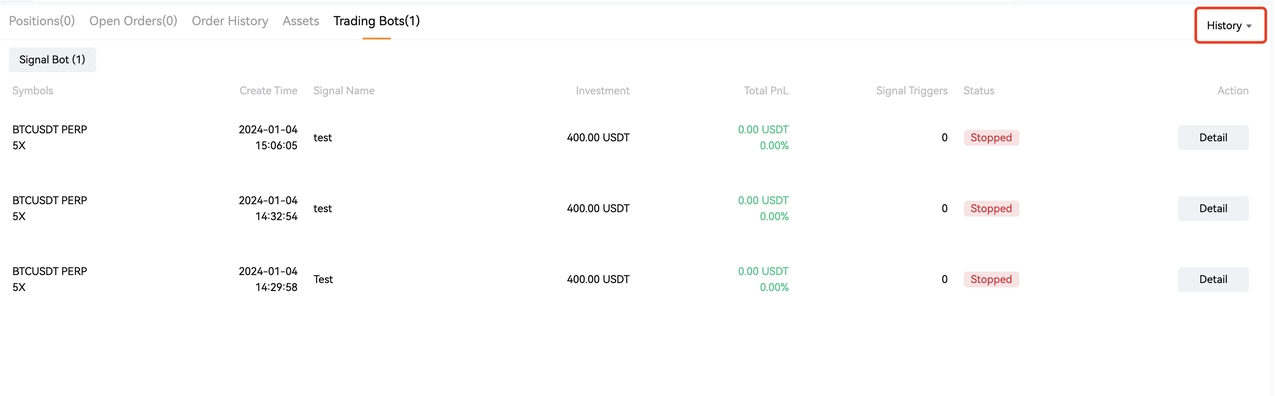
Click [Ongoing] and switch to [History], the stopped trading bots will display on this page.
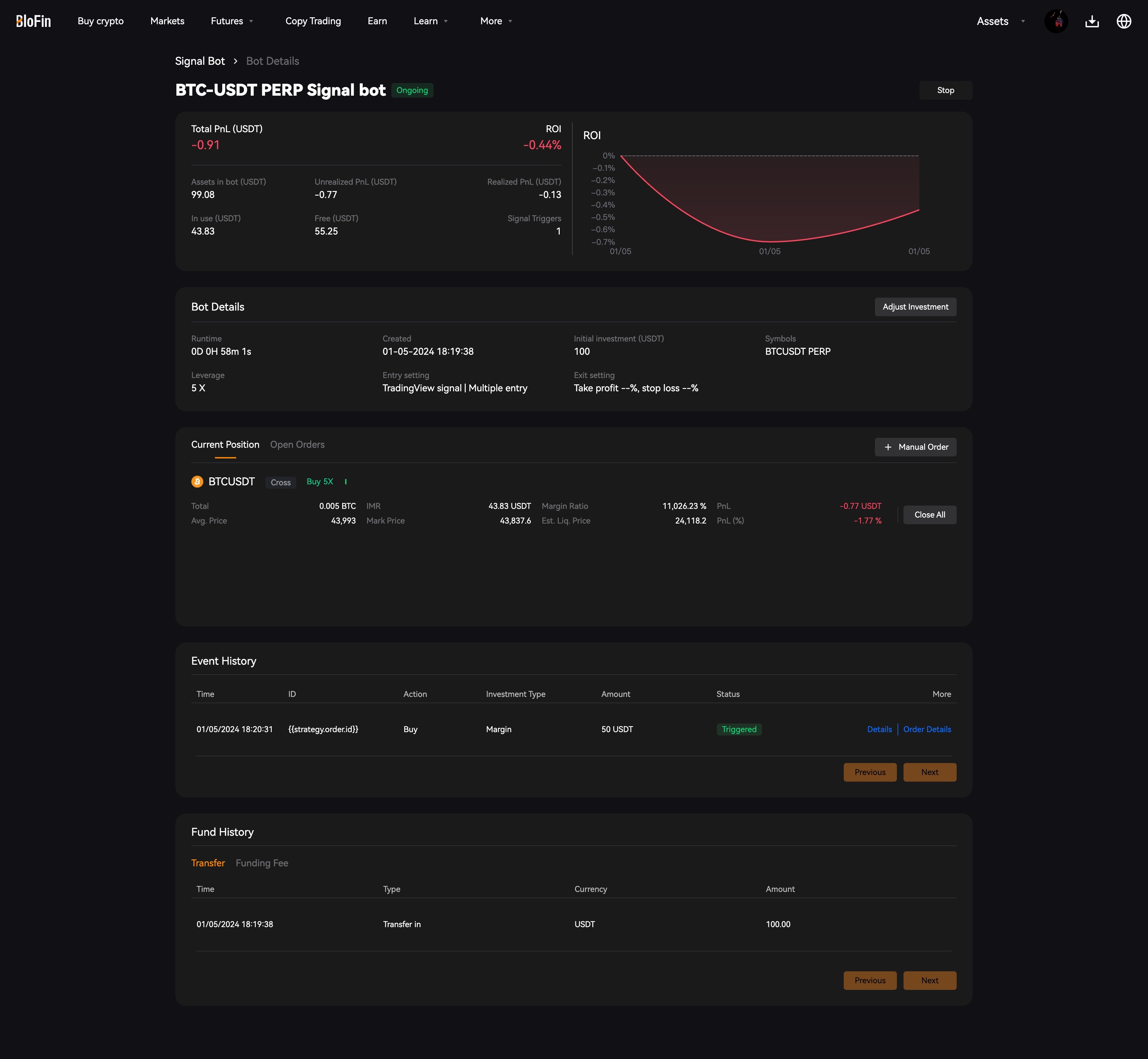
Click [Details] to view more information about the Trading Bot. This comprehensive view allows you to track the performance history, review the list of ongoing positions, monitor open orders, explore your positions and signal history and much more.
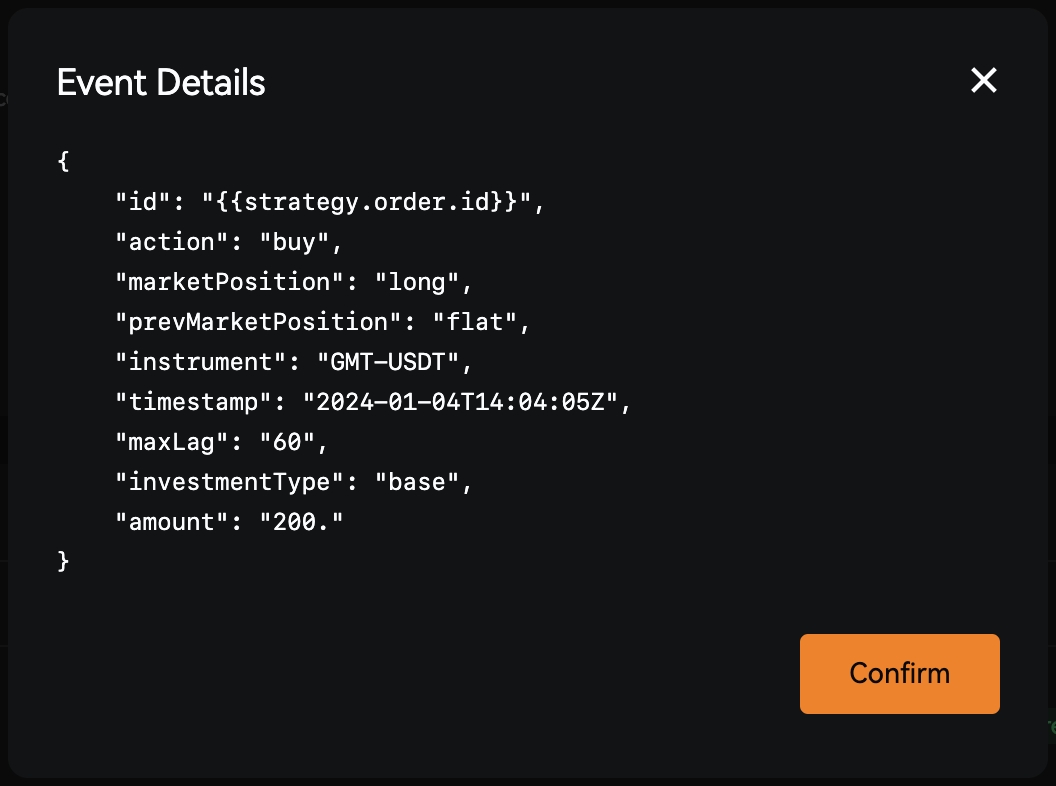
You can also review the logs of your signal history and corresponding processing actions. This valuable resource allows you to analyze successes and failures, enabling you to refine your approach and make informed decisions for future trades.
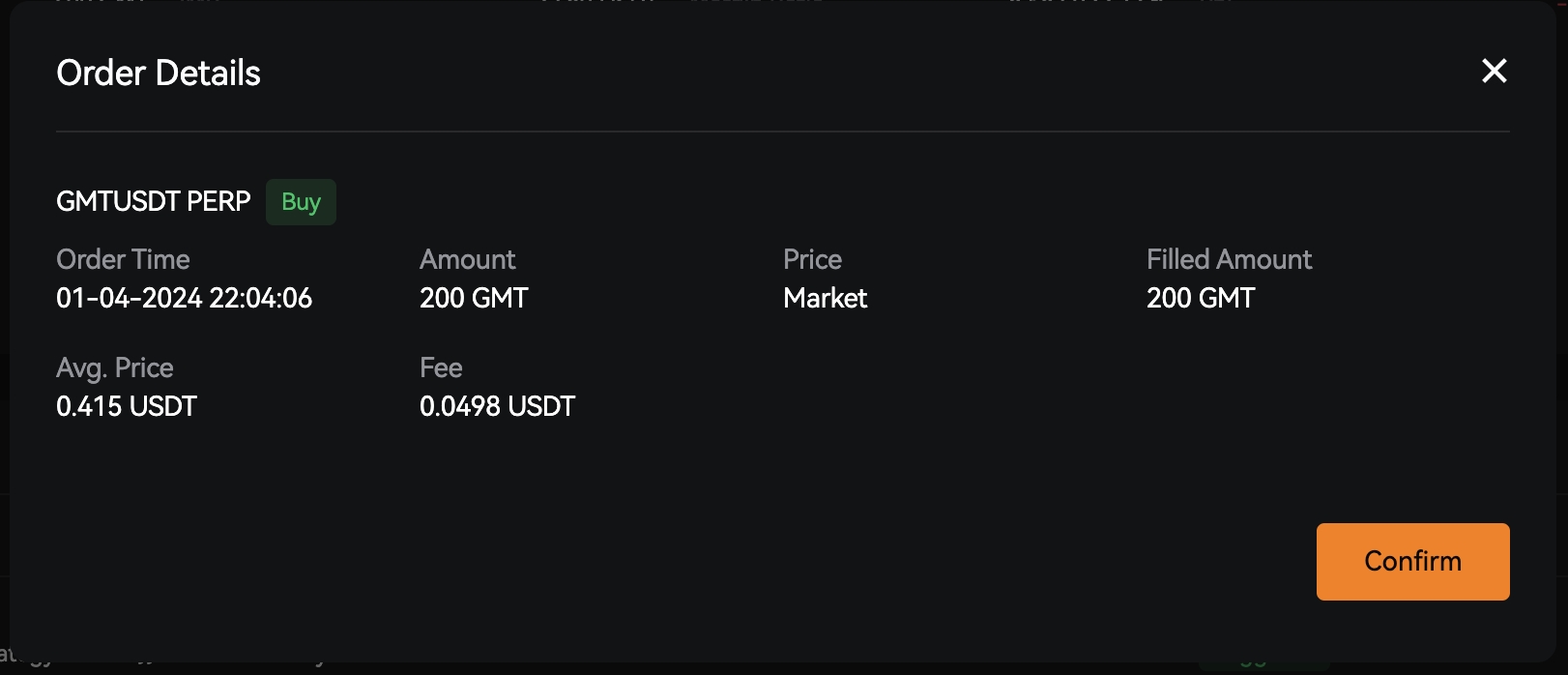
In addition, you have the flexibility to intervene manually whenever necessary. For example, adjust investments and place manual orders. This level of control empowers you to fine-tune your trading strategy based on real-time market conditions and your own analysis.
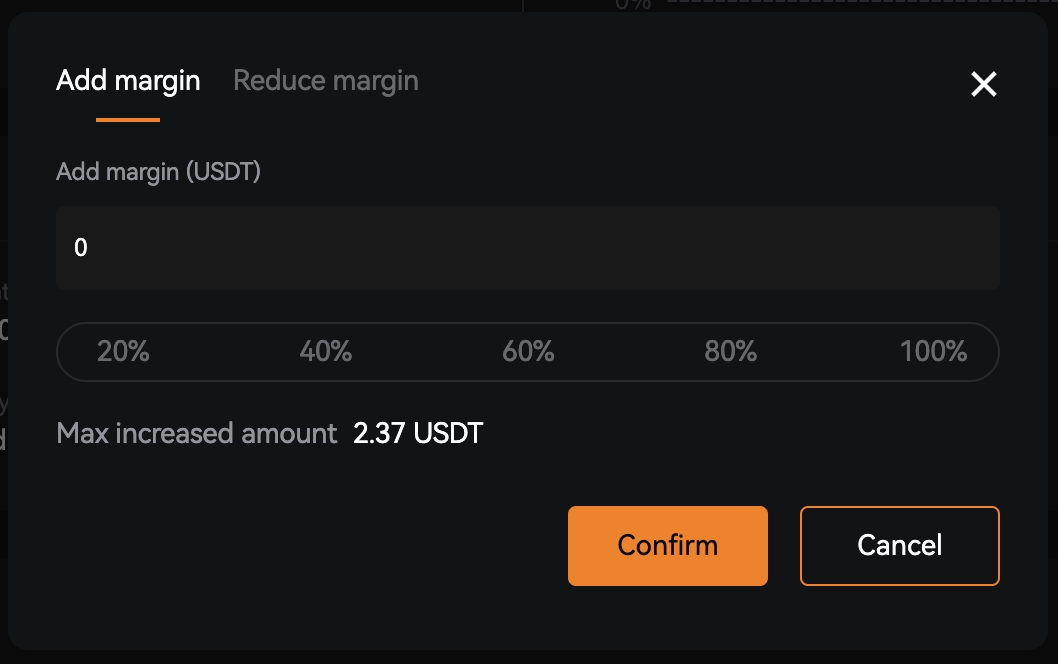
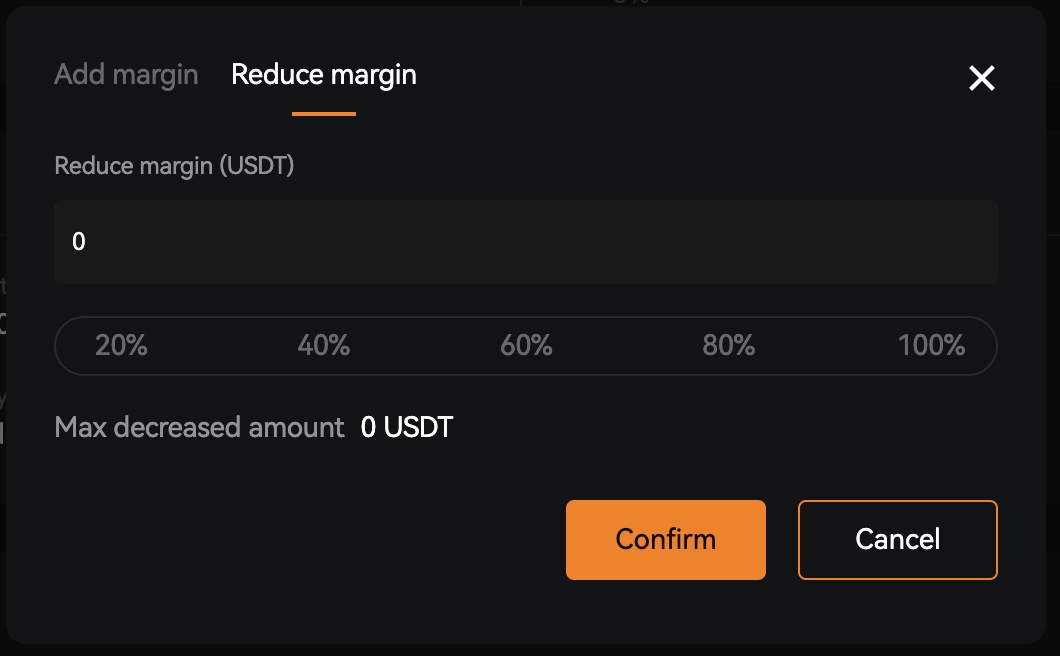
- Adjust (Add/Remove) Investment
On the [Details] page, you can add margin to or remove margin from the ongoing trading bots by clicking the [Adjust Investment] button. Please note that the initial invested margin and the margin in use are not allowed to transfer out.
- Manual Order:
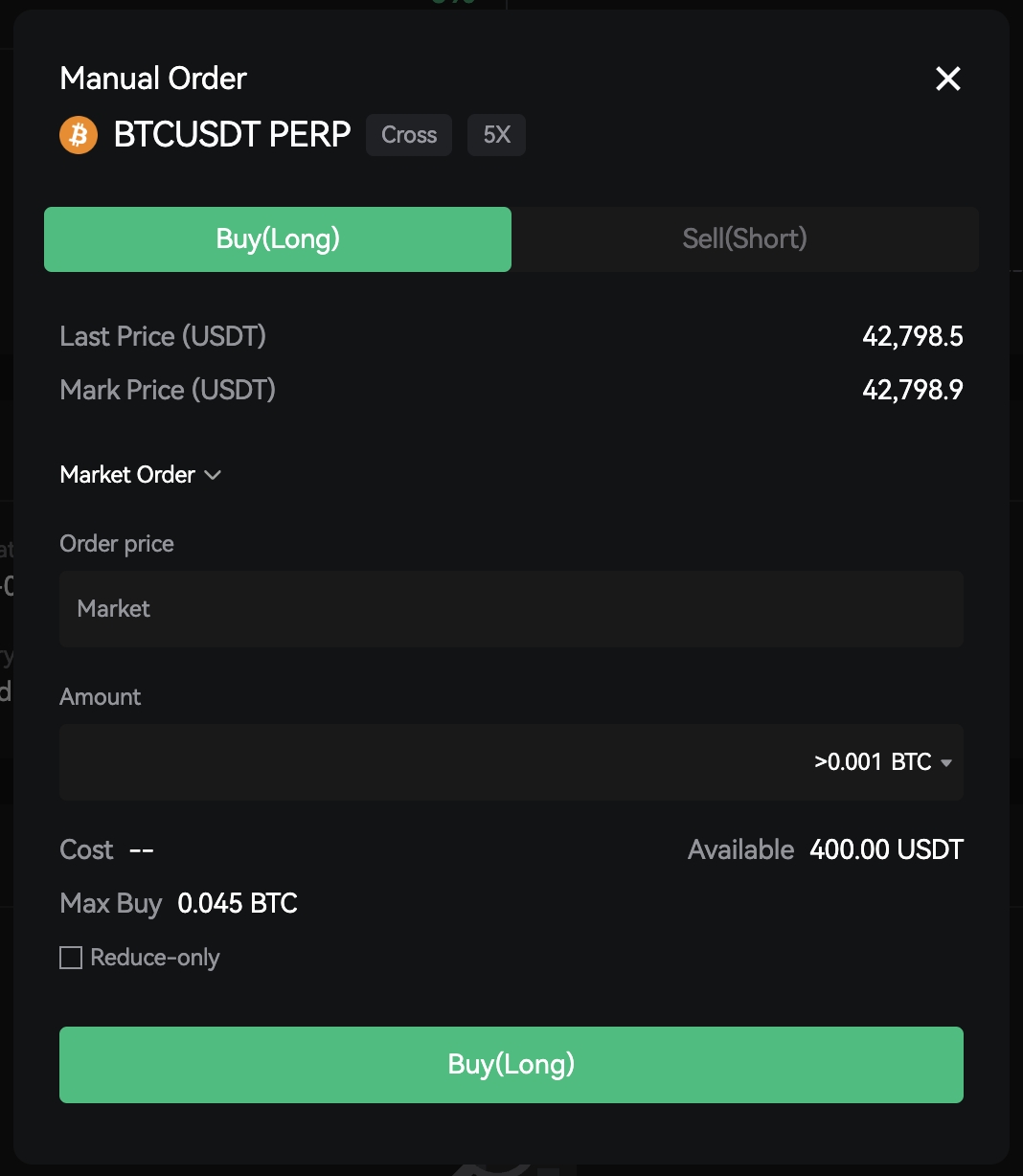
On the [Details] page, click [Manual Order], you have the freedom to place manual orders within your bot, regardless of the incoming signals. This feature enables you to add manual orders for any trading pair according to your specific requirements. The intuitive popup window allows you to define your order settings, including the order type, amount, and direction. You can not cancel open orders manually.
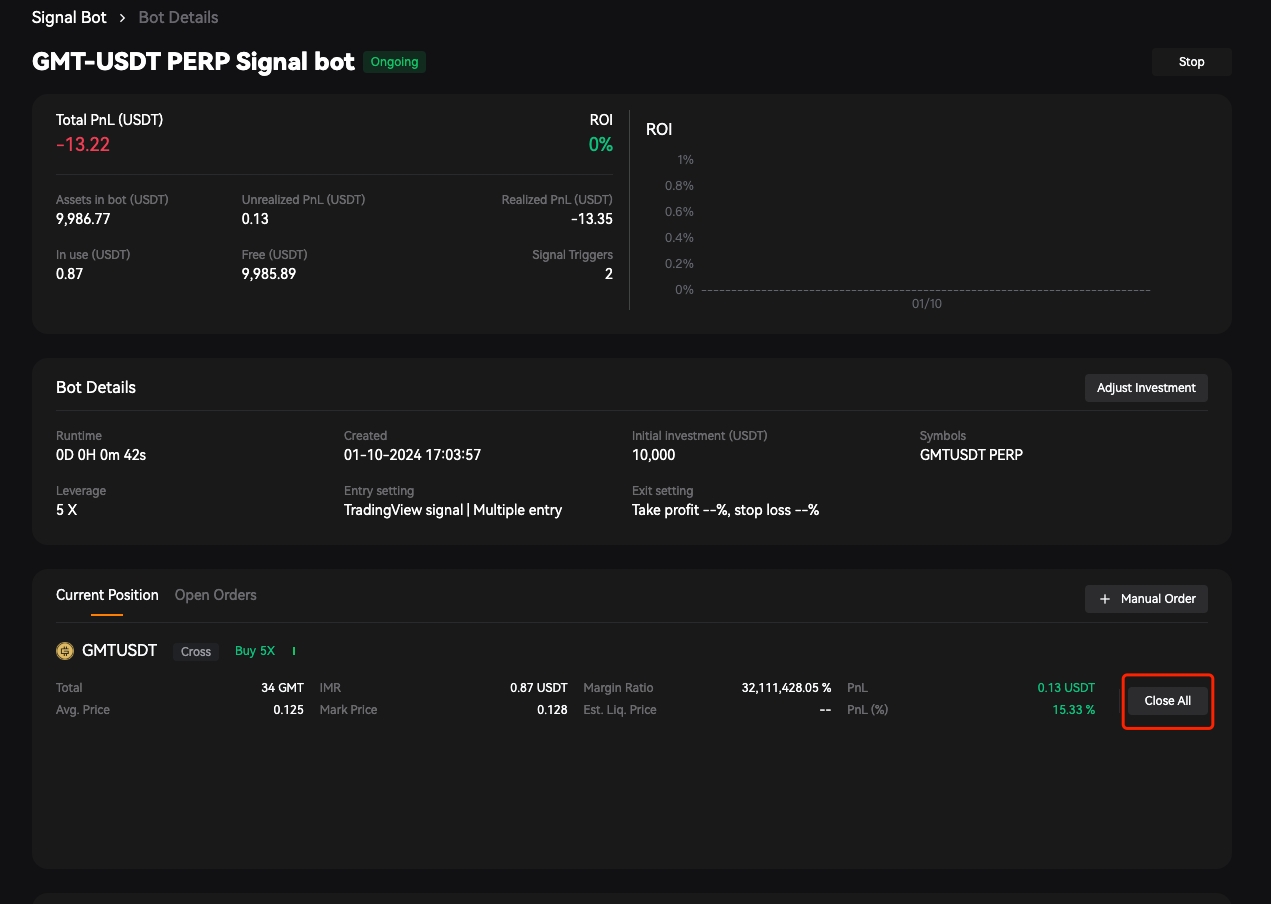
- Instantly Close Open Positions
You have the convenience of not only viewing your positions but also directly closing any current position on a specific trading pair with a simple click of the [Close All] button. By doing so, you can fully close your positions for that trading pair at the prevailing market price.
- Stop a trading bot
There are two ways to stop the ongoing trading bots.
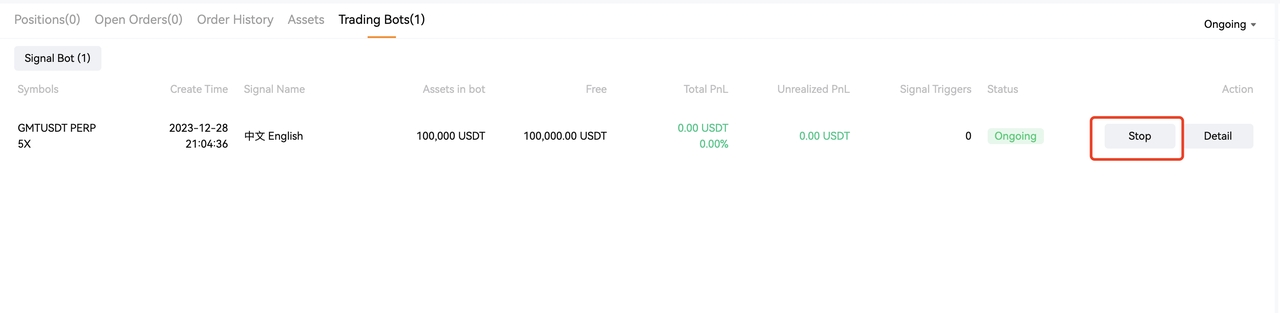
- Access Trading Bots tab
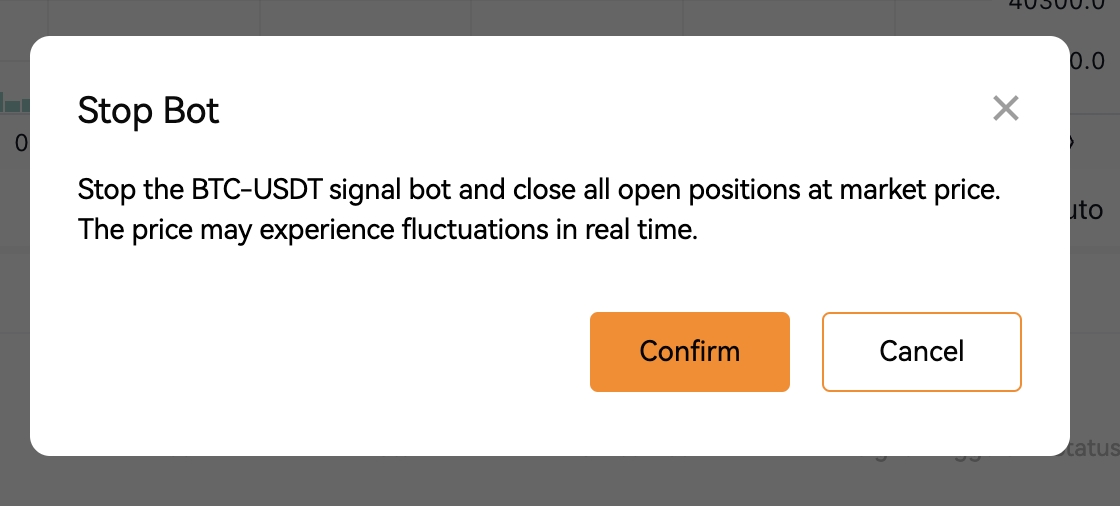
On the [Futures] - [Trading Bots] page, click the [Stop] button of one trading bot, and the ongoing trading bot will be stopped. All open orders will be cancelled, and all open positions will be closed at the best market price at that moment.
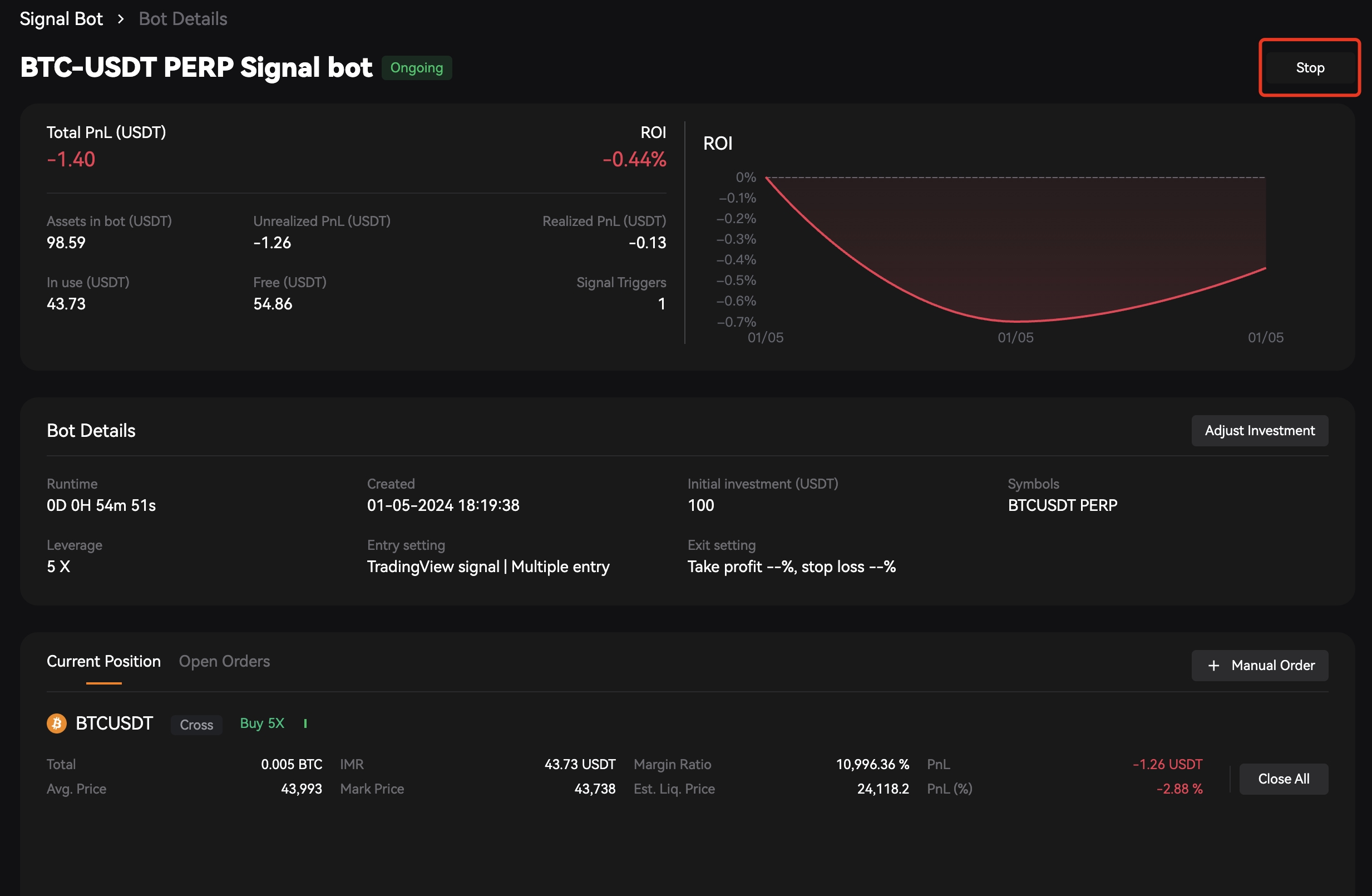
- Access the Trading Bot Details
On the [Futures] - [Trading Bots] page, click [Details] to enter the Bot details page, there is a [Stop] button in the upper right corner. You can click it to stop the Bot.
Чи була ця стаття корисною?