
Most trading bots on BloFin decide when to buy and sell based on rules you set directly on the platform. A grid bot watches where the price is relative to your configured range. A DCA bot watches how far the price has fallen from the last order. Both bots generate their own signals internally. The Signal Bot doesn't do any of that. It doesn't come with a built-in strategy. It executes one you've already built somewhere else.
The BloFin Signal Bot is the bridge between your TradingView strategy and BloFin's futures market. When your strategy fires an alert on TradingView, that alert travels to BloFin via a webhook, and the Signal Bot executes the corresponding trade automatically. The logic of when to trade stays in TradingView. BloFin handles the execution.
What is the BloFin Signal Bot?
The BloFin Signal Bot is an automated trading tool that connects a TradingView Pine Script strategy to BloFin's perpetual futures market. You configure the connection between the two platforms, set your execution parameters on BloFin, and from that point the bot runs without manual intervention. When your TradingView strategy says buy or sell, BloFin acts on it in real time.
Because the bot is purely an execution layer, there are no built-in rules for when to enter or exit. The entire decision-making logic comes from your TradingView strategy. What BloFin provides is the connection, the order execution, and the controls around how each position is sized and managed once the signal arrives.
How the BloFin Signal Bot works
The setup has two distinct layers, and understanding the difference between them makes the whole thing much clearer.
The first layer is the signal. When you create a signal on BloFin, the platform generates a webhook URL and a unique security token called a signalToken. You take these and add them to your TradingView strategy's alert settings. After that, every time your strategy fires an alert (based on whatever logic your Pine Script uses), TradingView sends a structured message to BloFin's webhook URL.
The second layer is the bot. Once the signal is live, you create one or more bots that listen to it. This is where you set the execution parameters: which trading pair to run on, what leverage to apply, how much margin to allocate, and how each order should be sized. The bot receives the incoming signal and places the corresponding trade.
The separation between signal and bot is intentional, and it's one of the more useful features of the setup. You can run multiple bots on the same signal simultaneously, each with completely different configurations. One bot might trade BTCUSDT at 5x leverage on one margin allocation; another might trade ETHUSDT at 3x on the same underlying TradingView strategy. Both bots act independently on the same stream of incoming alerts.
What TradingView sends to BloFin
When a TradingView alert fires, it sends a structured JSON message to BloFin's webhook URL. That message tells BloFin what to do: which direction to trade, what the current and previous position states are, which instrument is being traded, how much to trade, and when the signal was sent.
The message includes the signalToken. This is the security measure that tells BloFin the incoming request is legitimate and tied to your specific signal. Without it, the signal won't be processed.
There's also a maxLag field in the message, which sets a time limit on how old a signal can be before BloFin ignores it. The default is 60 seconds. If a signal arrives more than 60 seconds after it was sent, BloFin treats it as stale and doesn't act on it. The reasoning is straightforward: if TradingView fired a trade signal 90 seconds ago and the market has moved since then, executing on that signal now may no longer reflect what the strategy intended.
What you can control on the bot side
Once the signal is live and a bot is created, there are several ways to shape how execution works.
Entry settings determine how each order is sized when a signal fires. The default is the TradingView signal, which uses the order quantity specified in the alert message from your strategy. You can also set a fixed number of contracts per order, a fixed margin amount, or size orders as a percentage of your invested margin or available account balance. For most users who want their live execution to mirror their TradingView strategy as closely as possible, using the TradingView signal option with investmentType set to "base" is the recommended approach.
Multiple entry controls whether the bot can add to an open position if another entry signal fires while one is already open. It's enabled by default, which means your strategy can scale into a position across multiple signals.
Take profit and stop loss let you define exit levels based on PnL percentage or price percentage, on top of whatever exit signals your TradingView strategy may send. These are optional, but they're useful if you want a hard floor or ceiling on position drawdown regardless of what the strategy does.
What markets does the Signal Bot support?
The Signal Bot works on perpetual futures contracts only. It does not support spot trading. If your TradingView strategy is built around a spot pair, the Signal Bot can't execute those signals.
The bot also requires one-way position mode. For any given trading pair, you can hold a position in one direction at a time, either long or short, but not both simultaneously. This doesn't prevent you from holding opposite positions across different pairs. You could be long on BTCUSDT in one bot and short on ETHUSDT in another, as long as each is a separate bot on a separate pair.
One-step reversals are fully supported. If your strategy sends a signal to flip from long to short (or short to long), the bot handles it as a single action. There's no need to send a separate close signal followed by an open signal in the opposite direction.
The Signal Bot vs other BloFin bots
The most fundamental difference is where the strategy lives. Grid bots and DCA bots generate their own signals based on rules you configure on BloFin directly. The Signal Bot delegates all of that to TradingView.
Grid bots decide when to buy and sell based on where the price is relative to a range and grid levels you define. DCA bots decide when to add to a position based on how far the price has dropped from the previous order. Both strategies are self-contained within BloFin. You don't need anything external to run them.
The Signal Bot, by contrast, does nothing on its own. It waits for instructions from TradingView. This makes it a fundamentally different kind of tool. It's less about running a preset strategy and more about bridging an external strategy you've already built to execution on BloFin's exchange.
For traders who already have a working TradingView strategy, the Signal Bot is the path from backtested logic to live execution. For traders who want a self-contained automated approach without building a Pine Script strategy, the grid or DCA bots are the more direct options.
Who is the Signal Bot for?
The Signal Bot is designed for traders who are already working in TradingView and have a Pine Script strategy they trust enough to run live. If you use TradingView's strategy tester to develop and backtest approaches, the Signal Bot gives you a straightforward path from that testing environment to live futures execution on BloFin.
It also works for traders who follow external signal providers. If a signal provider publishes their TradingView signals in a BloFin-compatible format, you can connect your own bot to that signal stream and configure the execution with your own leverage and sizing, independent of what other subscribers are doing.
There are a few prerequisites worth being clear about. The Signal Bot requires a Pine Script strategy script specifically, not a Pine Script indicator. Strategy scripts use strategy.*() functions that BloFin's system can interpret as trade signals. Indicators perform calculations but don't generate the structured signal data the bot needs. You'll also need a paid TradingView subscription, since webhooks are a paid feature on that platform. And the bot currently supports perpetual futures only, so spot-based strategies aren't compatible.
If you're not already working in Pine Script and don't have a strategy ready, the Signal Bot isn't the right starting point. The grid and DCA bots are built to run without any external infrastructure.
Before you get started
A few things to have in place before you begin.
USDT in your Futures Account. The Signal Bot trades perpetual futures, so your funds need to be in your Futures Account, not your Funding Account. Transfer across before starting if needed. The minimum margin per bot is 50 USDT.
A Pine Script strategy on TradingView. The Signal Bot requires a Pine Script strategy script, specifically one that uses strategy.*() functions. Indicators won't work for this. If you have a strategy you've been backtesting on TradingView, that's what you'll be connecting. If you're using a strategy published by someone else, make sure it's a strategy script and not an indicator.
A paid TradingView subscription. Webhooks are only available on paid TradingView plans. If you're on a free account, you won't be able to complete the alert setup step.
The right trading pair. The Signal Bot only supports perpetual contracts, not spot pairs. When you're on TradingView, you'll need to select the perpetual swap version of whatever contract you want to trade (for example the BTCUSDT.P contract rather than BTC/USD or BTC/USDT Spot).
How to access the Signal Bot
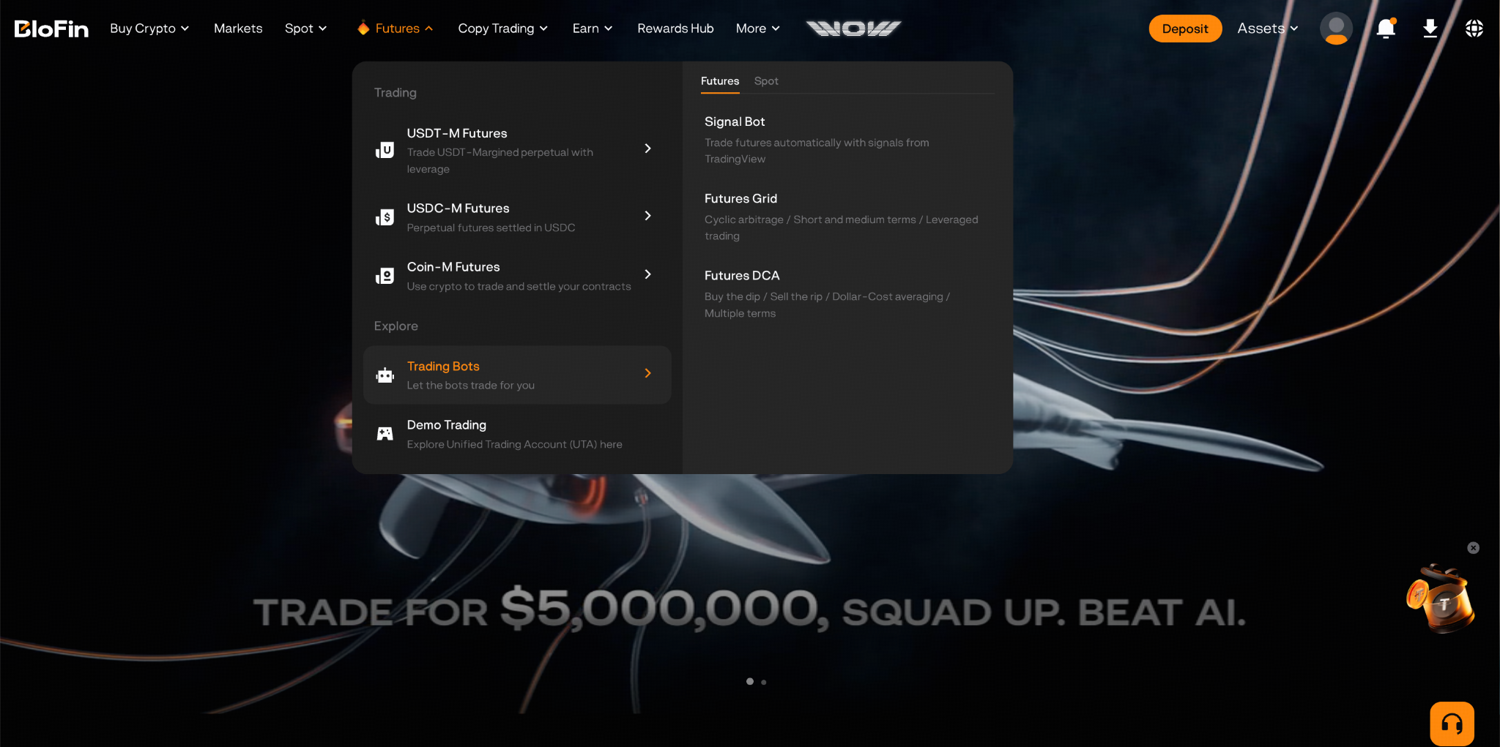
You can access the Signal Bot through the BloFin Trading Bots page or through the Futures trading interface.
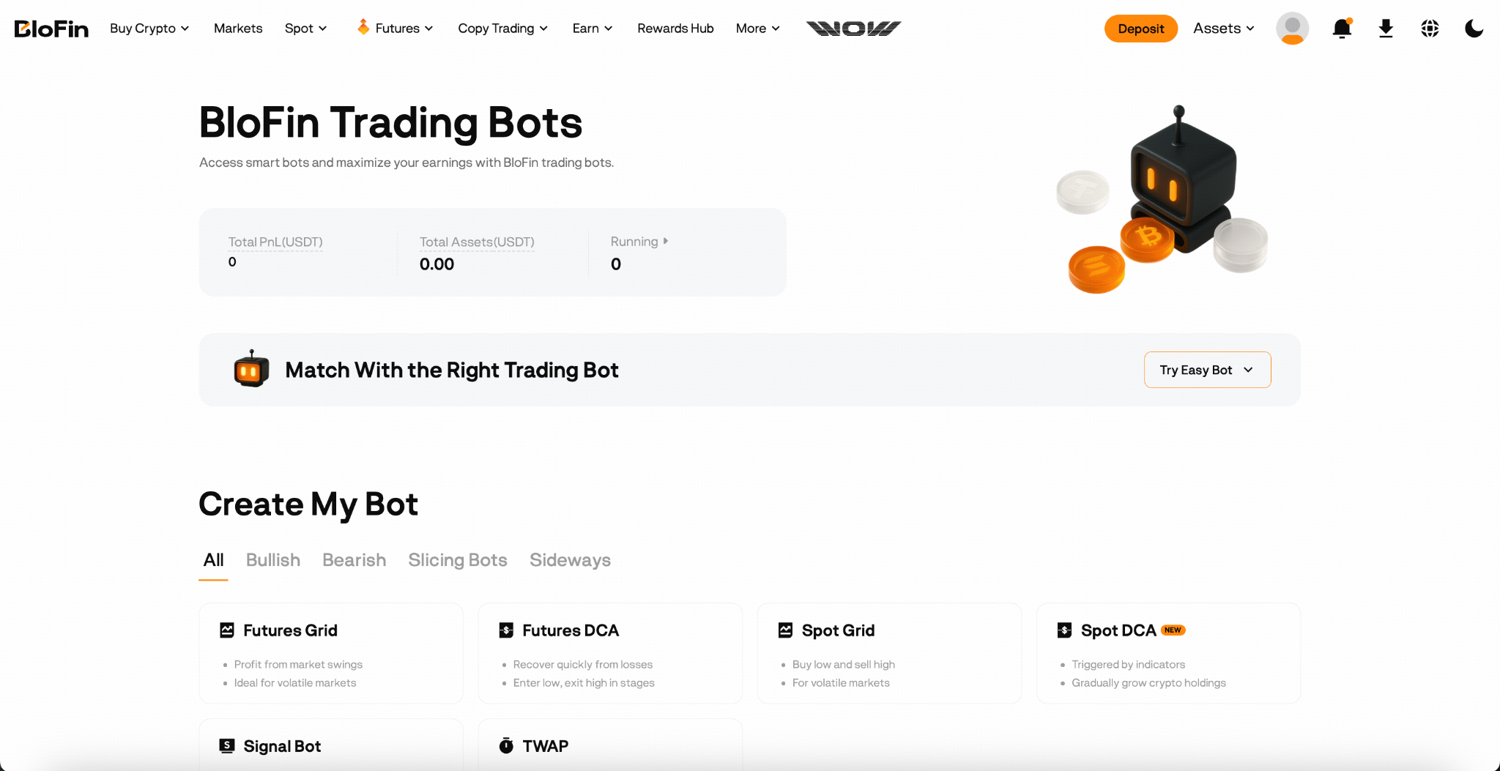
To access through the BloFin Trading Bots page:
Step 1: Log in to your BloFin account and hover your cursor over the Futures tab in the navigation bar. Then, select Trading Bots.
Step 2: On the BloFin Trading Bots page, click Signal Bot followed by Add a Signal to open the signal creation page.
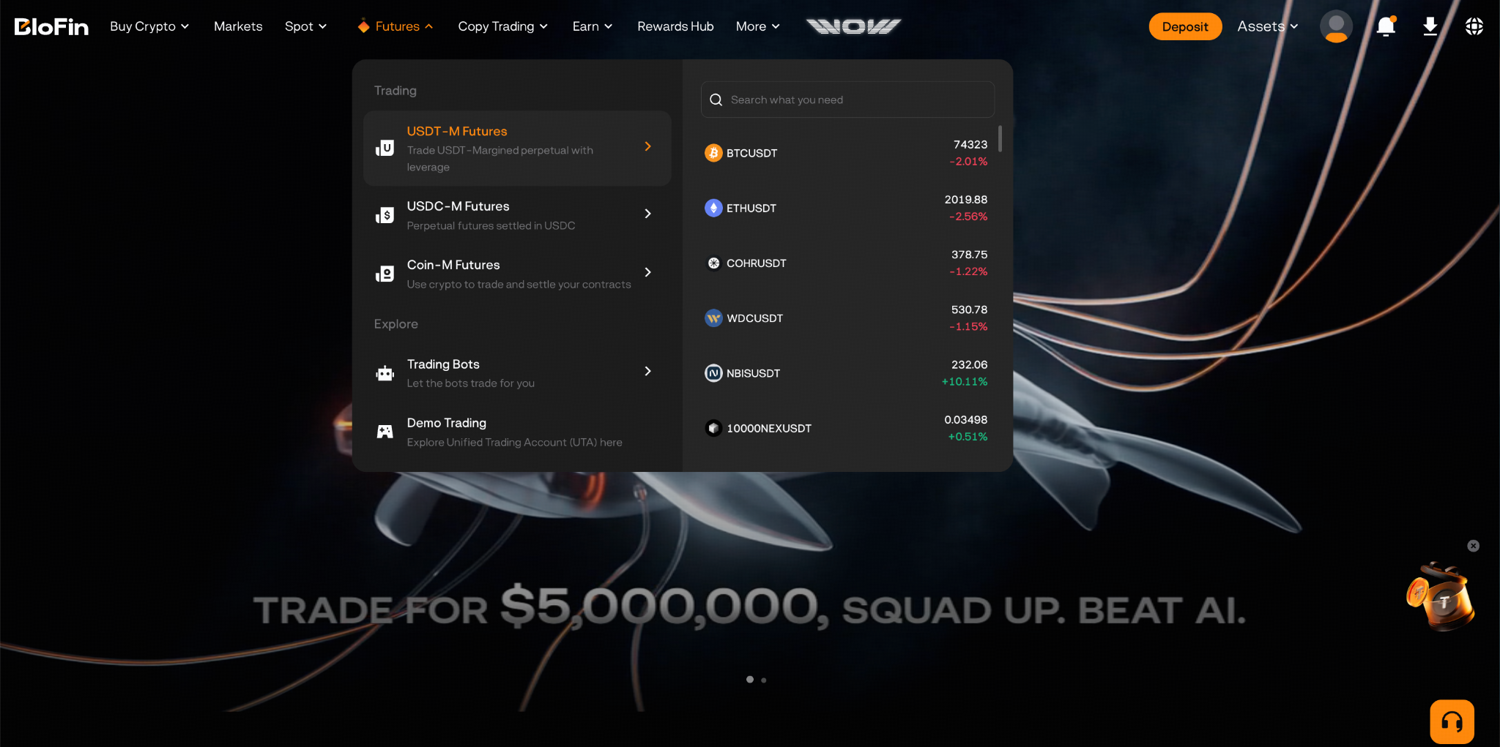
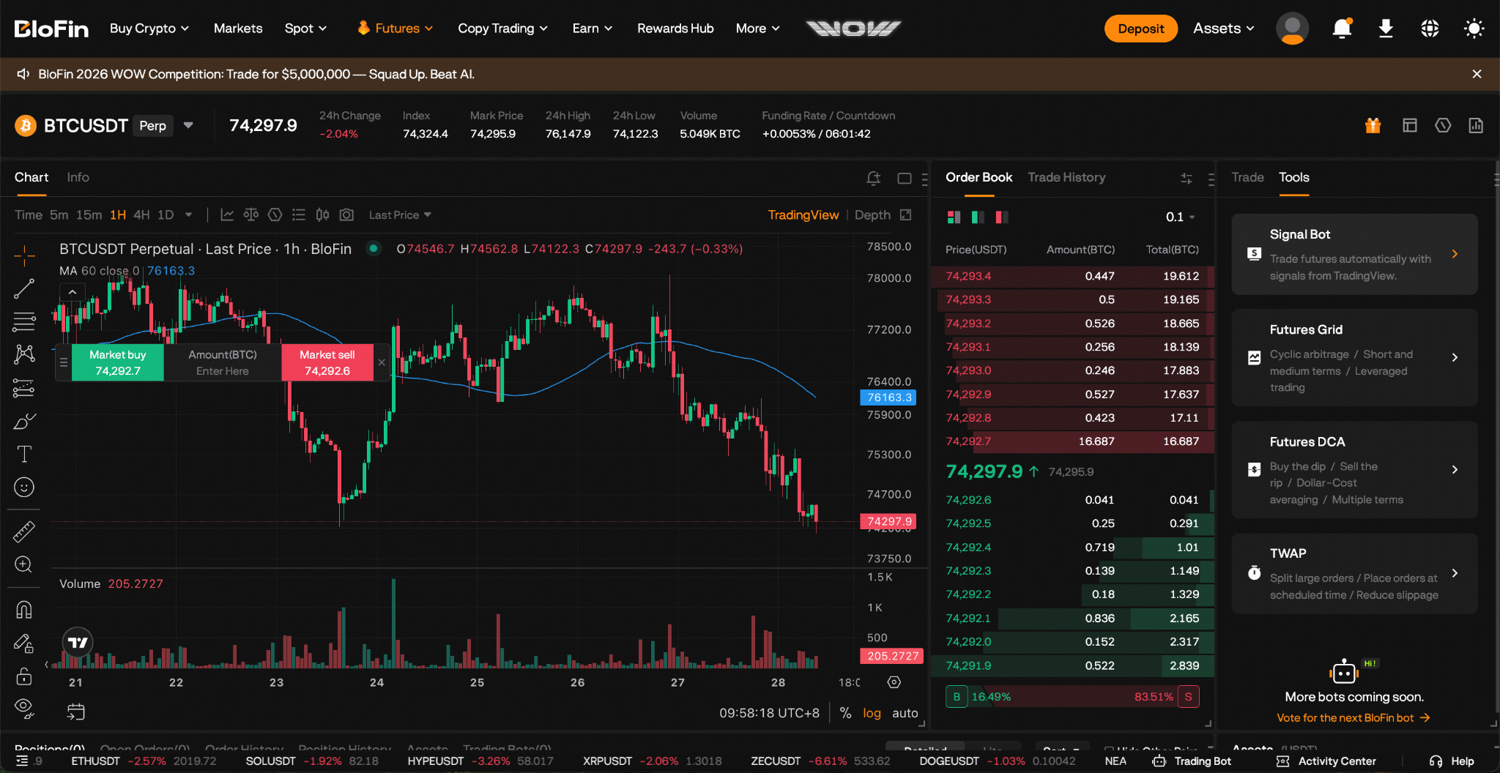
To access through the Futures trading interface:
Step 1: Log in to your BloFin account and hover your cursor over the Futures tab in the navigation bar. Then, select USDT-M Futures.
Step 2: Click the Tools tab on the right order panel and select Signal Bot.
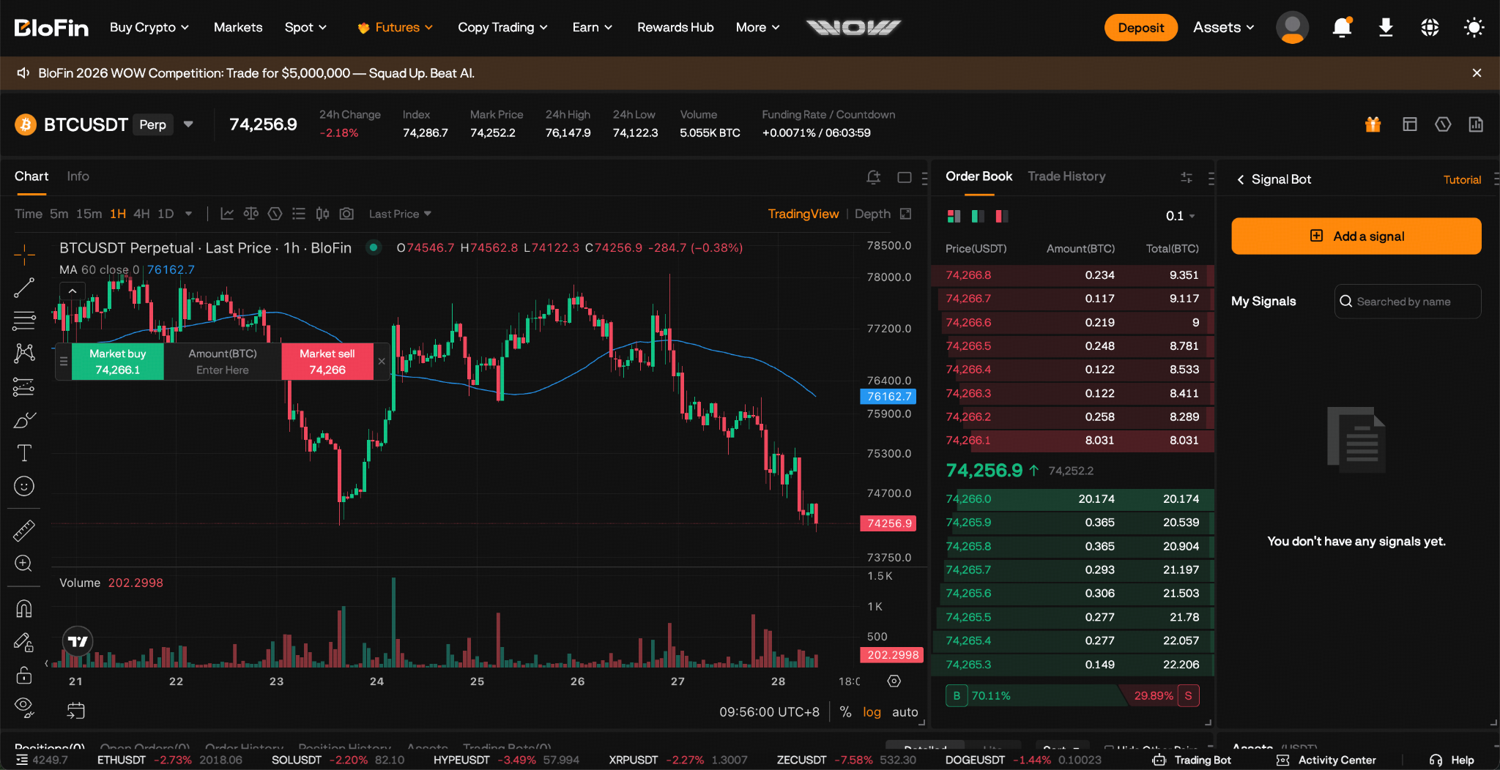
Step 1: Create your signal on BloFin
The first thing you're doing here is generating the connection credentials that TradingView will use to reach BloFin. Give your signal a name (up to 30 characters) and optionally a description (up to 150 characters). The name is just for your own reference to identify this signal later. Click Next.
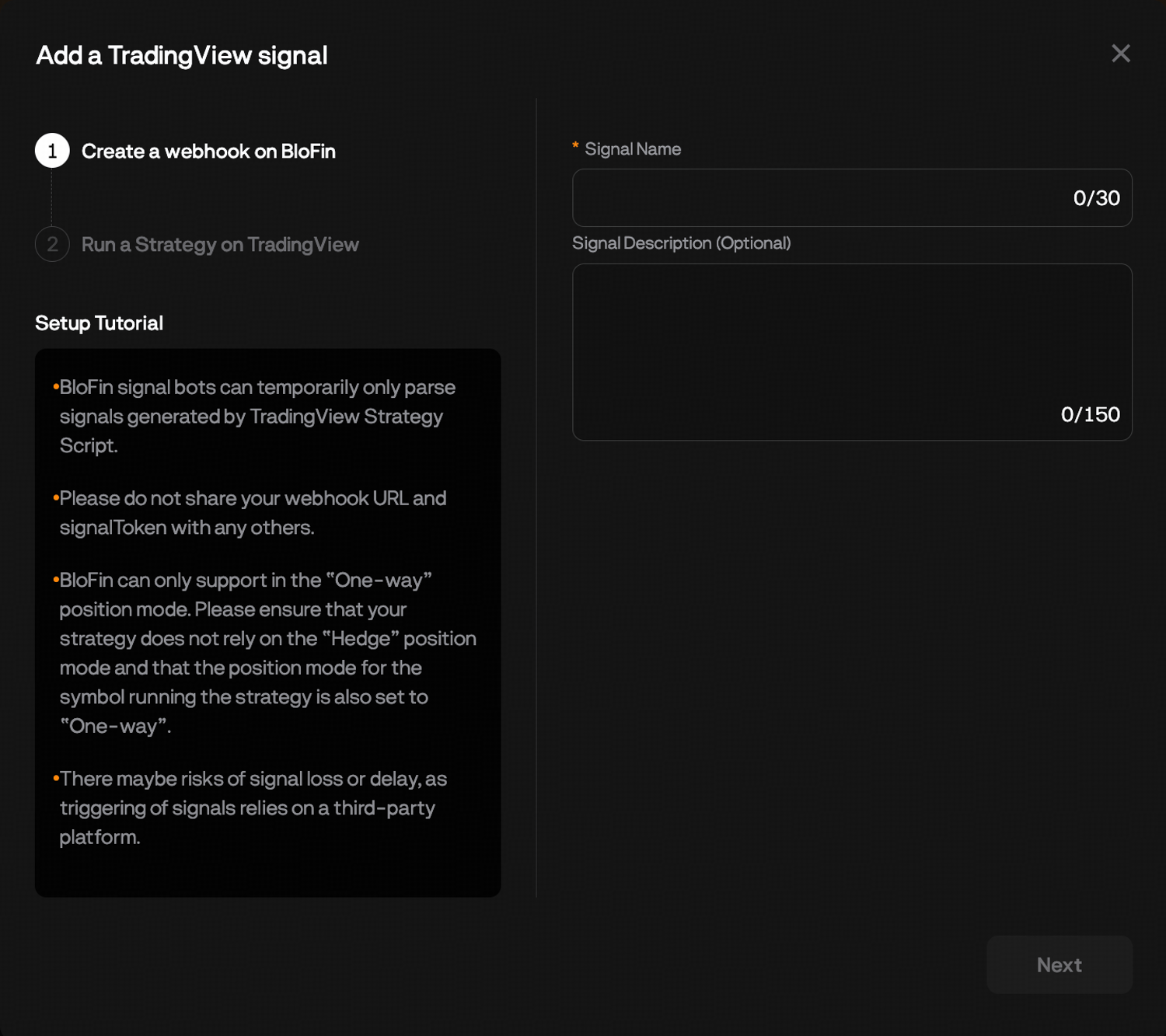
On the following screen, BloFin displays two things: a Webhook URL and an AlertMsg Specification that contains your signalToken. These are the two values you'll be copying into TradingView shortly. Keep this screen open, or note both values down before moving on.
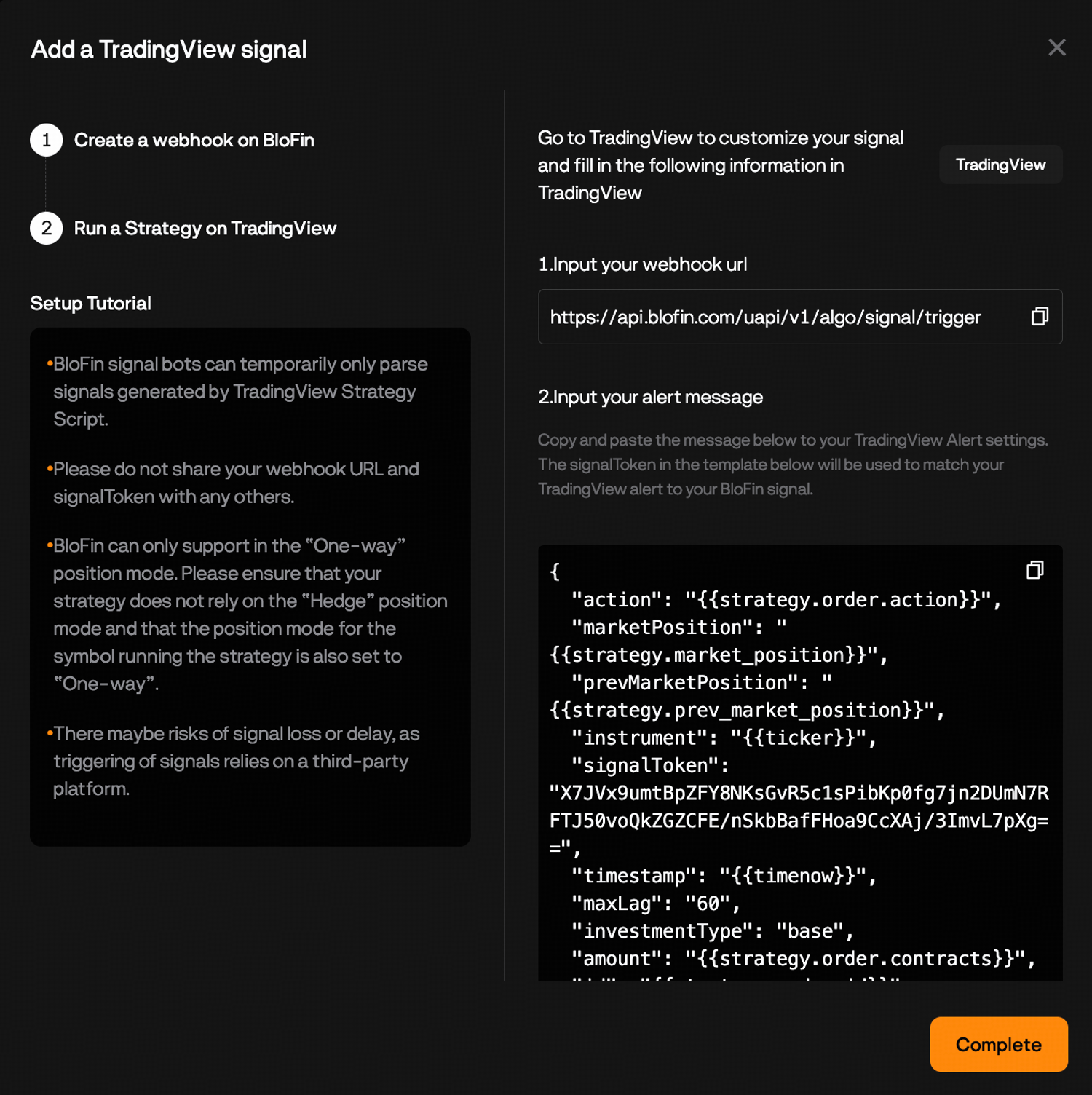
The Webhook URL is the address TradingView sends alerts to. The signalToken is the security key embedded in the alert message that confirms to BloFin that incoming requests are legitimate and tied to your signal.
Step 2: Configure your TradingView strategy
Switch to TradingView now. Open the chart for the perpetual swap contract you want to trade. Make sure you're on the perpetual version of the pair (it typically shows as BTCUSDT.P or similar in TradingView's search).
If you haven't added your strategy to the chart yet, open the Pine Editor, paste your strategy script, click Save, then click Add to chart. If your strategy is already on the chart, skip this.
Once the strategy is on the chart, click the gear icon next to the strategy name. This opens the strategy properties. The main thing to review here is your order size setting, as it determines how position sizes from TradingView translate into orders on BloFin.
Aligning order size between TradingView and BloFin
TradingView gives you three ways to define order size in a strategy: by USDT amount, by number of contracts, or as a percentage of equity based on your initial capital. Each behaves differently when it comes to executing on BloFin, so it's worth understanding what each one means before you proceed.
USDT order size is the most straightforward. You set an absolute USDT value in TradingView. When the alert fires, that same USDT value drives the order size on BloFin. To make this work correctly, set investmentType to "base" and amount to "{{strategy.order.contracts}}" in your alert message. BloFin will interpret the order in base currency terms, aligned with what TradingView calculates.
Contracts order size requires a bit more care. TradingView's concept of a "contract" (one unit of base currency) is different from BloFin's (each BloFin perpetual has its own contract size, for instance 0.001 BTC per BTCUSDT contract). Despite the terminology difference, the same alert message configuration applies: set investmentType to "base" and amount to "{{strategy.order.contracts}}". TradingView's placeholder effectively returns the base currency amount, which BloFin can interpret correctly.
Percentage of equity is the least reliable method for live trading. The equity value is tied to backtesting calculations, and there can be meaningful discrepancies between how TradingView estimates equity in testing versus what's actually happening in a live account. If you're using this method, consider switching to USDT or contract-based sizing for more predictable execution.
Once you've reviewed and confirmed your order size settings, click OK to close the strategy properties.
Step 3: Set up the TradingView alert
Click Alert in TradingView's top toolbar to open the alert creation window.
Under Condition, select your strategy from the dropdown. Below the strategy name, set the condition to Order fills only. This ensures alerts only fire when the strategy actually places an order, rather than on every bar or condition change. For the expiry, set it to Open-ended alert so it doesn't stop running after a fixed period.
Now go to the Message field. Paste the alert message template that BloFin provided on the signal creation screen. The template already contains most of the required fields with TradingView's placeholder variables filled in. The one field you need to verify is the signalToken. It should already be pre-filled in the template BloFin gave you; just confirm it matches what's shown on the BloFin signal screen.
A standard alert message looks like this:
json
{
"id": "{{strategy.order.id}}",
"action": "{{strategy.order.action}}",
"marketPosition": "{{strategy.market_position}}",
"prevMarketPosition": "{{strategy.prev_market_position}}",
"instrument": "{{ticker}}",
"signalToken": "your-token-here",
"timestamp": "{{timenow}}",
"maxLag": "60",
"investmentType": "base",
"amount": "{{strategy.order.contracts}}"
}
When TradingView fires the alert, it substitutes the placeholder values (the parts in double curly braces) with real values from the current bar and strategy state.
Next, open the Notifications tab within the alert creation window. Check the Webhook URL box and paste the Webhook URL from BloFin. Give the alert a name of your choosing, then click Create.
A note: you need a paid TradingView subscription for the Webhook URL field to appear. If you don't see it, check your plan level.
Step 4: Create your bot on BloFin
Back on BloFin, you should still be on the signal setup screen. Click Create a Bot to open the bot configuration page.
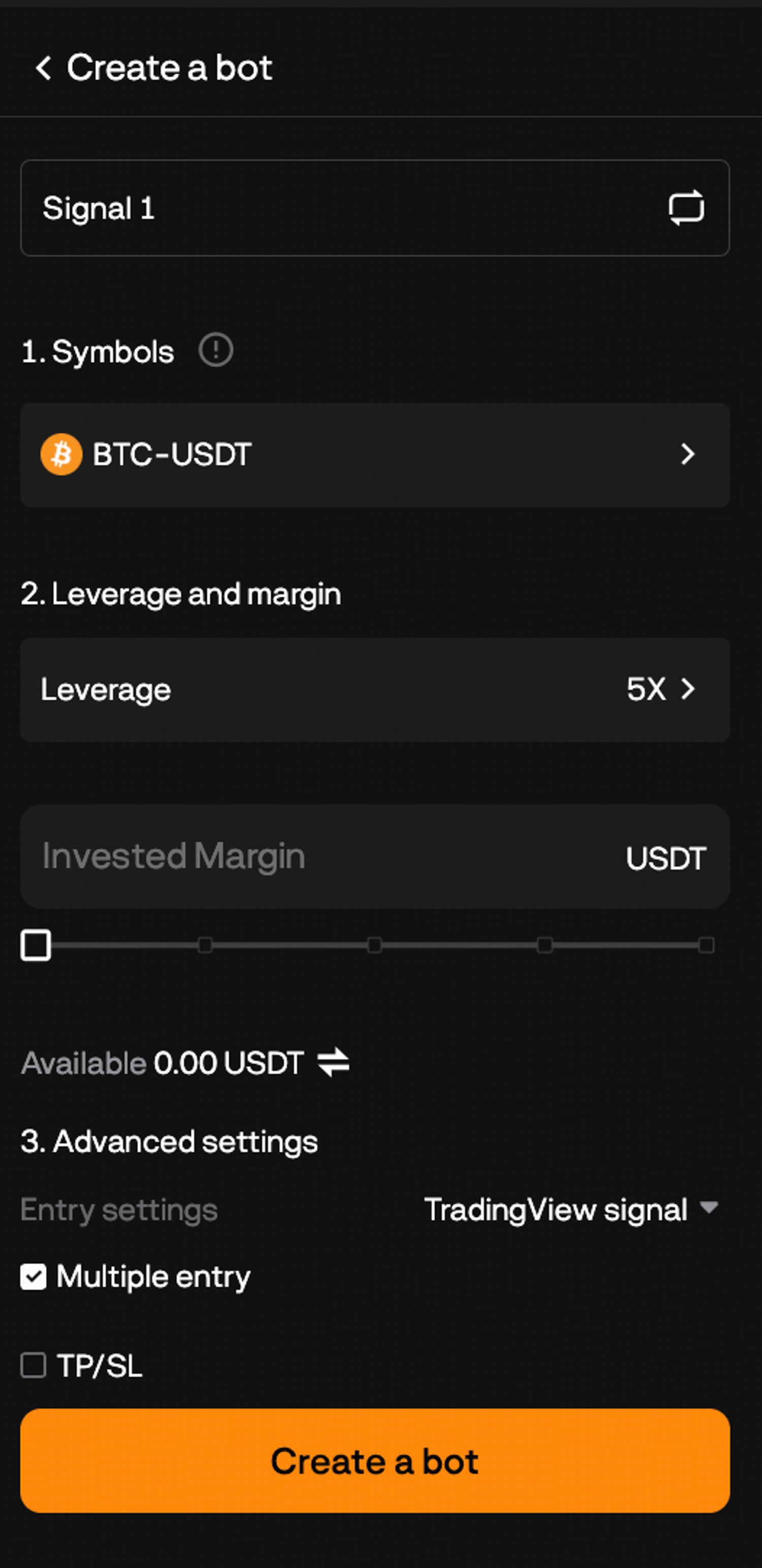
Here you're setting the execution parameters, the rules around how the bot will act when a signal arrives.
Symbol. Select the perpetual contract you want the bot to trade. This should match the pair you've configured in TradingView. Each Signal Bot handles one trading pair.
Leverage. Set the leverage ratio for your trades. The default is 5x. Higher leverage amplifies both returns and losses. Check the maximum leverage available for your chosen trading pair and set a level that suits your risk tolerance.
Margin. Enter the amount of USDT you want to allocate to this bot. This is the capital the bot draws on to fund positions. The minimum is 50 USDT.
Advanced settings
These are optional but worth reviewing before confirming.
Entry settings control how individual order sizes are determined when a signal fires. The default option is TradingView signal, which uses the size specified in the incoming alert message. This is usually the right choice if you've already aligned your order sizing in TradingView. If you want to override this with a fixed size per order (contracts, margin amount, or percentage-based), the other options give you that control independently of what the strategy sends.
Multiple entry allows the bot to add to an open position if another entry signal fires while a trade is already running. It's on by default. If your strategy is designed to scale in, leave it on. If you only want one position open at a time per direction, turn it off.
Take profit and stop loss let you define exit levels in terms of PnL percentage or price percentage, as a safety layer on top of whatever exit signals your strategy sends. These are optional. If your strategy already handles exits, you may not need them. If you want a hard floor on losses or a guaranteed profit lock-in at a certain level, add them here.
Once everything looks right, click Confirm to launch the bot.
Monitoring and managing your Signal Bot
Once the bot is live, the Details page is your main view. Get there from the Futures trading interface. Simply scroll down below the trading chart, click the Trading Bots tab and click Signal Bot. Then, click Details.
The most useful section here is Events History. Every incoming alert from TradingView is logged here, along with the action BloFin took (or the reason it didn't act). This is your primary diagnostic tool. If a signal fired on TradingView but the expected trade didn't execute on BloFin, check Events History first. Common issues include a misconfigured signalToken, a maxLag timeout (the signal arrived too late), or an instrument format mismatch in the alert message.
From the Details page you can also:
Adjust investment. Click Adjust Investment to add or remove margin from the running bot. The initial invested margin and margin currently in use can't be transferred out while the bot is active, but you can add more or withdraw any unused buffer above those amounts.
Place manual orders. The Manual Order button lets you place additional orders on the bot's trading pair independent of incoming signals. This is useful if you want to intervene based on your own market read without stopping the bot. Note that you cannot manually cancel open orders placed by the bot through this interface.
Close positions. The Close All button for a specific trading pair closes the full open position at the current market price. Use this if you want to exit a position immediately without waiting for the strategy to send an exit signal.
Stop the bot. To shut everything down, click Stop from either the Trading Bots list or the Details page. All pending orders are canceled and all open positions are closed at the current market price. Any remaining margin and realized profits are returned to your Futures account.
Checking that everything is connected correctly
Before walking away from the setup, it's worth running a quick verification. Trigger a test condition in TradingView that would normally fire your alert, then check Events History on BloFin within a minute or two to confirm a signal was received and processed. If you see a logged event with a successful action, the connection is working.
If nothing appears in Events History, go back and verify the Webhook URL in TradingView's alert settings and confirm the signalToken in your alert message matches what BloFin generated for your signal.
What's next
Once your Signal Bot is running, the main ongoing task is reviewing Events History periodically to confirm signals are being received and executed as expected. If you want to change any bot parameters (leverage, margin, entry settings), you'll need to stop the bot and create a new one; parameters can't be edited on a live bot.
If you want to run the same TradingView strategy across multiple trading pairs or with different leverage levels, you can create additional bots connected to the same signal. Each bot operates independently and can be configured separately.
If you're looking for an automated futures strategy that runs entirely within BloFin without an external signal source, the Futures Grid Bot or Futures DCA Bot are worth exploring. Both run self-contained strategies based on parameters you set directly on the platform.
Frequently asked questions
What is the BloFin Signal Bot?
The BloFin Signal Bot is an automated trading tool that connects a TradingView Pine Script strategy to BloFin's perpetual futures market. When your TradingView strategy fires an alert, it sends a signal to BloFin via a webhook, and the Signal Bot executes the corresponding trade automatically.
What's the difference between the signal and the bot?
The signal is the TradingView connection: the webhook URL and signalToken that BloFin generates, which TradingView uses to send alerts. The bot is the execution layer: it listens to the signal and places trades based on the configuration you set on BloFin. You can run multiple bots on a single signal, each with its own settings.
Does the Signal Bot work on spot trading?
No. The Signal Bot currently supports perpetual futures contracts only. Spot trading is not supported.
Do I need a TradingView subscription to use the Signal Bot?
Yes. Webhooks are a paid feature on TradingView. You'll need an active paid TradingView plan to send alerts to BloFin's webhook URL.
Do I need to know Pine Script to use the Signal Bot?
You need a working Pine Script strategy script to generate alerts. If you're not writing your own, you'd need to use a strategy someone else has published on TradingView. Either way, the strategy must use strategy.*() functions to generate signals, not a standalone Pine Script indicator.
Can I run multiple bots on the same signal?
Yes. Multiple bots can listen to the same signal simultaneously. Each bot is configured independently with its own trading pair, leverage, and margin. All of them execute based on the same incoming signal stream.
What is a signalToken?
The signalToken is a unique security key generated when you create a signal on BloFin. It's included in your TradingView alert message and verifies that the incoming signal is authorized. You should not share it publicly.
What is maxLag?
maxLag is the maximum delay in seconds that BloFin will accept between when a signal was sent from TradingView and when it arrives. The default is 60 seconds. If a signal arrives after that window, BloFin treats it as stale and doesn't execute the order.
Does the Signal Bot support hedge mode?
No. The Signal Bot only supports one-way position mode. For a single trading pair, you can hold a long or a short at any given time, but not both. Across different trading pairs, you can hold positions in opposite directions using separate bots.
Can the Signal Bot reverse a position in one step?
Yes. If your strategy sends a signal to flip from long to short (or short to long), the bot handles the reversal in a single action. You don't need to send a separate close signal followed by an open signal.
What entry sizing options does the bot support?
There are five options: TradingView signal (uses the order size specified in your strategy), a fixed number of contracts, a fixed margin amount, a percentage of your initial invested margin, or a percentage of your available account balance. For most users, TradingView signal with investmentType set to "base" gives the closest match to what your strategy intends.
What's the minimum margin to run a Signal Bot?
The minimum margin per bot is 50 USDT.
What happens if a signal from TradingView doesn't reach BloFin?
The trade won't execute. You can check the Events History section on your Signal Bot's Details page to see whether incoming signals were received and processed. TradingView also has an alerts log where you can verify whether the alert fired on that end. If the webhook URL or signalToken is misconfigured, signals will fail to process and the Events History will show the relevant error.
How do I access the Signal Bot on BloFin?
From the navigation bar, hover over Futures and click Trading Bots. On the Trading Bots page, select Signal Bot and click Add a Signal. Alternatively, you can also hover over Futures and click USDT-M Futures. On the Futures trading interface, click on Tools on the right order panel and select Signal Bot.
What TradingView plan do I need?
You need a paid TradingView subscription. Webhooks are not available on free plans, and the webhook is how TradingView sends signals to BloFin.
What kind of TradingView script works with the Signal Bot?
Pine Script strategy scripts that use strategy.*() functions. Indicator scripts don't generate the structured signal data the bot requires.
Where do I find my signalToken?
BloFin shows it on the signal creation screen after you name your signal and click Next. For an existing signal, go to Futures > Trading Bots, find your signal in the list, click Edit Signal, and locate the signalToken in the alert message section.
What should I set for investmentType and amount in my alert message?
For most setups, set investmentType to "base" and amount to "{{strategy.order.contracts}}". This gives the closest match between the order sizes your TradingView strategy calculates and what actually executes on BloFin.
Why didn't my signal execute a trade on BloFin?
Check Events History on your Signal Bot's Details page. If the signal was received, the log will show what happened and why it may not have resulted in a trade. If there's no log entry at all, the signal didn't reach BloFin: verify the Webhook URL and signalToken in TradingView's alert settings. Also check TradingView's alerts log to confirm the alert fired on that end.
Can I change the bot's parameters after it's live?
No. Parameters are fixed once the bot is running. To change leverage, margin, entry settings, or anything else, stop the bot and create a new one. Any realized profits from the stopped bot are retained in your Futures account.
Can I connect multiple bots to the same signal?
Yes. You can create as many bots as you want on the same signal. Each one can have its own trading pair, leverage, and margin configuration. All of them will execute when the shared signal fires.
What happens when I stop the bot?
All pending orders are canceled and all open positions are closed at the current market price. Your remaining margin and any realized profits are returned to your Futures account.
Does the Signal Bot support hedge mode?
No. The Signal Bot only supports one-way position mode. For a single trading pair, you can hold either a long or a short position, but not both at the same time.
What's the correct format for the instrument field in my alert message?
BloFin supports two formats. Using TradingView's placeholder, "{{ticker}}" returns the pair in TradingView's format, such as BTCUSDT.P or ETHUSDT.P. Alternatively, you can use BloFin's instId format directly, such as BTC-USDT or ETH-USDT. A common mistake is entering BTCUSDT without the .P suffix; that format isn't recognized because it's not a perpetual contract identifier.
Disclaimer: This content is for educational purposes only and does not constitute financial, investment, legal, or tax advice. Crypto assets are highly volatile and carry significant risk of loss. Always verify local regulations and consult a qualified professional before making financial decisions.