
Trading crypto means buying and selling digital assets to take advantage of price movements, whether that's building up a position in an asset you believe in, going short on something you think is overpriced, or simply exchanging one token for another. BloFin gives you access to both spot markets and one of the deepest perpetual futures platforms available.
Before you trade, make sure your account is funded and your assets are in the right account. If you haven't done that yet, start with How to Make a Deposit on BloFin.
This guide covers how to place a spot trade and a futures trade, explains every order type you'll encounter, and walks you through the interface so nothing catches you off guard on your first session.
Spot or futures: Where should you start?
The right answer depends on what you're trying to do.
Spot trading is the simpler of the two. You buy an asset at the current market price and own it directly. If you buy ETH on the spot market, you hold ETH. There is no leverage, no funding fees, and no liquidation risk. The only way to lose more than you put in is if the asset price goes to zero. This is a solid starting point for anyone getting familiar with BloFin or with crypto trading generally.
Futures trading lets you take leveraged long or short positions on an asset's price without owning it. You can profit whether the market goes up or down, and the leverage means you can control a larger position with a smaller amount of capital. The tradeoff is real: leverage amplifies losses as well as gains, and a position can be liquidated if the market moves against you beyond a certain point. Futures rewards traders who understand margin and risk management.
If you're just getting started, spot trading first is a sensible approach. Once you're comfortable with how the platform works, futures opens up a lot more opportunities.
Getting familiar with the trading interface
Before placing any order, take a few minutes to orient yourself on the trading page. Everything you need is on one screen.
Trading pair selector sits at the top of the page. Click it to search for the pair you want to trade. BTC/USDT, ETH/USDT, and SOL/USDT are the most actively traded pairs with the tightest spreads.
The price chart takes up the central area. You can switch timeframes from 1 minute to 1 month. For context on your first trade, the 1-hour or 4-hour view is a good starting point.
The order book shows real-time buy orders (bids) and sell orders (asks) at each price level. The gap between the best bid and best ask is the spread. The tighter it is, the less a market order costs you in slippage.
The order panel is where you place your trade: order type, direction, price, and size.
Open orders and order history sit at the bottom of the screen, showing your active orders, filled trades, and running positions.
How to place a spot trade on BloFin
Before you start
Make sure your assets are in your Spot Account. If they're in your Funding Account, go to Assets, tap Transfer, and move funds to the Spot Account. It's instant and free.
Placing a spot order
Step 1: Log in to your BloFin account and hover your cursor over the Spot button in the top navigation bar. Then, select Spot.
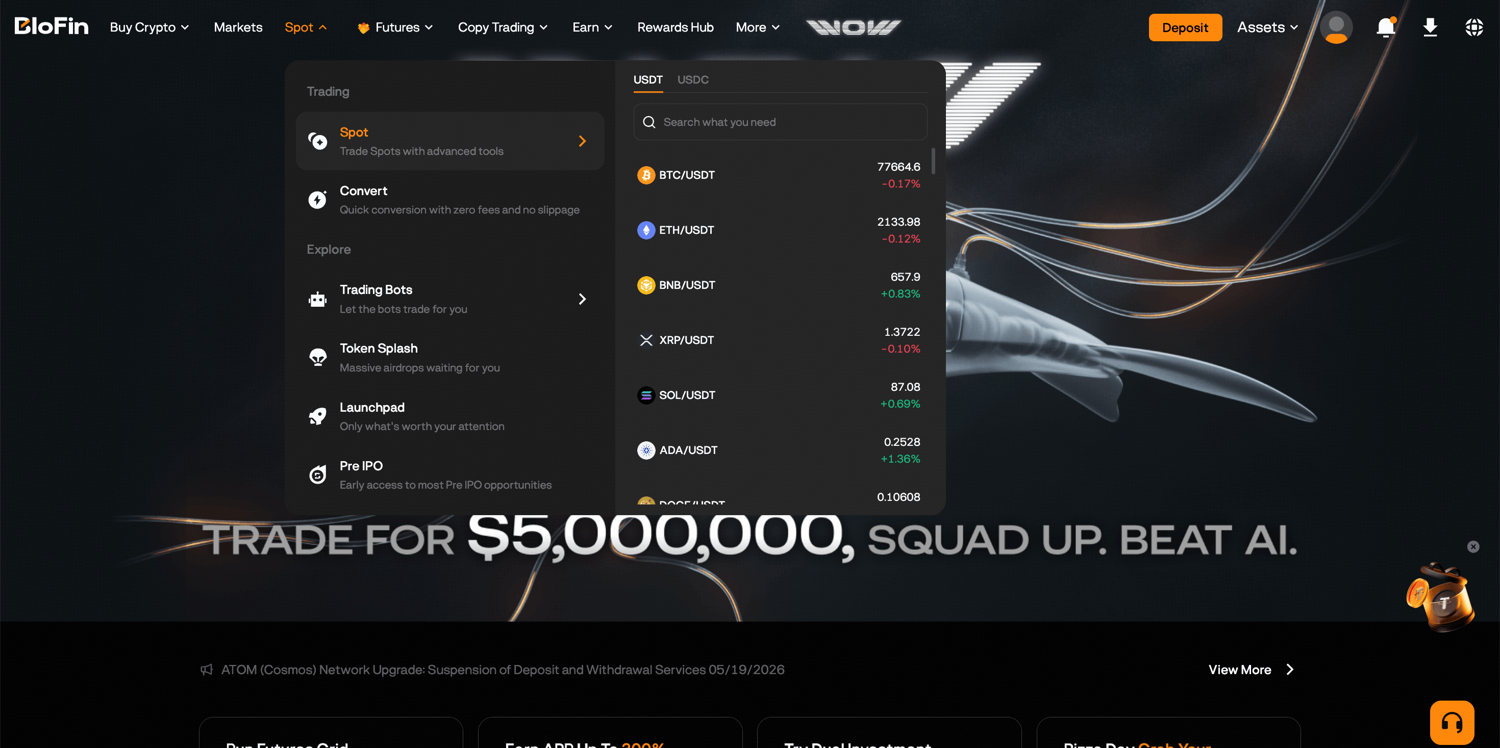
Step 2: Hover over the BTC/USDT pair and use the search bar or the asset list to find the trading pair you want. For example, ETH/USDT for Ether priced in USDT.
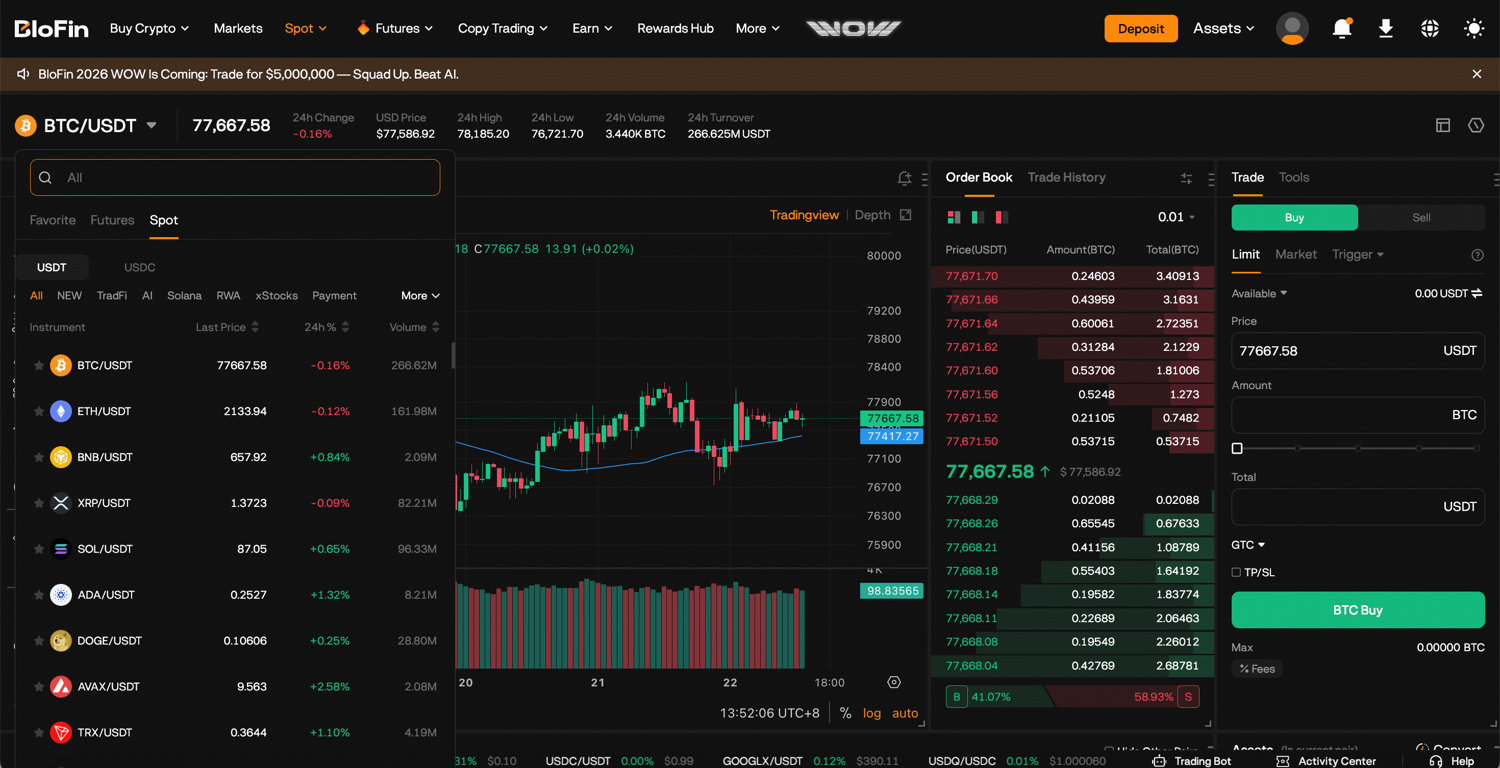
Step 3: In the order panel on the right, select your order type: Limit, Market, or Trigger.
Step 4: Select Buy.
Step 5: Enter your order details. For a limit order, set the price you want to trade at and the amount. For a market order, just enter the amount and it'll fill at the best available price.
Step 6: Click Buy to submit. Your order will either execute immediately (market order) or sit on the book until the market reaches your price (limit order).
Spot order types explained
Market order
Executes immediately at the best available price in the order book. You don't set a price. The system matches your order against existing orders. Fast and certain, but you get whatever price is available at that moment.
Use it when: speed matters more than the exact entry price, and you're trading a high-liquidity pair like BTC/USDT where the spread is tight.
Be careful when: trading lower-volume pairs where the spread is wide. A market order in a thin market can fill significantly worse than the price you saw on screen.
Limit order
Lets you set the exact price you're willing to buy or sell at. The order sits in the order book and only fills when the market reaches your level. If the market never gets there, the order stays open until you cancel it.
Use it when: you want price control and you're not in a rush. Limit orders also qualify as maker orders, which means a lower fee on BloFin.
A simple first approach: set your buy limit 0.5% below the current market price. If the market dips to your level, you get a slightly better entry. If it doesn't, you haven't lost anything.
Trigger order
A conditional order that activates only when the market reaches a specific trigger price. Once the trigger is hit, it becomes either a market order or a limit order and is sent to the market. Useful for entering a position when a breakout or dip happens while you're not watching the screen.
TP/SL
Sets an automatic exit at a take-profit or stop-loss price on a spot position. The TP closes your position when the price reaches your profit target. The SL closes it when the price moves against you to your specified limit. You can set both at the same time, giving your position a defined range of outcomes without needing to monitor it manually.
Scaled order
Splits a large order into multiple smaller limit orders spread evenly across a price range you set. You define the total size, minimum price, maximum price, and number of levels, and BloFin places the orders automatically. As the market moves through the range, each level fills in sequence. Useful for building or exiting a large position gradually rather than executing everything at one price.
Understanding futures trading
Futures trading has a few more settings to configure before you place an order. Take a moment to understand margin mode and leverage before diving in.
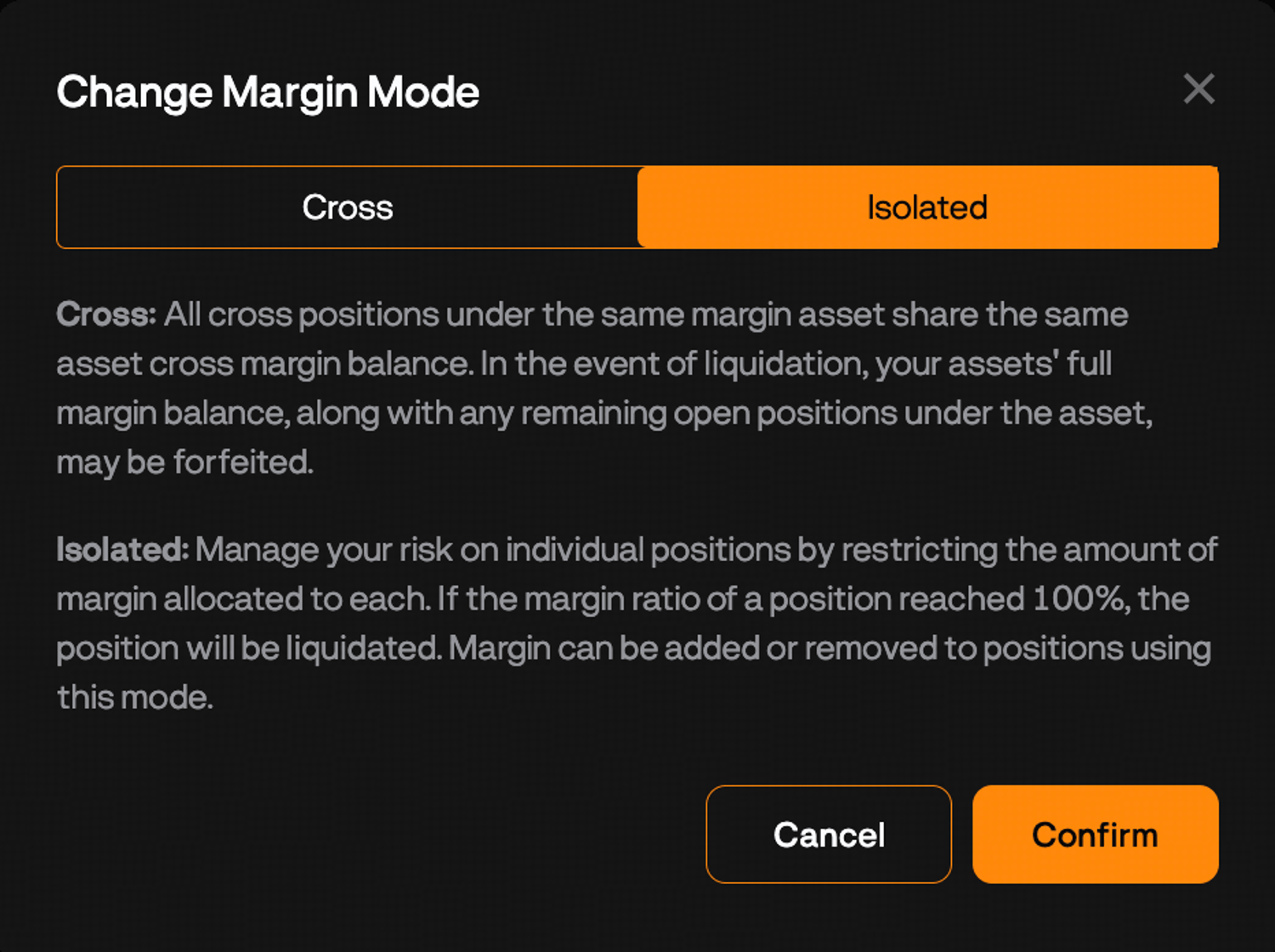
Margin mode: Cross vs isolated
Margin mode determines how your collateral is managed.
Cross margin uses your entire account balance as collateral for the position. It's harder to get liquidated because the platform can draw on more of your funds, but if a position goes badly wrong, more of your account is at risk.
Isolated margin caps your risk at the margin you allocate to that specific position. If it gets liquidated, only that margin is lost and the rest of your account is untouched. Generally the better choice for managing risk on individual trades, especially when you're starting out.
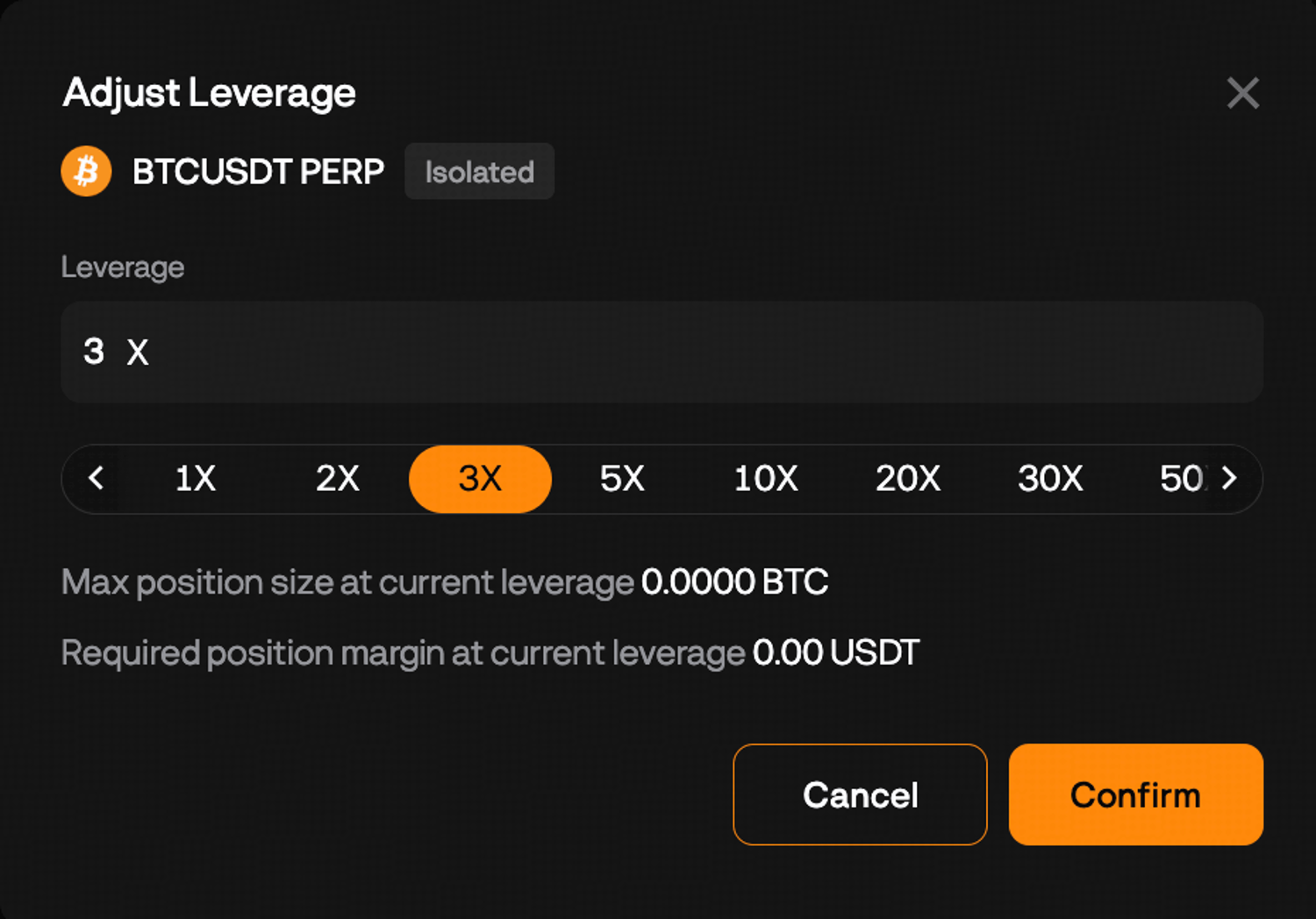
Leverage
Leverage multiplies the size of your position relative to your margin. At 10x leverage, $100 controls a $1,000 position. A 1% adverse price move equals a 10% loss on your margin. Higher leverage means larger potential gains and larger potential losses. Start conservatively at 2x to 5x, especially on your first trades. The leverage can always be increased once you understand how it affects your position.
How to place a futures trade on BloFin
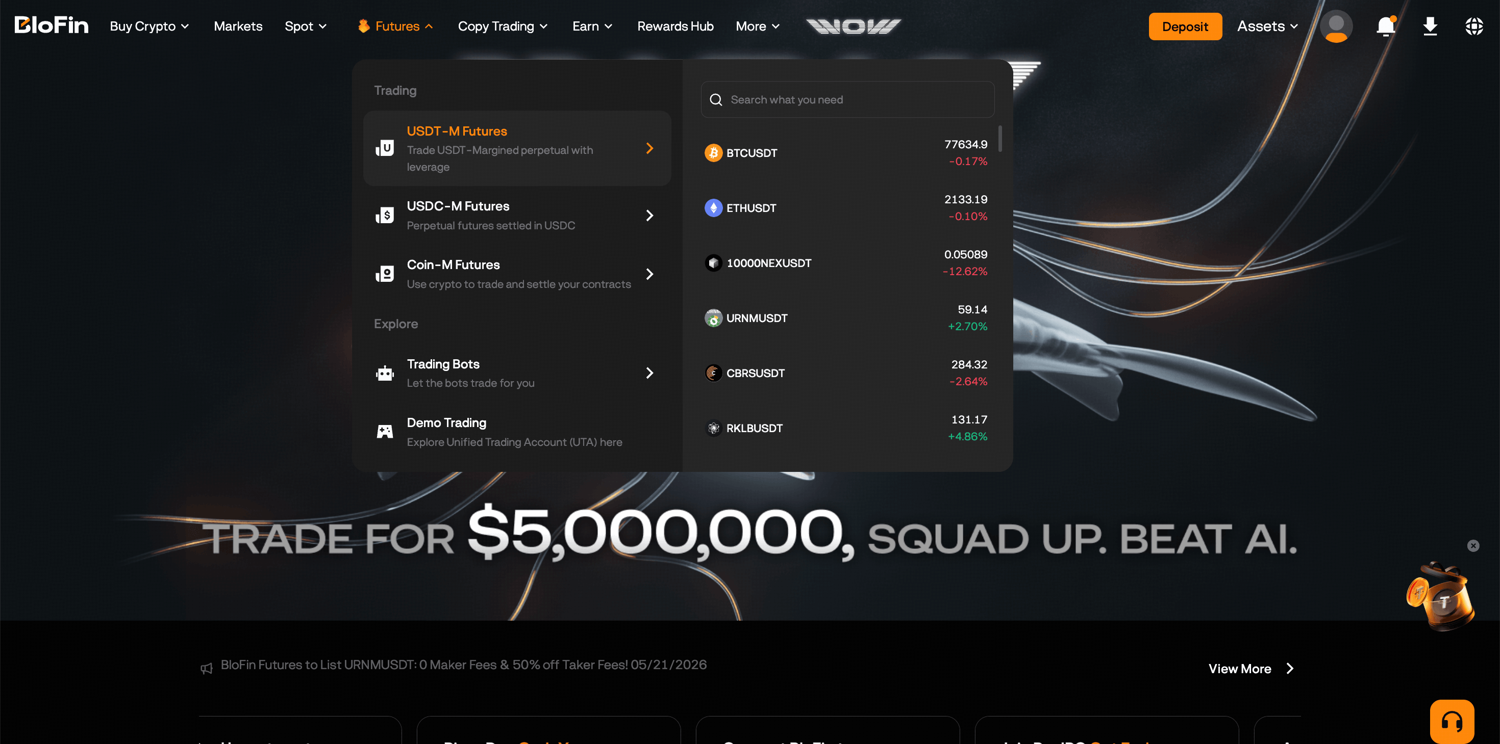
Step 1: Log in to your BloFin account and hover your cursor over the Futures button in the top navigation bar. Then, select your contract type (USDT-M is the most common).
Step 2: Hover your cursor over the BTCUSDT pair and use the search bar or the asset list to find the trading pair you want. For example, ETHUSDT for Ether priced in USDT.
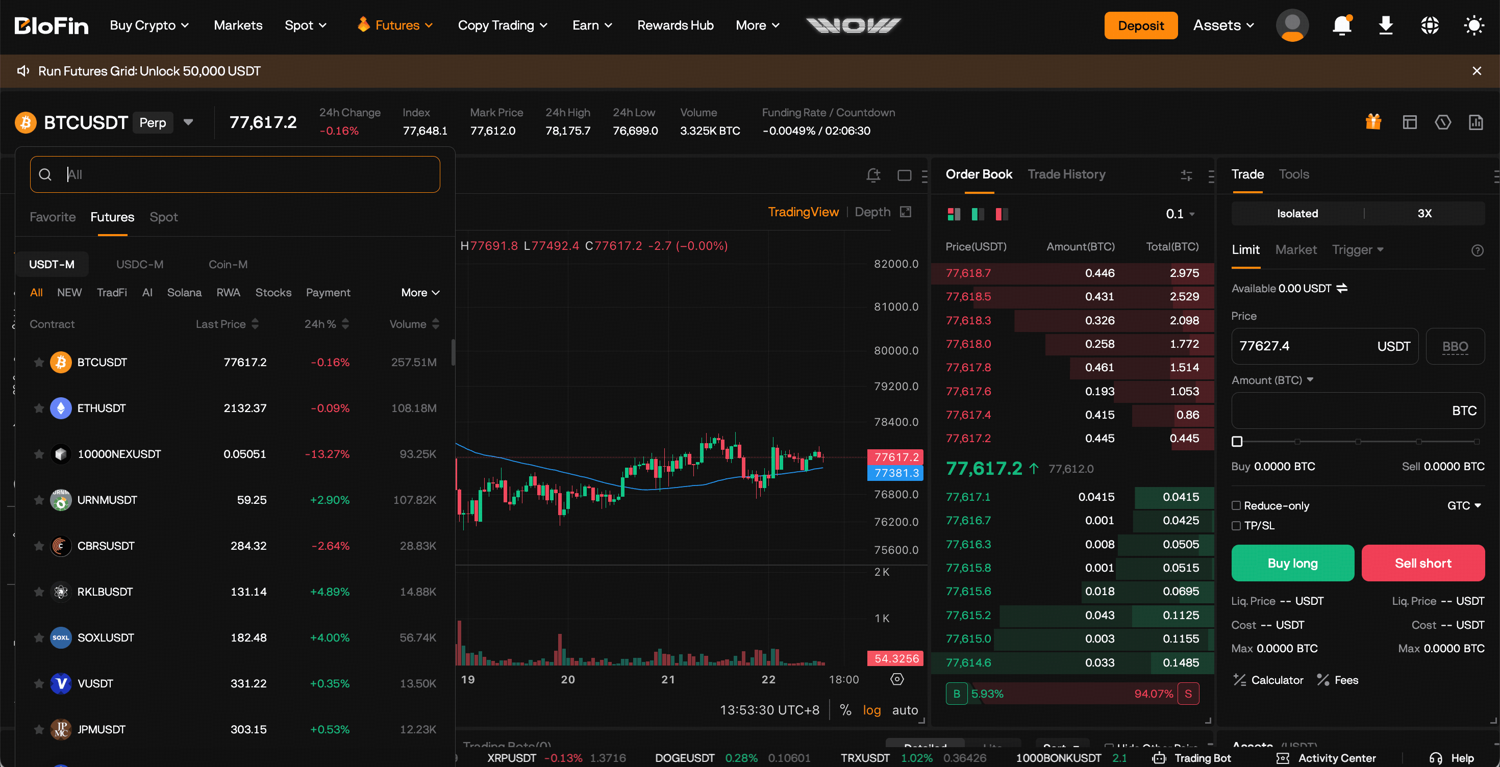
Step 3: Choose your margin mode: Cross or Isolated. This can be changed before you open a position.
Step 4: Set your leverage using the leverage slider or by typing the multiplier directly.
Step 5: Choose your order type: Limit or Market (and others covered below).
Step 6: Select Buy/Long to open a long position when you expect prices to rise, or Sell/Short to open a short position when you expect prices to fall.
Step 7: Enter the price (for limit orders) and the size of your position.
Step 8: Click Buy/Long or Sell/Short to submit. Review the confirmation and confirm.
Other futures order types
Beyond the standard limit and market orders, BloFin offers several additional order types for more precise execution.
Trigger order
Works the same as on spot: the order activates when the market hits a trigger price, then executes as a market or limit order.
TP/SL
Sets an automatic take-profit or stop-loss on an open futures position. BloFin gives you two modes: Entire Position TP/SL closes the full position when the trigger price is hit, while Partial Position TP/SL lets you close only a portion and keep the rest running. Full breakdown in the section below.
Trailing stop
Tracks the market price as it moves in your favour and places a stop order a set distance behind it. If the market reverses by that amount, the position closes. Useful for locking in gains on a running position without setting a fixed take-profit level.
Scaled order
Distributes a futures position across multiple limit orders within a price range rather than entering at a single level. Useful for larger positions where you want to reduce exposure to a single entry price, or for scaling out of a position gradually as the market moves in your favour.
TWAP (Time-Weighted Average Price)
Splits a large order into smaller pieces executed at regular intervals over a set time period. Reduces market impact when entering or exiting large positions.
Setting take-profit and stop-loss
Setting a TP and SL before you walk away from a trade is one of the most important habits in futures trading. BloFin gives you two ways to do it.
Entire Position TP/SL closes your full position automatically when the market hits your specified price. Enter a take-profit trigger price, a stop-loss trigger price, or both. When triggered, BloFin places a market order to close the entire position. You can only have one entire position TP/SL active per position.
Partial Position TP/SL lets you protect or exit a portion of your position while leaving the rest open. Useful when you want to lock in some gains but keep exposure. You can set multiple partial TP/SL orders on the same position. You can also choose whether the order executes as a limit (at your specified price) or market (immediately when triggered) by ticking the Limit option.
To set TP/SL after a position is already open, go to the Positions tab, select the position, and tap Take Profit and Stop Loss.
Reverse order
BloFin has a Reverse function in futures that simultaneously closes your current position and opens an equal position in the opposite direction, both executed as market orders. If you're long and the market turns against you, Reverse flips you to short in one action rather than two separate orders.
Note: if your balance can't cover an equal opposite position, a smaller position will be opened based on available funds.
Viewing your positions and order history
Once you're in a trade, the Positions tab at the bottom of the futures screen shows all your open positions, including entry price, estimated liquidation price, unrealised P&L, and current margin.
Open Orders shows limit or stop orders that are waiting to be filled. You can cancel or modify these at any time before they trigger.
Order History shows every order placed on your account, filled, cancelled, and expired, with timestamps, fill prices, and fees paid.
Trade History shows individual fill records. A single limit order can fill in multiple parts if the order book doesn't have enough volume at your level to fill everything at once.
Getting into the habit of reviewing your order history after each session is one of the most reliable ways to improve. Check whether your limit orders filled where you expected, what you actually paid in fees, and for futures positions, what the funding cost was on any position you held through a settlement window.
Common mistakes to avoid on your first trade
Mistake | What goes wrong | How to avoid it |
Wrong account for trading | Order fails or balance shows zero | Transfer funds to Spot or Futures Account before trading |
Market order on a thin pair | Wide spread causes significant slippage | Use limit orders for any pair outside the top pairs by volume |
No stop-loss on a futures position | Position runs to liquidation | Set a stop-loss before stepping away from any open futures trade |
Too much leverage too early | Small moves cause large losses | Start at 2x to 5x maximum on your first futures trades |
Ignoring funding rates | Overnight costs erode position value | Check the current funding rate before opening any position you plan to hold past a settlement window |
Forgetting to check fill price | Unexpected entry causes sizing errors | Review order history after every trade |
After your first trade: Where to go from here
Now that you've placed your first trade, the platform opens up in a few directions depending on what you want to do next.
Not ready to pick trades yourself? BloFin Copy Trading lets you automatically follow experienced traders on the platform. You set the allocation and risk parameters, they do the trading.
Want to trade without watching the screen? Trading Bots can run grid or DCA strategies around the clock on both spot and futures.
Looking to understand futures more deeply before trading live? What Is BloFin Futures Trading covers the mechanics of perpetual contracts, leverage, and how positions work in more detail.
Idle funds between trades? BloFin Earn puts your USDT, ETH, or BTC to work earning daily interest.
Frequently asked questions
What is the minimum amount needed to start trading on BloFin?
There is no platform-wide minimum deposit. Individual trading pairs have minimum order sizes, typically a small dollar equivalent for major spot pairs. Starting with enough to practice proper position sizing matters more than the exact amount.
What's the difference between a market order and a limit order?
A market order fills immediately at the best available price. A limit order sits in the order book and only fills when the market reaches your specified price. Market orders are faster. Limit orders give you price control and qualify as maker orders with lower fees.
What does Cross vs Isolated margin mean?
Cross margin uses your full futures account balance as collateral for a position. Isolated margin caps the risk to only the margin you assign to that specific trade. If the position gets liquidated, isolated margin means only that allocated amount is lost, not your whole account.
Do I need to set a TP and SL on every trade?
It's not mandatory, but it's a good habit to build early on both spot and futures. Setting a take-profit locks in your target automatically so you don't need to watch the screen. A stop-loss gives your trade a defined exit point if the market moves against you. Together they let you trade with more confidence and less time spent monitoring open positions.
What is a reverse order on BloFin?
The Reverse function closes your current futures position and simultaneously opens an equal position in the opposite direction, all via market orders. It lets you flip your market stance in one action rather than placing two separate orders.
Where do I check my open orders and trade history?
Open orders are in the Open Orders tab on the trading page. Filled and cancelled orders are in Order History. Your active futures positions are in the Positions tab. For spot, order history is also accessible via Assets, then Order Center.
Disclaimer: This content is for educational purposes only and does not constitute financial, investment, legal, or tax advice. Crypto assets are highly volatile and carry significant risk of loss. Always verify local regulations and consult a qualified professional before making financial decisions.