
How to Set up Take-Profit and Stop-Loss in Futures Trading?
March 10, 2025 at 06:06 PMTake-profit and stop-loss (TP/SL) is a type of strategy order that refers to setting the order and trigger conditions in advance. When the latest trading price of the contract reaches the pre-set trigger price, the pre-set order will enter the market according to the order price to achieve the goal of taking profits and stopping losses.
TP/SL is one of the very important concepts in futures trading. When the position moves in the opposite direction of the market, you need to stop the loss in time; when the position is in the same direction as the market, you need to take profit and lock it in time. Only by learning to set TP/SL can you survive longer in this market.
BloFin perpetual swap can perform take-profit and stop-loss operations in two places: the Order Placing page and the Position area.
On the App
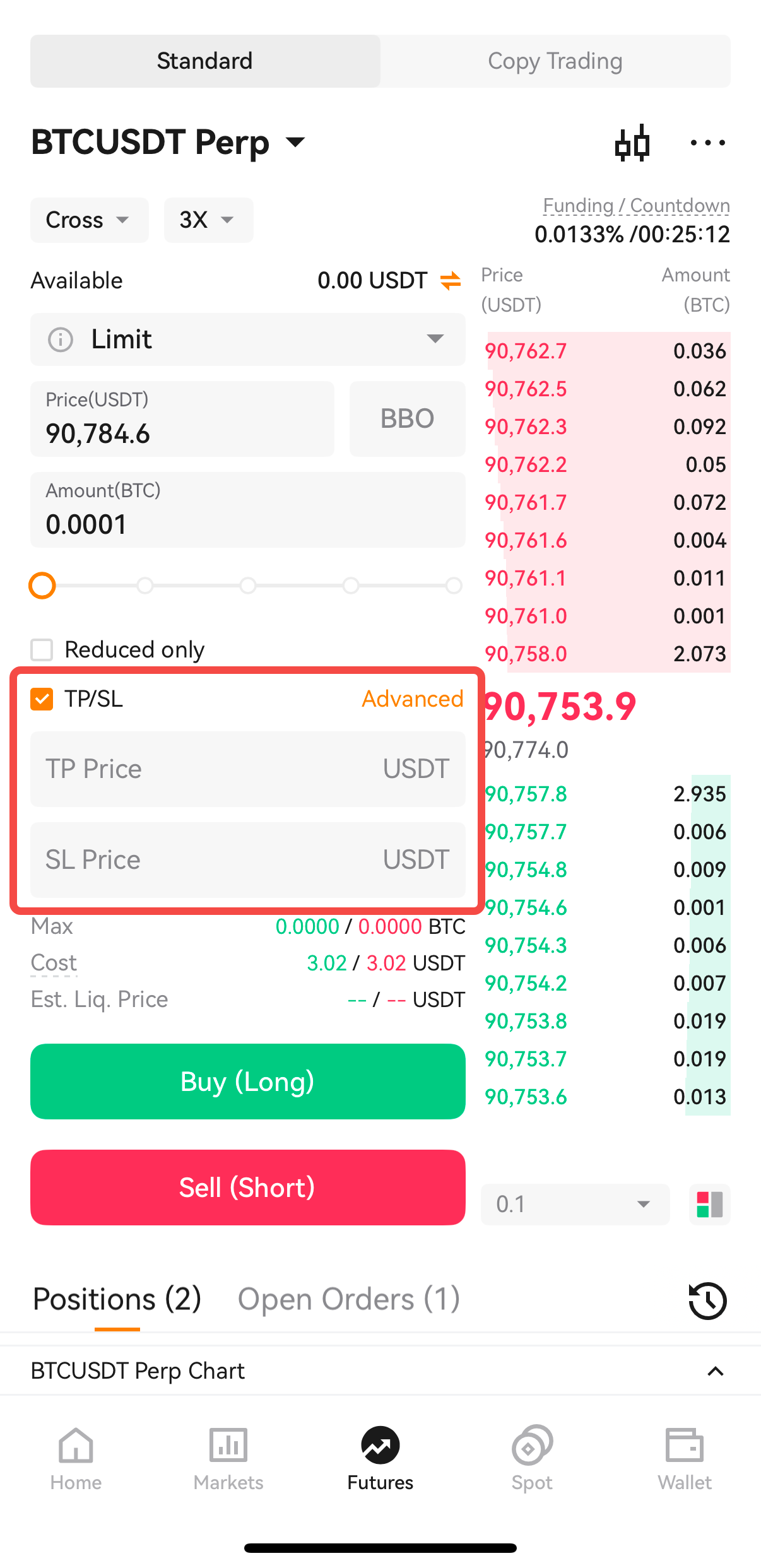
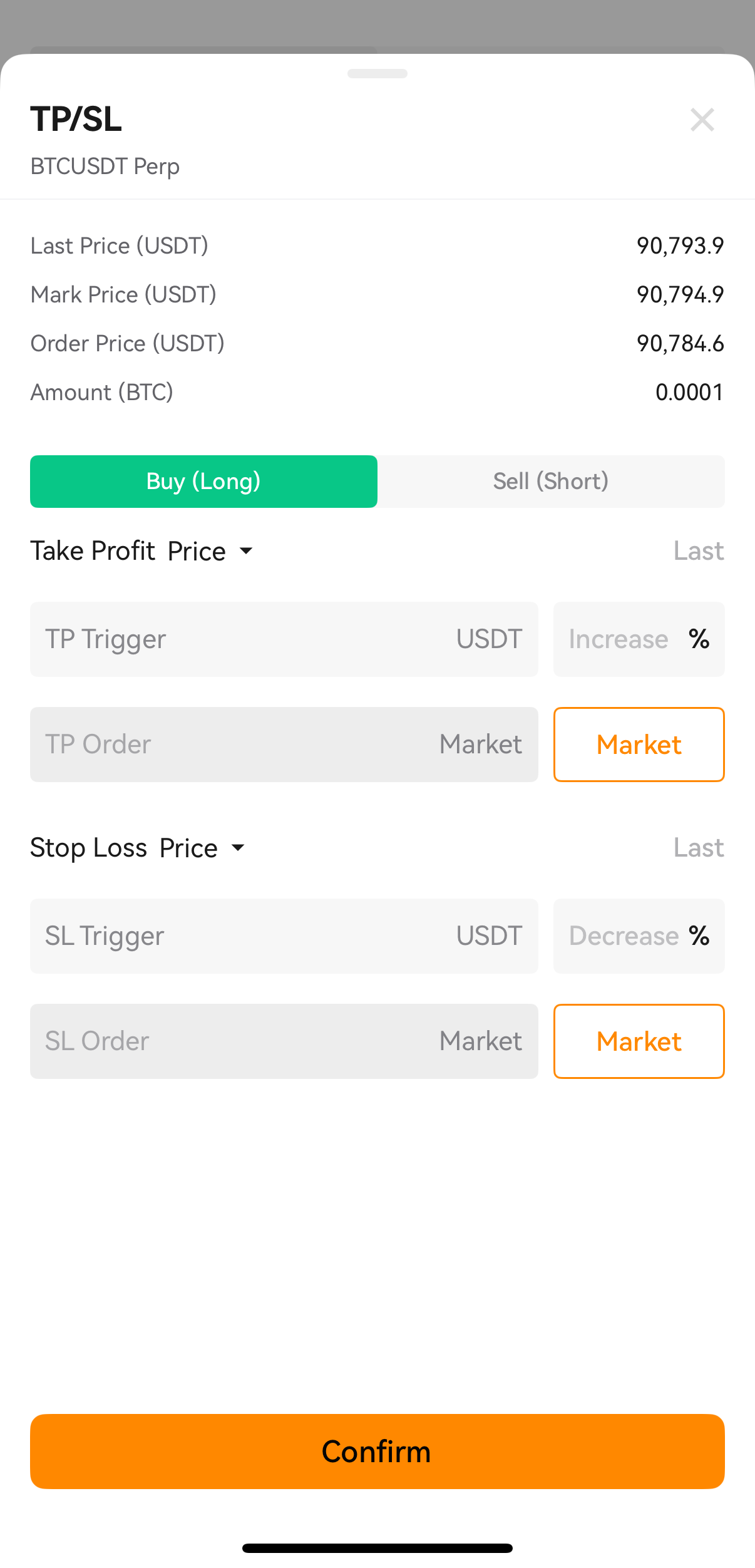
1. Set take profit and stop loss when opening a position
2. Set take profit and stop loss after opening a position
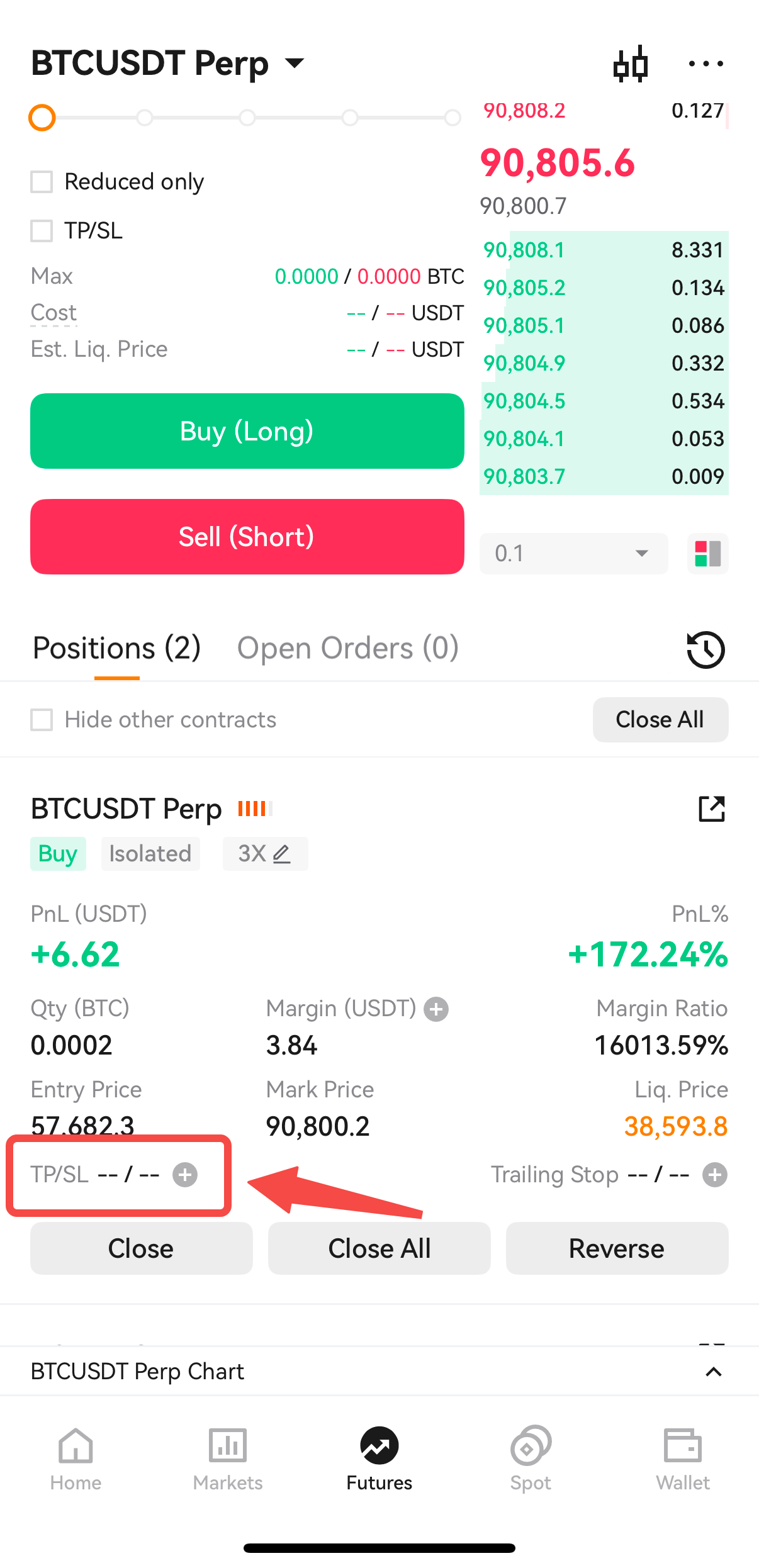
After creating a position, you can tap [Position], select the specific position to be closed, tap [TP/SL], set [TP/SL] at the Position page, enter [TP Trigger Price], [TP Order Price], [SL Trigger Price], [SL Order Price], and [Amount], tap [Confirm], and then take profit and stop loss is set successfully.
Note: you can set TP/SL according to the Price / Estimated Profit / Estimated Profit Rate(%).
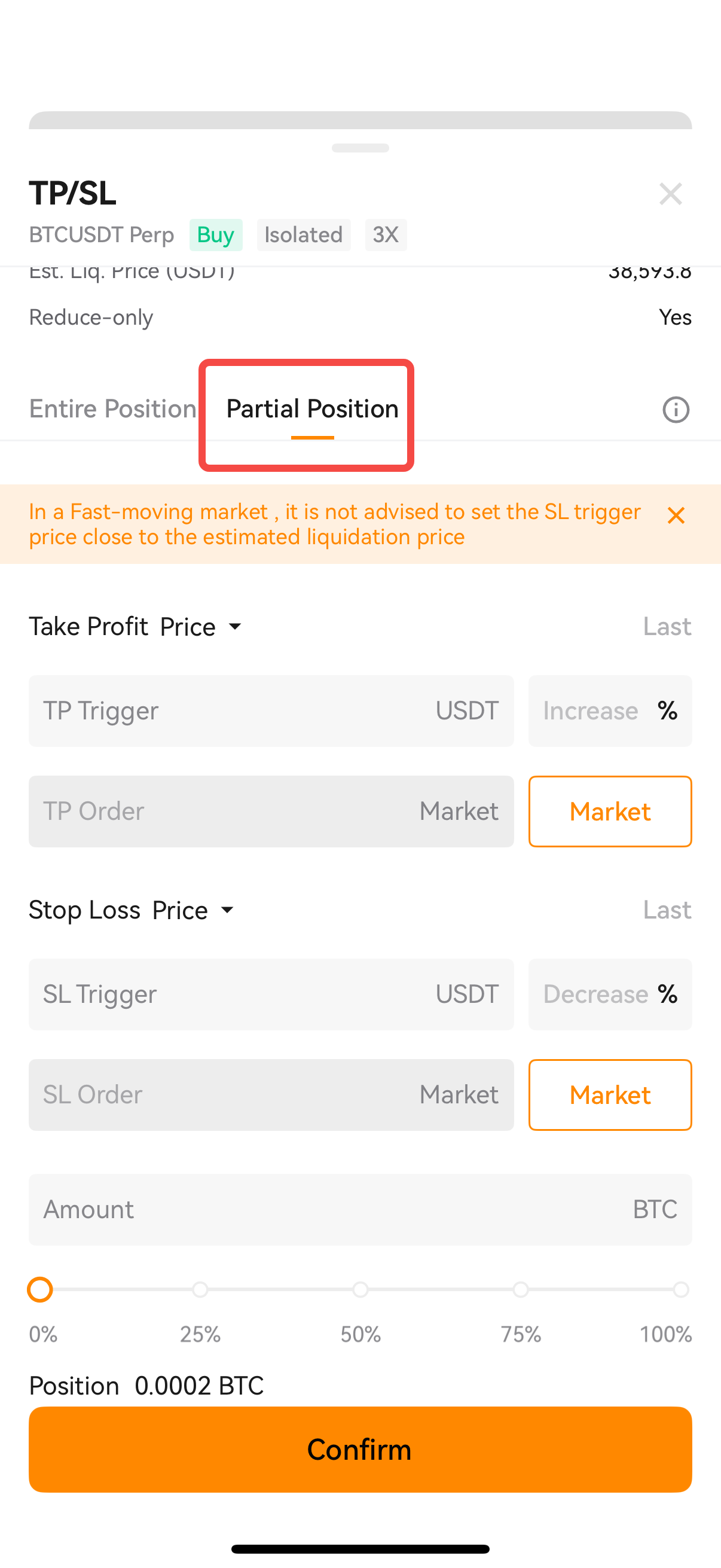
Trigger price: when the latest market price reaches the trigger price set by the user, the TP/SL will be triggered and the order will be completed.
Order price: the order will be placed based on the order price after the TP/SL order is triggered.
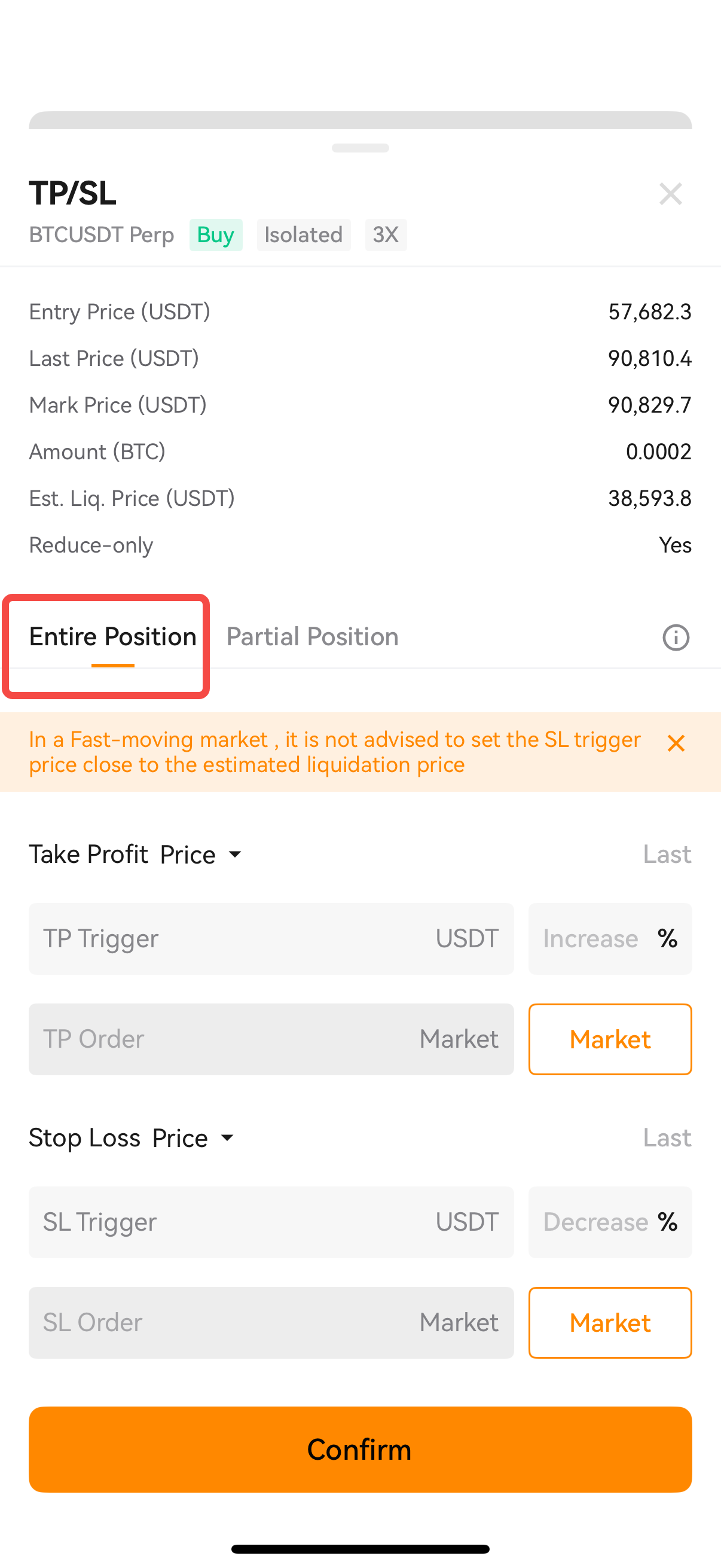
2.2 Entire Position TP/SL
This TP/SL applies to the entire position. In this mode, the order quantity changes with the position size.
Select the specific position to be closed, tap [TP/SL] - choose [Entire Position] - enter [TP Trigger Price], [TP Order Price] and [SL Trigger Price], [SL Order Price] - tap [Confirm]. A market order or limit order will be placed when the trigger price is reached. You can only place one entire position TP/SL order targeted at one position.
If you decide to place both take profit and stop loss at the same time, once one side is triggered, the other side will be canceled.
Note: you can set TP/SL according to the Price / Estimated Profit / Estimated Profit Rate.
On the Web
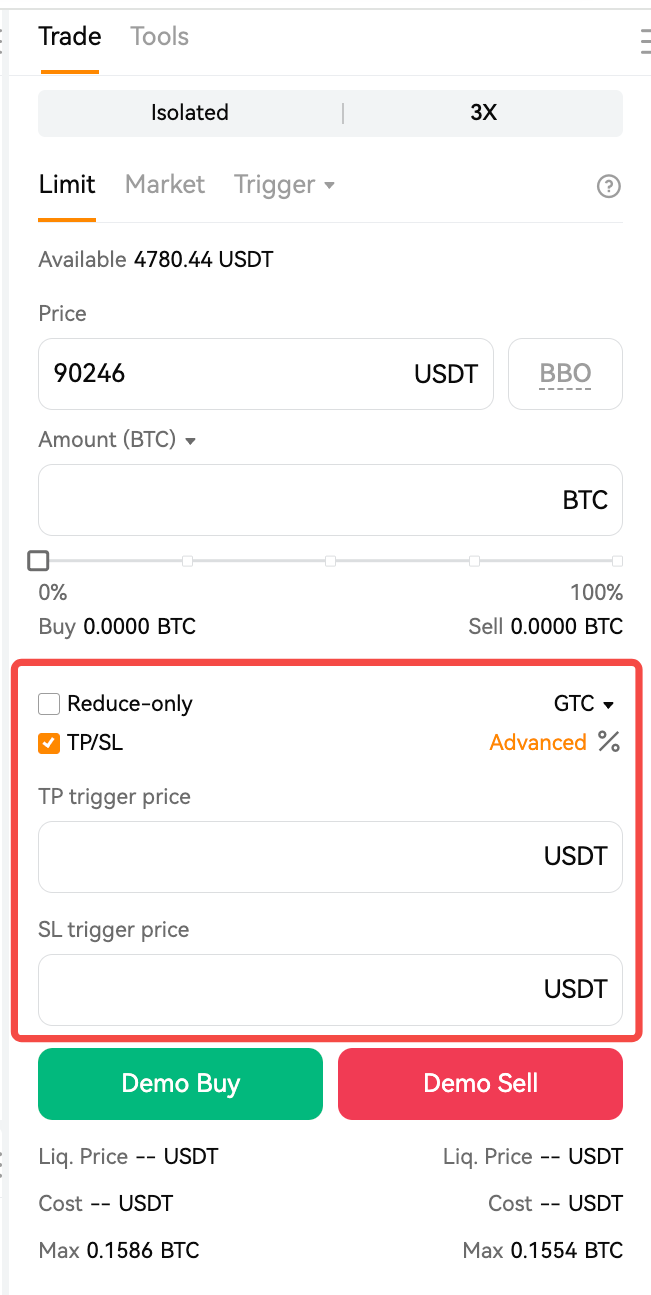
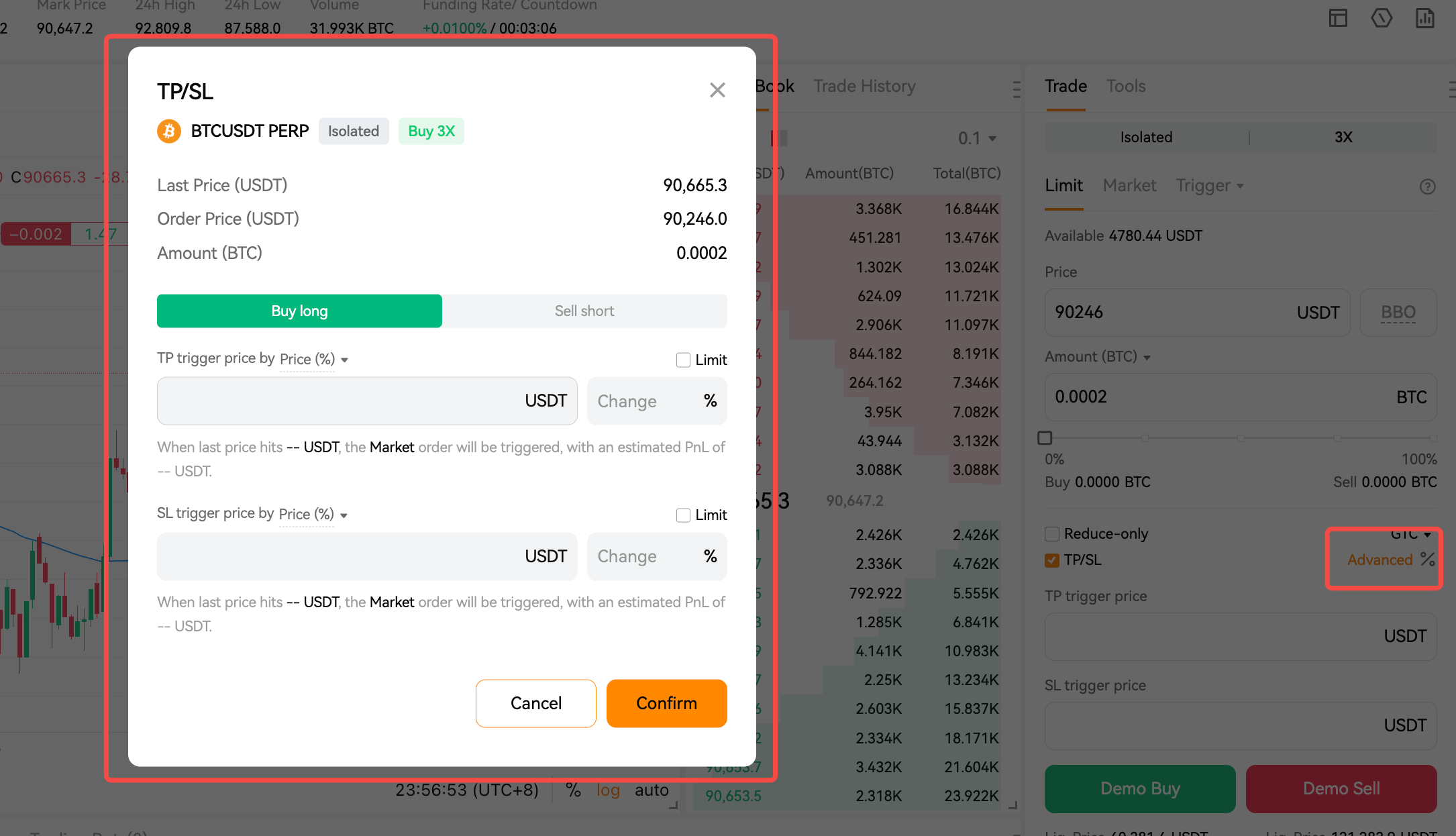
1. Set take profit and stop loss when opening a position
Take a long order as an example: tap [TP/SL] at the [Futures] interface, after setting the relevant parameters, enter the [TP Price] and [SL Price], and tap [Buy (Long)], the TP/SL order will be set as a market order. For advanced options, select [Advanced] to access the advanced TP/SL setting interface, where you can establish a TP/SL order using a limit order. Once configured, the TP/SL order is successfully placed.
2. Set take profit and stop loss on the specific position page
2.1 Partial Position TP/SL
We support setting TP/SL according to the Price / Estimated Profit / Estimated Profit Rate. After opening a position, you can click [Position], select the specific position to be closed, set [TP/SL] at the specific position page, enter [TP Trigger Price], [TP Order Price], [SL Trigger Price], [SL Order Price], and [Amount], click [Confirm]. After that, TP/SL is set successfully.

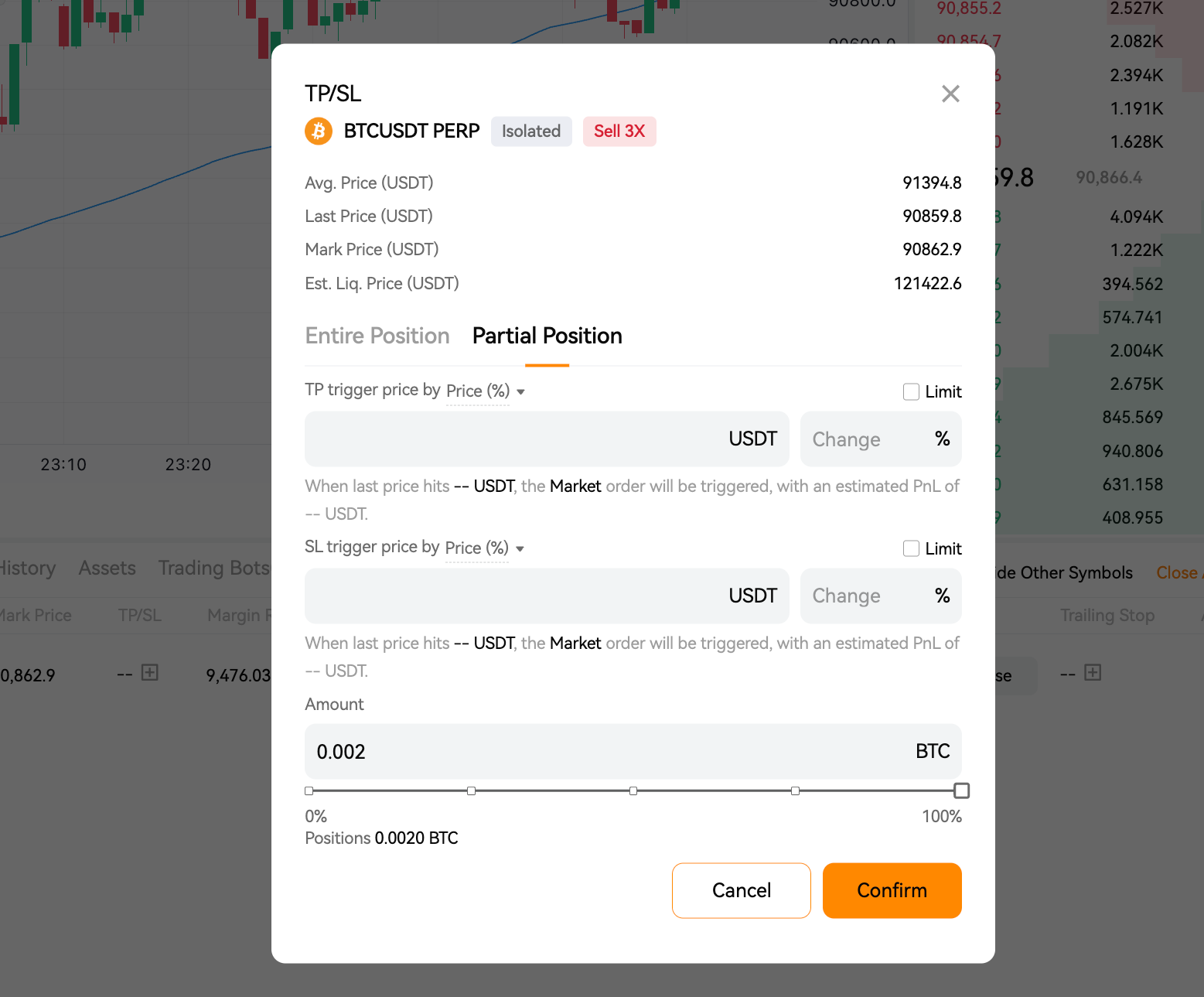
Limit: it allows you to set TP/SL as a limit order or market order. When you tick the Limit box, you can set TP/SL by setting the trigger price and order price, when the TP/SL is triggered, it will be filled as a limit order. If you don't tick it, you just need to enter the trigger price, when the TP/SL is triggered, it will be filled as a market order.
Trigger price: when the latest market price reaches the trigger price set by the user, the TP/SL will be triggered and the order will be completed.
Order price: the order will be placed based on the order price after the TP/SL order is triggered.
2.2 Entire Position TP/SL
This TP/SL applies to the entire position. In this mode, the order quantity changes with the position size.
Select the specific position to be closed, tap [TP/SL] - choose [Entire Position] - enter [TP Trigger Price], [TP Order Price] and [SL Trigger Price], [SL Order Price] - tap [Confirm]. A market order or limit order will be placed when the trigger price is reached. You can only place one entire position TP/SL order targeted at one position.
If you decide to place both take profit and stop loss at the same time, once one side is triggered, the other side will be canceled.
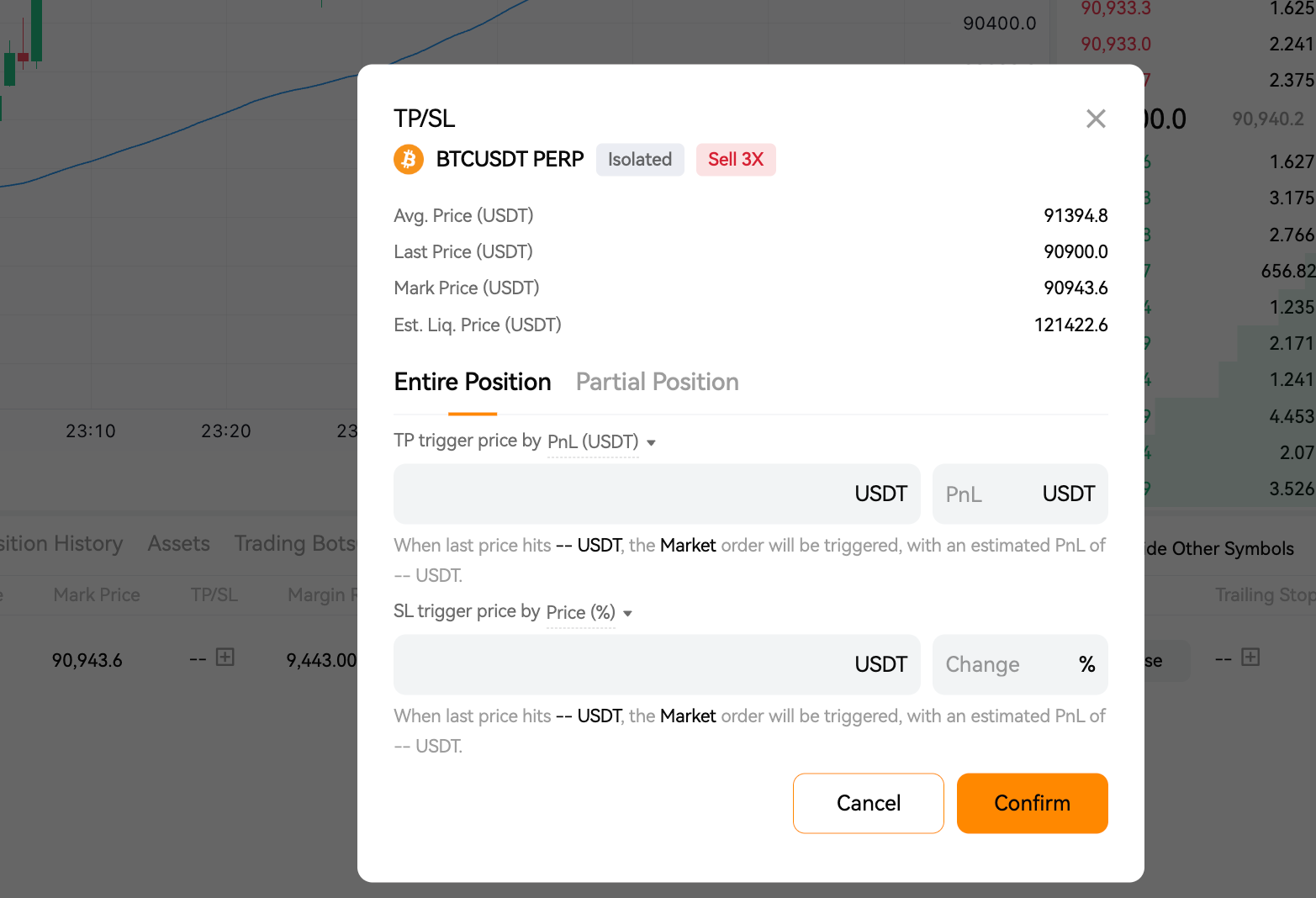
2.3 The difference between the entire position TP/SL and the partial position TP/SL
The entire position TP/SL (original TP/SL) applies to a fixed quantity in the position. In this mode, the order quantity doesn't change with the position size. You can only set one entire position TP/SL order.
In the partial position TP/SL mode, you can place a limit or market order when the triggered price is reached. You can place more than one partial position TP/SL order.