
Crypto markets don't move in a straight line. Even during a broader uptrend, prices tend to oscillate constantly, pulling back, bouncing, retesting levels, and repeating the cycle over and over. For most traders, that choppiness feels like something to endure while waiting for the "real" move. But for grid trading, that choppiness is the entire strategy. Every oscillation is a potential profit opportunity, and the Futures Grid Bot captures them automatically, around the clock, without you needing to watch a single chart.
So if you've been curious about grid trading on the futures market, or you've heard the term but weren't sure how it actually works in practice, this guide covers everything you need to know about the BloFin Futures Grid Bot.
What is the BloFin Futures Grid Bot?
The BloFin Futures Grid Bot is an automated trading tool that places buy and sell orders at price levels within a price range you define. As the market moves up and down inside that range, the bot buys at lower levels and sells at higher ones, capturing the price difference between each completed pair as profit. Because this is a futures bot, it trades futures contracts rather than the underlying asset, which means you're working with leverage.
Once the bot is up and running, it handles all order placement and position management on its own. You set the parameters upfront, and the bot takes care of the rest. The Futures Grid Bot currently operates in one-way mode only, with positions held using cross-margin.
How the BloFin Futures Grid Bot works
The core mechanic is actually pretty simple once you see it in action. You define a price range and divide it into a set number of intervals, which are called grid levels. The bot then places opening or closing orders according to the selected mode. For example, under Buy mode, when the price drops to a buy level, the bot opens a position. When the price rises to the next sell level above it, the bot closes that position and books the profit. Then it resets and does it again.
This loop repeats continuously for as long as the bot is running, capturing a small profit each time the price completes a round trip between two grid levels. The more the price oscillates within your defined range, the more trades the bot completes, and the more it earns. That's why sideways and volatile markets are where this bot performs best.
A few things are worth understanding about how the bot operates in practice.
First, it's self-resetting. Each time a grid trade completes, the bot automatically replaces the executed order so every level stays covered at all times. You don't have to go back in and manually re-enter anything.
Second, it runs 24/7. The Futures market on BloFin doesn't close, and neither does your bot. Price movements at 3am or over a long weekend get captured the same way as any other time.
Third, the capital you allocate to the bot is isolated from the rest of your account, so it won't interfere with your manual trades or any other bots you have running.
The three order directions
One of the more useful features of the Futures Grid Bot is that it isn't locked into a purely neutral stance. You can configure it with a directional bias depending on your read of the market, because sometimes you have a view and you want the bot to reflect it. There are three options.
Buy mode
Buy mode is designed for volatile markets where you expect an upward lean. When the bot starts, it immediately enters long positions at the current market price, then takes profits by closing those positions as the price rises to higher grid levels.
Because buy positions are open from the moment the bot launches, this mode carries more immediate exposure than Neutral mode. If the price drops sharply right after you activate it, those open longs will be in drawdown. The trade-off is that if the market trends upward while oscillating, Buy mode captures both the grid profits from completed trades and the benefit of holding longs into a rising market.
Sell mode
Sell mode works the same way but in reverse. The bot opens short positions at launch and takes profits as the price falls to lower grid levels. Like Buy mode, the positions are live right away, so a sudden price spike shortly after setup would put those open shorts in drawdown.
It's a good fit for traders who are cautiously bearish but expect the market to stay within a range rather than collapse entirely. The grid captures profit from each downward oscillation within your defined range.
Neutral Mode
Neutral mode starts with no initial position at all. Instead, the bot places buy orders below the current market price and sell orders above it, then waits for the market to move to each level before opening anything. Positions are only entered when the market actually trades through a grid level.
When a buy order gets filled and the price then rises to the next grid level above it, the corresponding sell order closes the position and locks in the profit. The bot replaces both orders and the cycle continues. Because there's no directional bet at launch, Neutral mode is the most balanced of the three and performs consistently in range-bound conditions regardless of whether the overall drift is up or down.
Arithmetic vs geometric grids
When you're setting up the bot, you'll choose between two ways to space your grid levels. This is a smaller decision than choosing your price range, but it's worth understanding what each one does.
Arithmetic grids space the levels at equal absolute price intervals. So if your range is $10,000 to $30,000 with five grids, each interval is $4,000. This is calculated by taking the difference of the range and dividing it by five grids. The dollar profit per completed grid trade is the same across the entire range, which makes it easy to predict your returns at each level.
Geometric grids space the levels at equal percentage intervals instead. Using the same range, each interval might be around 24.57% apart. This is calculated by taking the upper price ($30,000) divided by the lower price ($10,000), raising it to the power of one divided by five grids, and then subtracting 1. At 24.57%, each step is a fixed ratio of the previous price rather than a fixed dollar amount.
In terms of which to pick, geometric grids tend to work better for assets that move proportionally, where a 5% move at $10,000 and a 5% move at $30,000 both feel equally significant. Arithmetic grids work better when you expect consistent dollar-value swings throughout your range. For most traders getting started, either approach is fine. The more important decisions are the range itself and how many grids you want to run.
Key parameters explained
When you set up the bot manually rather than using the AI strategy option, you'll configure several parameters. These settings shape both the bot's profitability and its risk exposure, so it's worth knowing what each one actually does.
Lowest Price sets the floor of your grid. If the market falls below this level, the bot stops placing new orders until the price returns inside the range. Any open positions the bot already holds stay open; they don't get automatically stopped out just because the price left the range.
Highest Price sets the ceiling, with the same behavior. If price moves above this level, the bot pauses until it comes back inside.
Grid Quantity is the number of intervals your range gets divided into. More grids means more trades, each capturing a smaller profit per cycle. Fewer grids means larger profit per individual trade, but fewer opportunities to capture them. The right balance depends on how volatile the asset is and how tight you want the grid to be.
Leverage is the multiplier applied to your margin. The Futures Grid Bot defaults to 3x. Higher leverage increases potential profits per trade, but it also means a smaller adverse price move can trigger liquidation. The bot shows you estimated liquidation prices for both buy and sell positions when you configure it, and those numbers deserve a close look before you confirm.
Invested Margin is the actual USDT you commit to the bot. This amount is locked into the bot and isn't available for other trades while it's running. The minimum and maximum amounts adjust dynamically based on your price range, grid quantity, and leverage settings.
Estimated Liquidation Price (Buy/Sell) shows the price level at which the bot's positions could be liquidated, assuming all grid orders are filled. These are estimates, but they give you a clear reference point for understanding your worst-case scenario.
Grid profit vs total PnL: Why they look different
Grid profit is the cumulative total of all completed buy-sell pairs. Every time the bot successfully buys at one level and sells at the next one above it, that realized profit gets added to the grid profit figure. This number only ever goes up because it only counts completed trades.
Total PnL, on the other hand, includes both the realized grid profit and the unrealized P&L of any open positions the bot is currently holding. If the market has moved against those open positions (for example, you're in Buy mode and the price has dropped), those unrealized losses are factored into the total.
So it's entirely possible to see a positive grid profit sitting alongside a negative total P&L. The bot has been doing its job and generating real profits from completed trades, but the open positions it's currently holding are underwater enough to offset them in the total figure. That's not necessarily a sign something has gone wrong. If the market recovers and oscillates back through the grid levels, those unrealized losses can reverse. Understanding the difference between these two numbers helps you evaluate the bot's actual performance more accurately and make better-informed decisions about whether to keep it running.
What happens when price leaves your range
When the market price moves above your highest price or below your lowest price, the bot pauses and stops placing new orders. Existing open positions remain open and continue to carry PnL based on where the price is.
At that point you have two options. You can let the bot sit and wait. If you think the market will return to your range, you can leave it running and the bot pauses new order placement until the price returns within your range, at which point it typically resumes automatically. Your open positions stay active in the meantime. Alternatively, you can stop the bot manually if you've reassessed the situation and want to exit. When you stop it, all pending orders are canceled and all open positions are closed at the current market price. Your remaining margin and any realized profits are returned to your Funding Account.
The key risk in leaving the bot running outside its range is that your open positions continue to accumulate unrealized PnL in the wrong direction if the market keeps moving away. Setting a range you're genuinely comfortable holding through, and managing your margin accordingly, is the main way to keep that risk in check.
Leverage, margin, and liquidation risk
Because the Futures Grid Bot uses leverage and holds open futures positions, liquidation risk is something to take seriously when sizing your setup. This isn't a theoretical concern. It's an active part of managing a leveraged grid strategy.
The estimated liquidation prices the bot shows you during setup assume a scenario where all grid orders are filled. In practice, the actual liquidation threshold depends on how many positions have been opened at any given time, but those estimates still give you a useful directional read on where danger lies.
If the market moves against you and you're concerned about your buffer shrinking, you can add margin to the bot without stopping it or changing any parameters. Adding margin increases your cushion and pushes the liquidation price further away. You can also reduce margin if you want to free up capital for other uses, though doing so brings the liquidation price closer in. Margin adjustments are available from the bot's Details page under the Adjust Margin option.
Who is the Futures Grid Bot for?
The Futures Grid Bot is well-suited to traders who expect a particular asset to stay range-bound or oscillate without a strong directional trend. If you're watching an asset chop between two price levels and you want to systematically capture those swings rather than trying to time individual entries and exits, this bot was built exactly for that scenario.
It's also useful if you have a formed directional view and want to express it in a structured way. If you're moderately bullish on an asset, for example, Buy mode lets you set up a grid that benefits from upside volatility without requiring you to stay glued to the screen.
Where it's less suited is in strongly trending markets. If an asset breaks out of its range and starts trending hard in one direction, the bot's grid orders on the opposite side don't get hit and the open positions from the other side simply ride the trend. That's not a disaster, but it means the grid structure isn't doing what it was designed to do. Matching the bot to the right market condition is genuinely as important as the configuration itself.
The Futures Grid Bot is available to anyone with a BloFin account and funds in their Futures Account. You can run up to 20 Futures Grid Bots simultaneously.
Before you get started
If you’re looking to get started, there are a couple of things to check before you create your first bot. You'll need funds in your BloFin Futures Account, since the bot draws its margin from there. If your funds are sitting in your Funding Account, you'll need to transfer them over first.
It's also worth spending a few minutes on the asset you're planning to run the grid on. The Futures Grid Bot works best when the market is oscillating within a range rather than trending strongly in one direction, so taking a quick look at the recent price action before you set your parameters will help you make better decisions. You don't need to do a deep analysis, but going in without any context on where the price has been tends to lead to poorly calibrated ranges.
How to access the Futures Grid Bot
There are two ways to get to the bot setup page on BloFin, and both lead to the same place.
The first is through the Trading Bots hub.
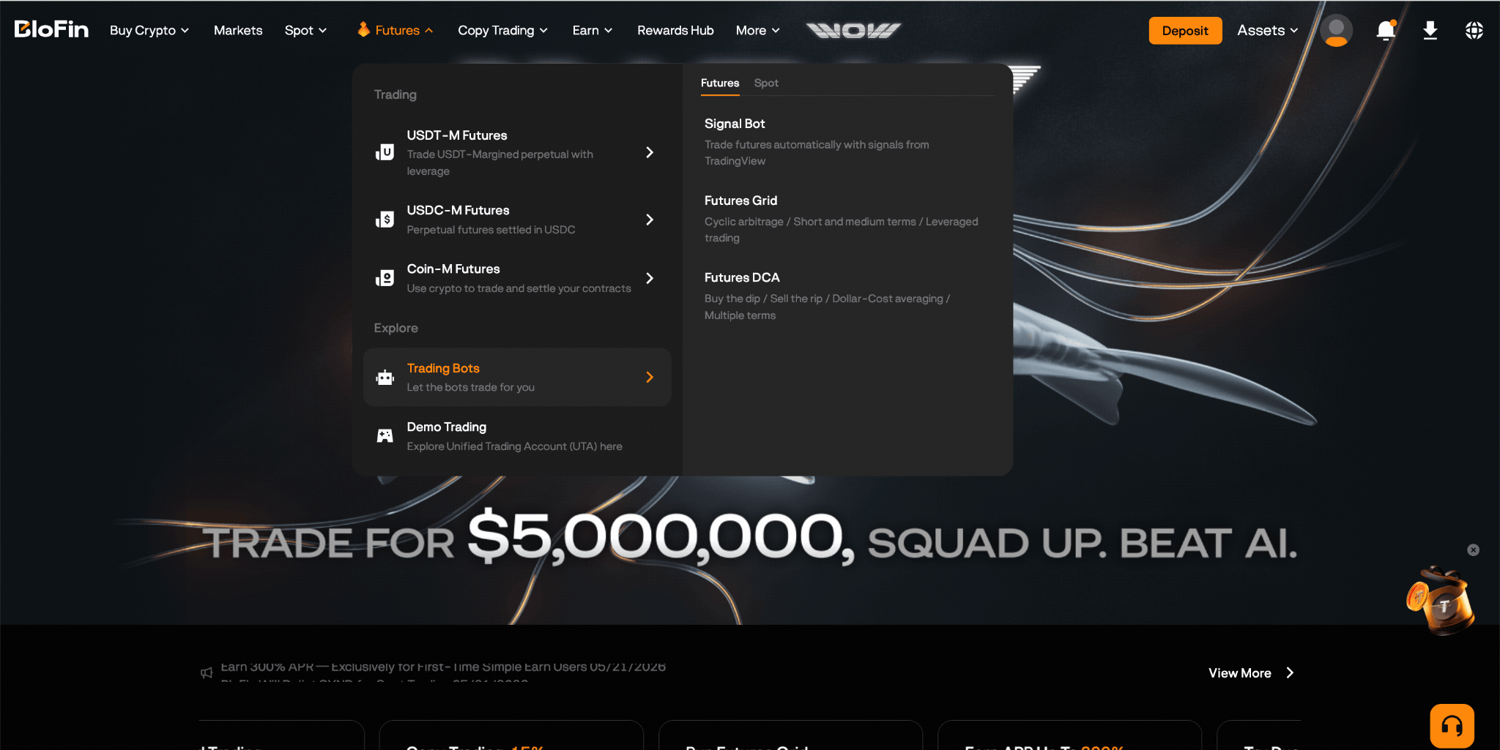
Step 1: Log in to your BloFin account and hover your cursor over the Futures tab in the navigation bar. Then, select Trading Bots.
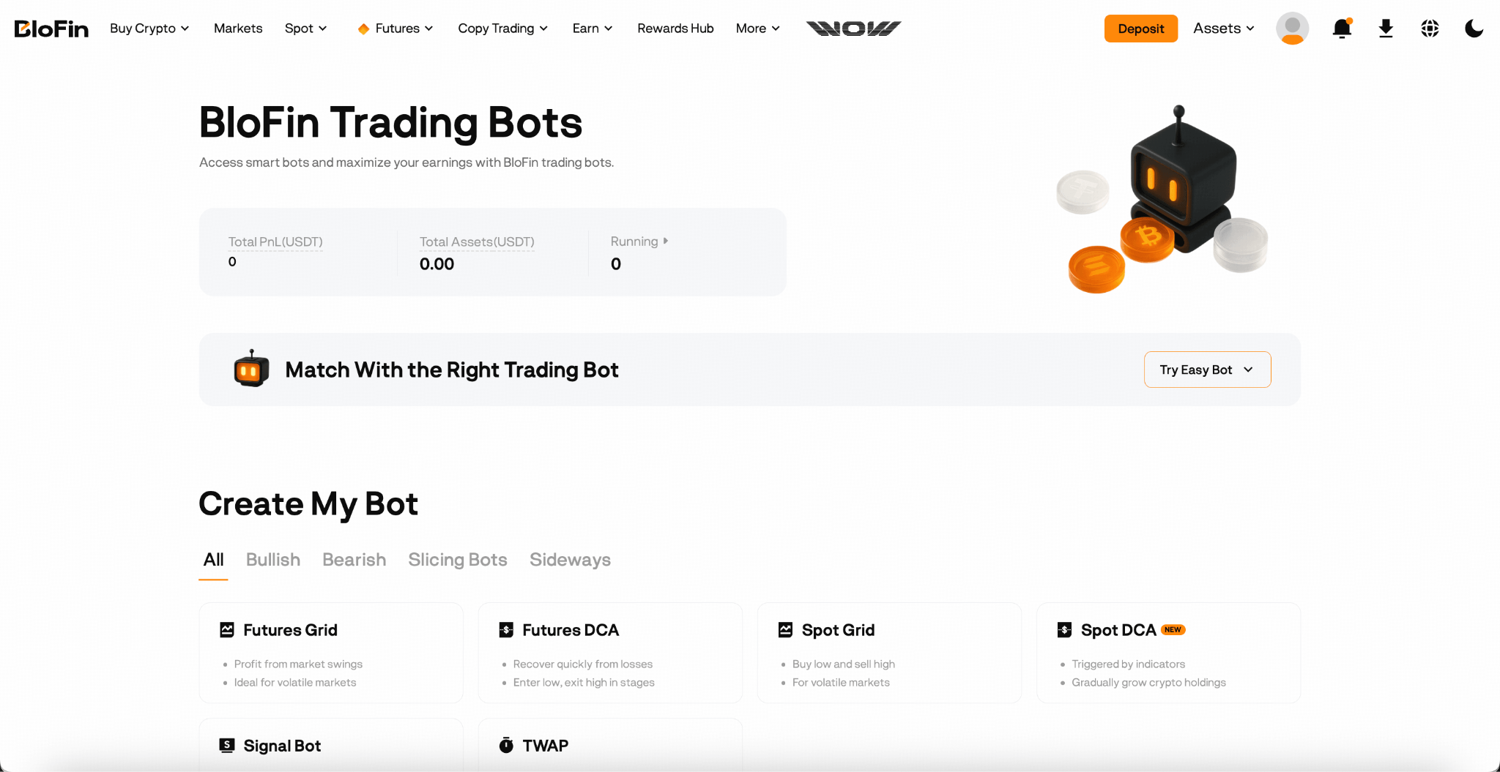
Step 2: On the BloFin Trading Bots page, you’ll be able to see all available bots. Click Futures Grid to open the creation page.
The second is directly from the Futures trading interface.
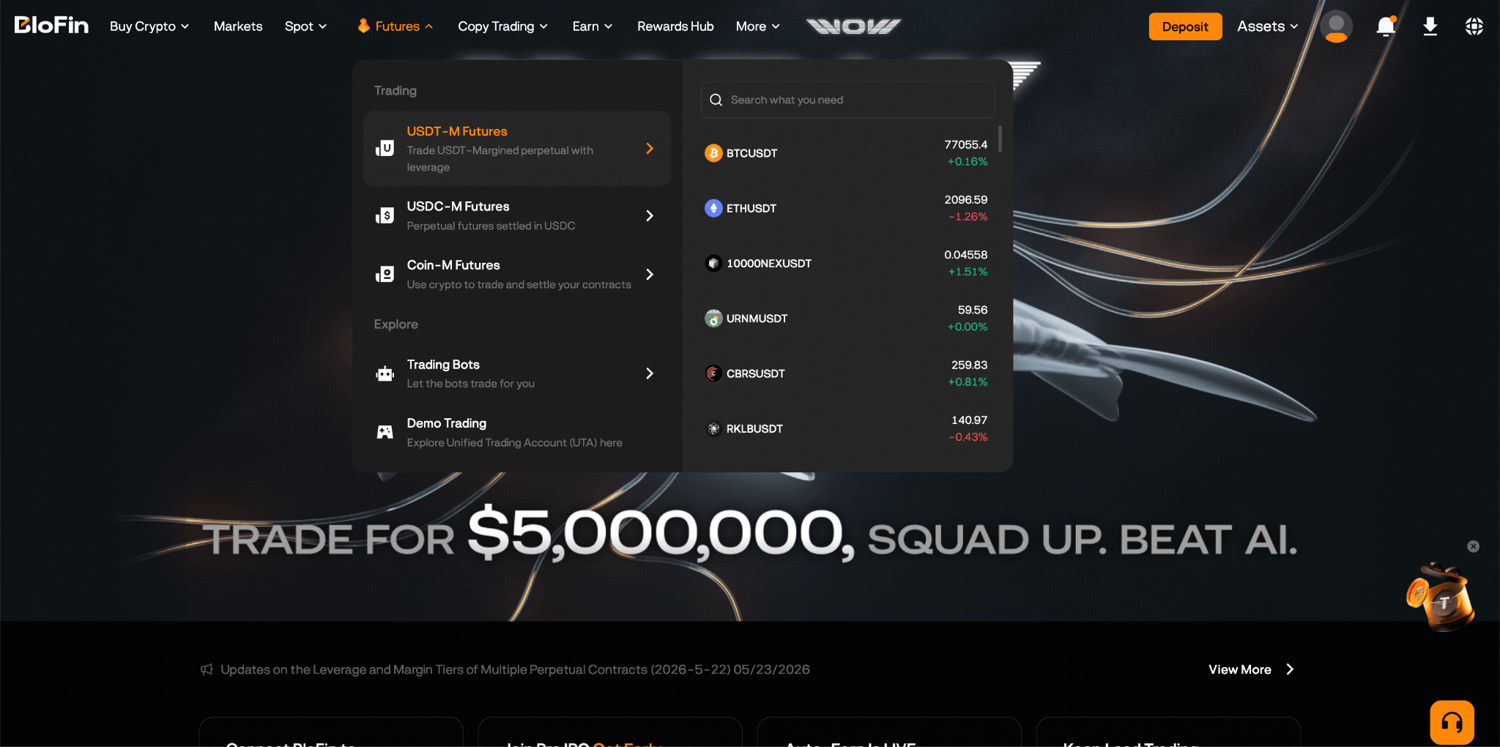
Step 1: Log in to your BloFin account and hover your cursor over the Futures tab in the navigation bar. Then, select USDT-M Futures to open the trading page.
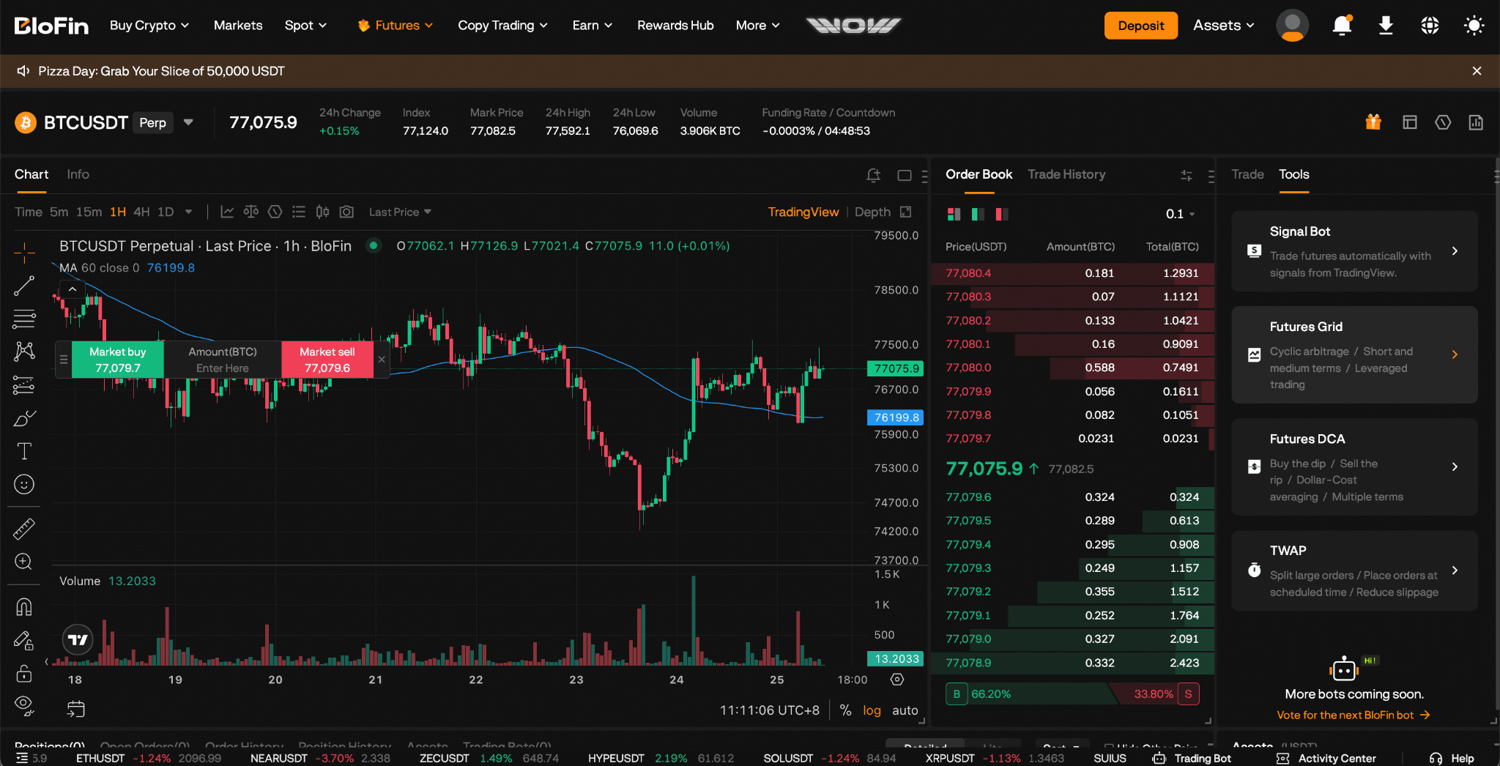
Step 2: On the order panel on the right, click the Tools tab and select Futures Grid.
You can run up to 20 Futures Grid Bots simultaneously across different trading pairs.
Creating your bot: AI Strategy or manual setup?
Once you're on the creation page, you'll choose a trading pair and an order direction (Buy, Sell, or Neutral), and then decide how you want to configure the bot. BloFin gives you two options: AI Strategy and Manual.
Using the AI Strategy
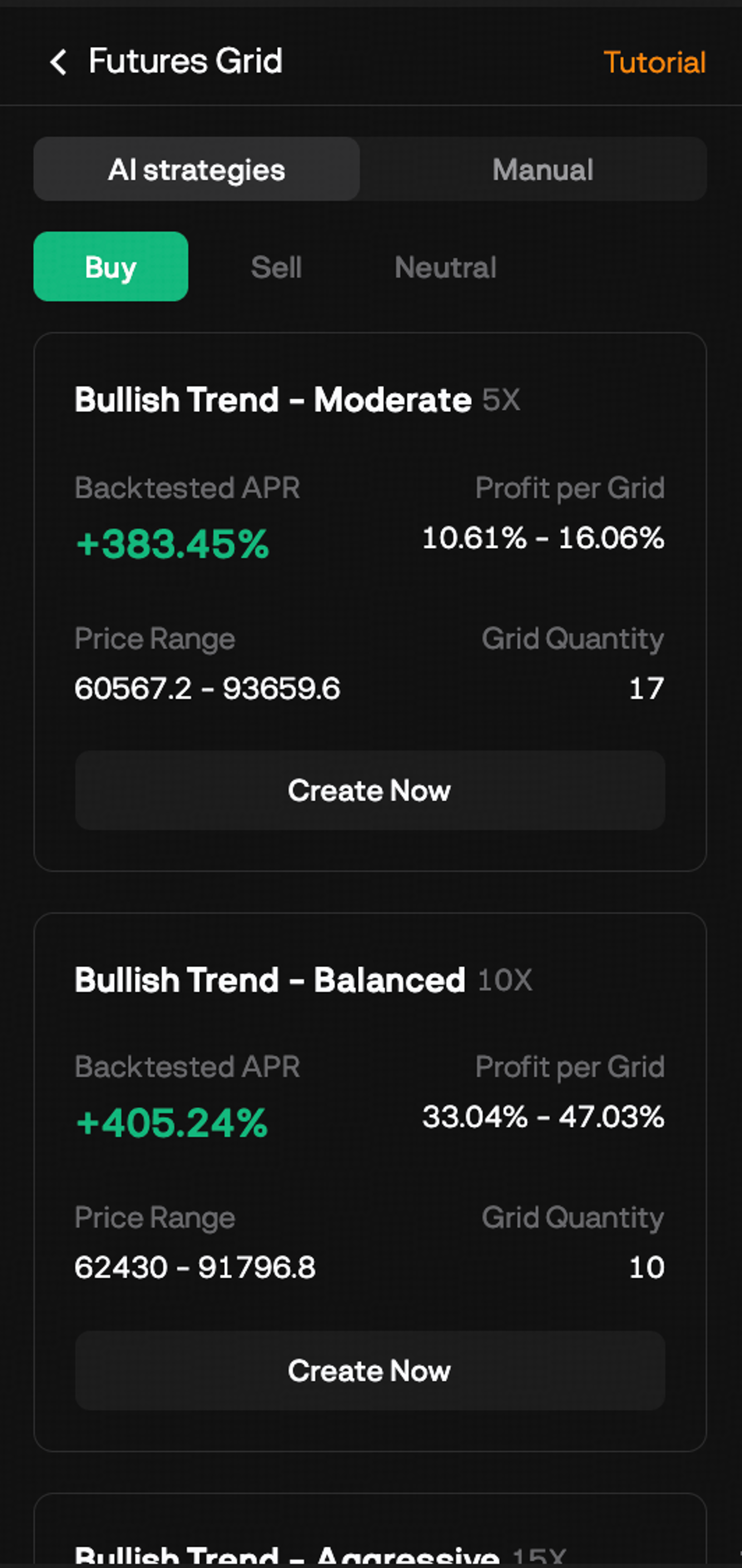
The AI Strategy option generates a set of grid parameters for you based on recent market data. You select the trading pair, choose your order direction, pick an AI strategy type that suits your risk appetite, enter the amount you want to invest, and click Create Now. The bot handles the rest.
This is a reasonable starting point if you're new to grid trading and want to get something running without having to think through every parameter yourself. The parameters it generates are based on actual market behavior rather than guesswork, which gives you a more grounded baseline than a manual setup built on little experience.
That said, the AI Strategy is a starting point, not a set-and-forget guarantee. Market conditions change, and a parameter set that was optimal when it was generated may not stay that way. Once you have a few bot runs under your belt, you'll start to develop a feel for what range and grid settings make sense for different market conditions, and that's when the manual setup becomes more valuable.
Setting up manually
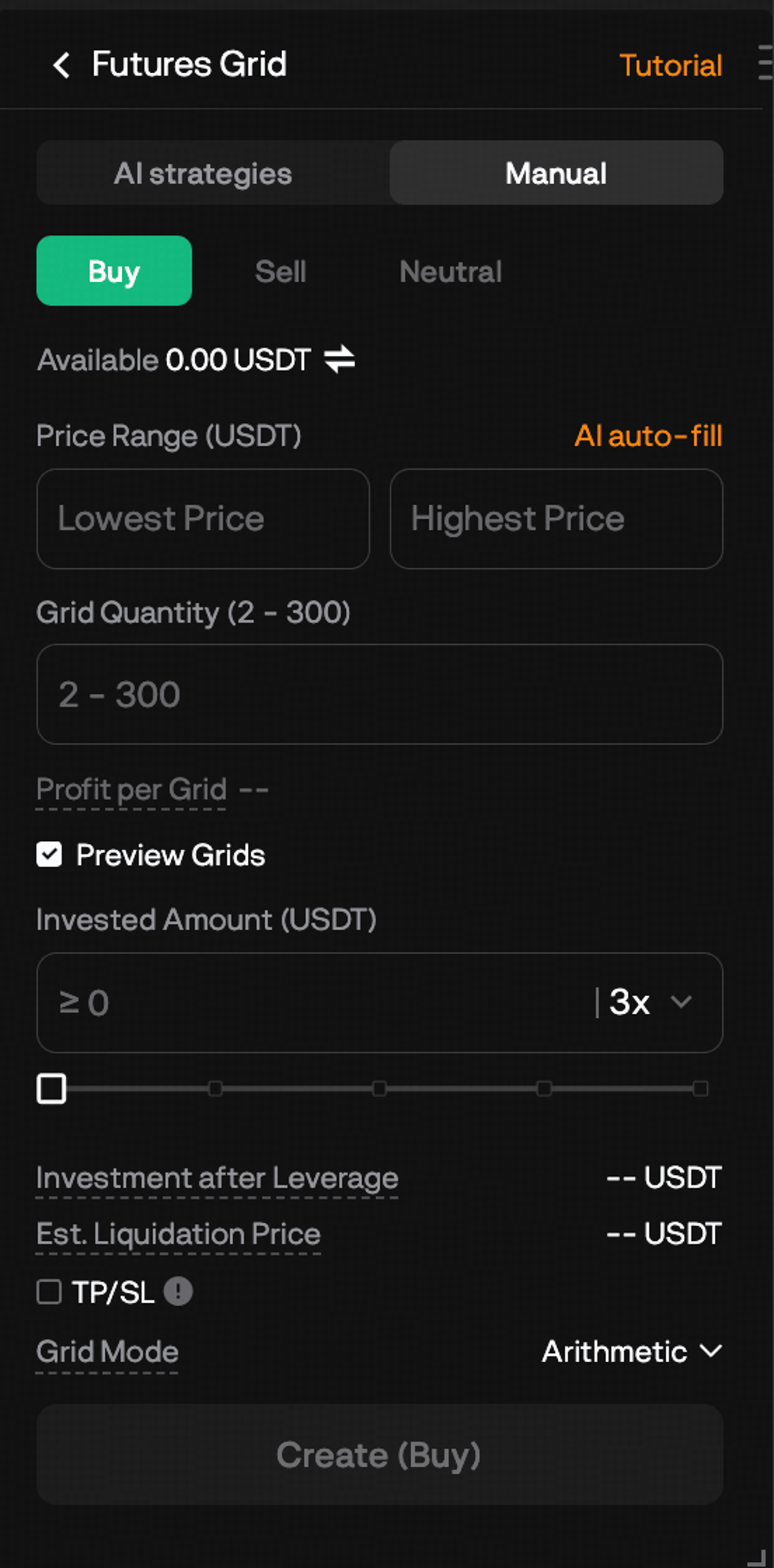
Manual setup gives you full control over every parameter. Here's how to work through each one thoughtfully rather than just filling in fields.
Step 1: Select your trading pair and order direction. Choose the futures contract you want to run the grid on. For order direction, refer back to your read of the market: Buy if you're expecting upward volatility, Sell if you're expecting downward volatility, and Neutral if you expect the market to oscillate without a strong directional bias. When in doubt, Neutral is the more balanced choice.
Step 2: Set your price range. Your lowest and highest price define the boundaries the bot operates within. The range should reflect where you realistically expect the price to stay during the time you plan to run the bot. Too narrow and the price breaks out quickly, pausing the bot. Too wide and the grid levels are so spread out that few trades actually complete.
A practical approach is to look at the recent trading range for the asset, identify the support and resistance levels that have held, and use those as your reference points. The bot will pause if the price leaves your range, but any open positions will remain live, so you want a range you're genuinely comfortable holding through.
Step 3: Set your grid quantity and grid mode. This is the number of intervals your price range gets divided into. More grids means more, smaller trades. Fewer grids means larger profit per trade, but fewer of them. As a general principle, the more volatile the asset, the more you stand to benefit from a tighter grid with more levels, since the price will cross each level more frequently. For less volatile assets, fewer grids with wider intervals tends to work better.
Step 4: Set your leverage. The default is 3x. Before changing it, check the estimated liquidation prices the bot displays for your buy and sell positions. These tell you the price level at which your positions could be liquidated if the market moves against you. Make sure you're comfortable with where those numbers sit relative to your price range before confirming.
Step 5: Enter your invested margin. This is the USDT you're committing to the bot. The minimum and maximum amounts update dynamically based on your other parameters, so the acceptable range is shown on screen. Start with an amount you're comfortable having locked up in the strategy for the duration of the run.
Once everything looks right, click Create, review the summary screen, and click Confirm to launch the bot.
What happens right after launch
As soon as the bot is confirmed, it places orders across your grid levels immediately. Depending on your order direction, some positions may be opened at market price straight away (Buy and Sell modes), while Neutral mode will sit with pending orders on both sides until the market moves to each level.
You'll see a confirmation pop-up with a Details button. It's worth clicking through right away to familiarize yourself with the bot's dashboard before you walk away from it.
Managing your bot once it's live
The Details page is your main window into how the bot is performing. To access this, scroll to the bottom of the chart on the Futures trading page, click the Trading Bots tab, select Futures Grid, and click Details next to your running bot.
From here, you can see the bot's current status, running time, the parameters it was created with, open positions, grid order history, and funding fee information. The two figures to pay particular attention to are Grid Profit and Total PnL. Grid Profit shows the cumulative realized profit from completed buy-sell pairs. Total PnL includes both that realized profit and the unrealized PnL from any positions the bot is currently holding. The two will often diverge, especially when open positions are in drawdown, so looking at both together gives you a more complete picture of where the bot actually stands.
Adjusting margin
If the market has moved against your open positions and you want to create more breathing room before the estimated liquidation price, you can add margin to the bot without stopping it or changing any parameters. Use the Adjust Margin option from the Details page or the bot management panel. You can also reduce margin if you want to free up capital, though that moves the liquidation price closer.
Stopping the bot
When you're ready to close the bot out, click Stop and confirm. All pending orders will be canceled and any open positions will be closed at the current market price. Your remaining margin and realized profits are transferred automatically to your Funding Account. There's no partial stop option, so stopping the bot closes everything at once.
Replicating parameters
If a bot run went well and you want to recreate the same setup, the Replicate parameters option on the Details page pre-fills a new bot creation form with all the same settings. It's a useful shortcut when you want to relaunch the same strategy without going through the full manual setup again, or when you want to run the same parameters across multiple trading pairs.
How to read your bot's performance
Once your bot has been running for a while, there are a few things worth checking regularly rather than just watching the PnL number.
Look at how many grid trades have been completed. A bot that's been running for several days with very few completed trades may have a range that's too wide, a price that's spending most of its time outside the range, or simply an asset that isn't moving much. Completed trade count relative to running time gives you a sense of whether the grid is actually doing what you set it up to do.
Check whether your open positions are sitting comfortably within the range or pushing toward one boundary. If the price has drifted toward your floor or ceiling and is sitting there, the bot is effectively paused at that extreme. You may need to decide whether to wait it out, adjust the margin to extend your runway, or stop and reset with a better-calibrated range.
Also factor in funding fees, which are charged on open futures positions at regular intervals. These show up in the funding fee section of the bot's Details page and are part of the real cost of running the strategy. In certain market conditions, funding fees can be a meaningful drag on overall profitability, so it's worth keeping an eye on them alongside grid profit.
What's next
Once you've run a few bots and built a feel for how grid parameters behave in different market conditions, there's a natural next step: getting more deliberate about when to deploy the strategy and how to size it relative to your broader portfolio.
The Futures Grid Bot is one of the automated tools available on BloFin. If you find yourself wanting to build a position gradually rather than capture oscillations, the Futures DCA Bot approaches automation from a different angle and is worth exploring next. If you prefer to run grid trading without leverage, the Spot Grid Bot offers the same core strategy in a no-margin environment.
The overview of BloFin's full trading bots suite covers how all bots compare and helps you figure out which combination makes sense for your situation.
Frequently asked questions
What is the BloFin Futures Grid Bot?
The BloFin Futures Grid Bot is an automated trading tool that places buy and sell orders at preset price intervals within a range you configure. As the market moves up and down within that range, the bot captures the profit from each completed buy-sell pair. Because it trades futures contracts, leverage is involved.
What market conditions work best for the Futures Grid Bot?
The Futures Grid Bot performs best in volatile or sideways markets where the price oscillates within a defined range. It's not designed for strongly trending markets. If the price breaks out of your configured range and doesn't return, the bot pauses and any open positions stay exposed until you close them or the price returns.
What are the three order direction modes?
Buy mode opens long positions at launch and profits as the price rises through grid levels. Sell mode opens short positions at launch and profits as the price falls. Neutral mode starts with no position and enters trades dynamically as the market moves to each grid level, profiting from movement in both directions without an initial directional bet.
What's the difference between arithmetic and geometric grids?
Arithmetic grids space levels at equal dollar intervals so each step is the same absolute price difference. Geometric grids space levels at equal percentage intervals so each step is the same proportional price difference. Geometric grids tend to suit assets that move proportionally, while arithmetic grids work well when you expect consistent dollar-value swings throughout the range.
What leverage can I use with the Futures Grid Bot?
You can set the leverage when configuring the bot, with a default of 3x. Higher leverage amplifies potential profits per trade but also increases the risk of liquidation. The bot displays estimated liquidation prices for your buy and sell positions based on the leverage and parameters you set before you confirm.
Why is my grid profit positive but my total PnL negative?
Grid profit only tracks realized profits from completed buy-sell pairs, so it only ever goes up. Total PnL includes both realized grid profits and the unrealized PnL of open positions the bot is currently holding. If those open positions are in drawdown, the unrealized losses can outweigh the grid profits, which results in a negative total PnL even while the bot is actively earning on completed trades.
What happens if the price moves outside my grid range?
The bot stops placing new orders but doesn't automatically close your open positions. You can wait for the price to return to your range, at which point the bot resumes automatically, or you can stop the bot manually. If you stop it, all pending orders are canceled and open positions are closed at the current market price.
Can I add margin to a running bot?
Yes. From the bot's Details page, the Adjust Margin option lets you add or reduce the margin allocated to the bot. Adding margin increases your buffer against liquidation without changing any bot parameters. Reducing margin frees up capital but moves the liquidation price closer.
How many Futures Grid Bots can I run at the same time?
You can run up to 20 Futures Grid Bots simultaneously on BloFin.
What happens to my funds when I stop the bot?
When you stop the bot, all pending orders are canceled and all open positions are closed at the current market price. Your remaining margin balance plus any realized profits are automatically transferred to your Funding Account.
What margin mode does the Futures Grid Bot use?
The Futures Grid Bot holds positions using cross-margin mode and operates in one-way mode only. Hedge mode is not supported.
What's the difference between the Futures Grid Bot and the Spot Grid Bot?
Both bots use the same grid trading logic of buying low and selling high at preset intervals, but there's one key difference. The Futures Grid Bot trades futures contracts with leverage, while the Spot Grid Bot trades the underlying asset directly with no leverage. The Futures Grid Bot carries liquidation risk and can amplify returns through leverage. The Spot Grid Bot is lower risk and better suited to traders who want to capture volatility in an asset they already hold without margin exposure.
Is the Futures Grid Bot suitable for beginners?
It requires a solid understanding of futures trading, leverage, and liquidation risk before you use it. If you're newer to crypto trading, it's worth getting comfortable with how futures work first. For a lower-risk introduction to grid trading, the Spot Grid Bot is a more accessible starting point since there's no leverage involved.
Does the Futures Grid Bot incur funding fees?
Yes. Because the bot holds open futures positions, funding fees apply periodically while the bot holds open positions, on the same schedule as the underlying perpetual contract (commonly every 8 hours, but the interval can vary by trading pair). Funding fees can be positive or negative depending on market conditions and are reflected in your bot's performance data on the Details page.
How do I access the Futures Grid Bot on BloFin?
You can access it two ways. From the navigation bar, go to Futures > Trading Bots and select Futures Grid. Alternatively, open the USDT-M Futures trading page and select the Tools tab in the order panel on the right side.
What's the difference between the AI Strategy and manual setup?
The AI Strategy generates grid parameters based on recent market data. You select the trading pair, direction, and investment amount, and the bot configures the range and grid settings for you. Manual setup gives you full control over every parameter. AI Strategy is a useful starting point for newer traders; manual setup is better once you have a feel for how different parameter choices affect the bot's behavior.
Can I change the parameters of a running bot?
You can't edit the price range, grid quantity, or leverage of a bot once it's live. The only adjustment available without stopping the bot is adding or reducing margin via the Adjust Margin option. If you want to change the strategy parameters, you'll need to stop the bot and create a new one.
What happens to my open positions when I stop the bot?
Stopping the bot cancels all pending orders and closes all open positions at the current market price. Your remaining margin and realized profits are transferred automatically to your Funding Account.
How do I know if my grid range is well-calibrated?
A well-calibrated range sees the price oscillating within it regularly, completing grid trades on both sides. If your bot has been running for several days and completed very few trades, the range may be too wide, or the asset isn't moving enough to trigger levels. If the price is consistently hitting one boundary and sitting there, the range is likely skewed relative to the market's current behavior. Looking at the grid order history in the Details page will show you how frequently levels are being hit and from which side.
Can I replicate a bot's settings for a new run?
Yes. The Replicate parameters option on the Details page pre-fills a new bot creation form with all the same settings as your current or completed bot. It's a convenient way to relaunch the same strategy without manually re-entering every parameter.
Disclaimer: This content is for educational purposes only and does not constitute financial, investment, legal, or tax advice. Crypto assets are highly volatile and carry significant risk of loss. Always verify local regulations and consult a qualified professional before making financial decisions.