
How to Export and Download Historical Data?
July 21, 2026 at 09:20 AMBloFin now lets you export your historical records transaction history as downloadable files. This guide walks you through how to access the export feature, how to choose a date range, and the limits you should keep in mind.
How to Export Trading History from Order Center
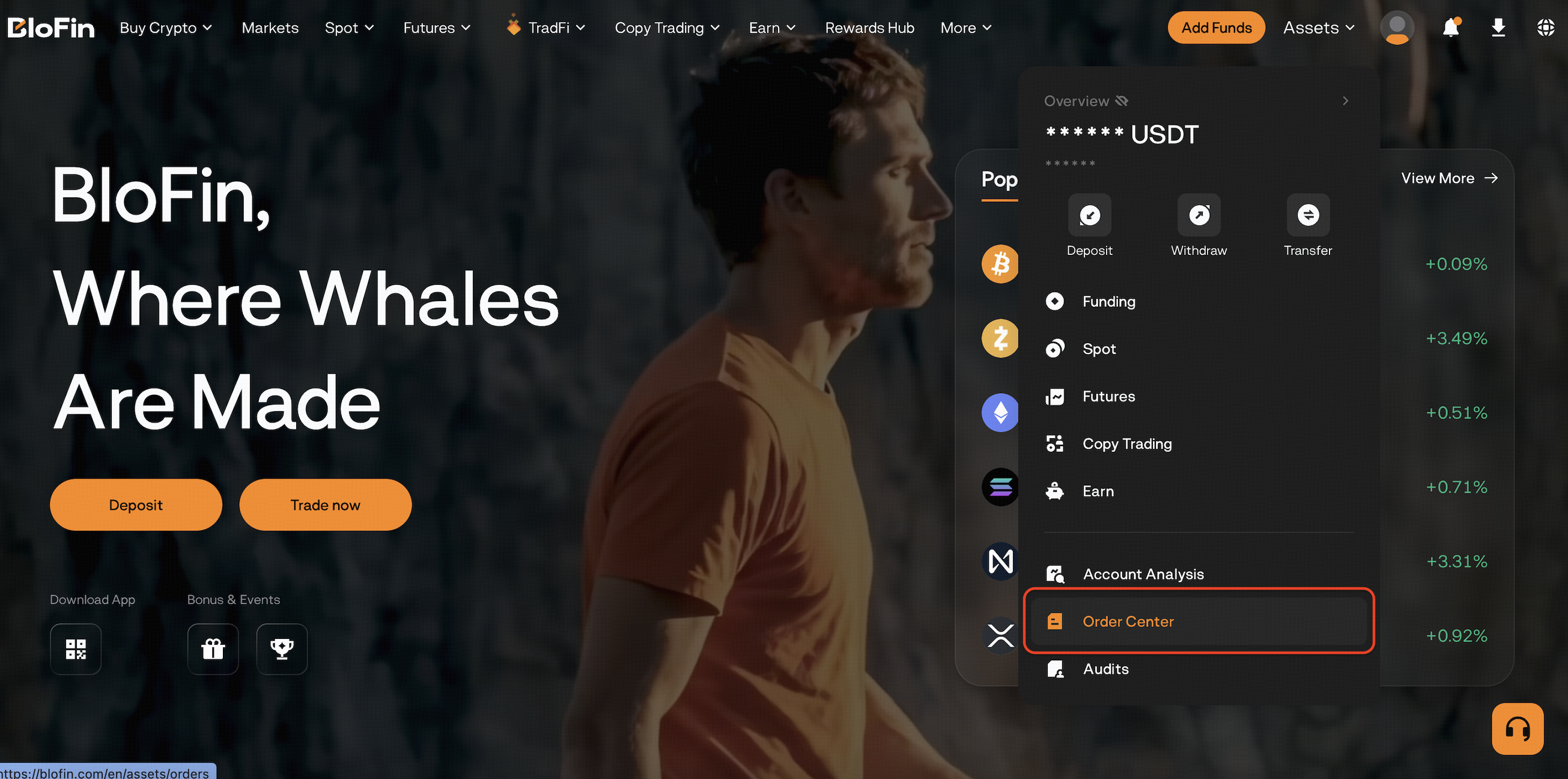
Step 1: Navigate to your Order Center section
- Hover over the Asset icon in the top-right corner.
- Click Order Center.
Step 2: Select trading history
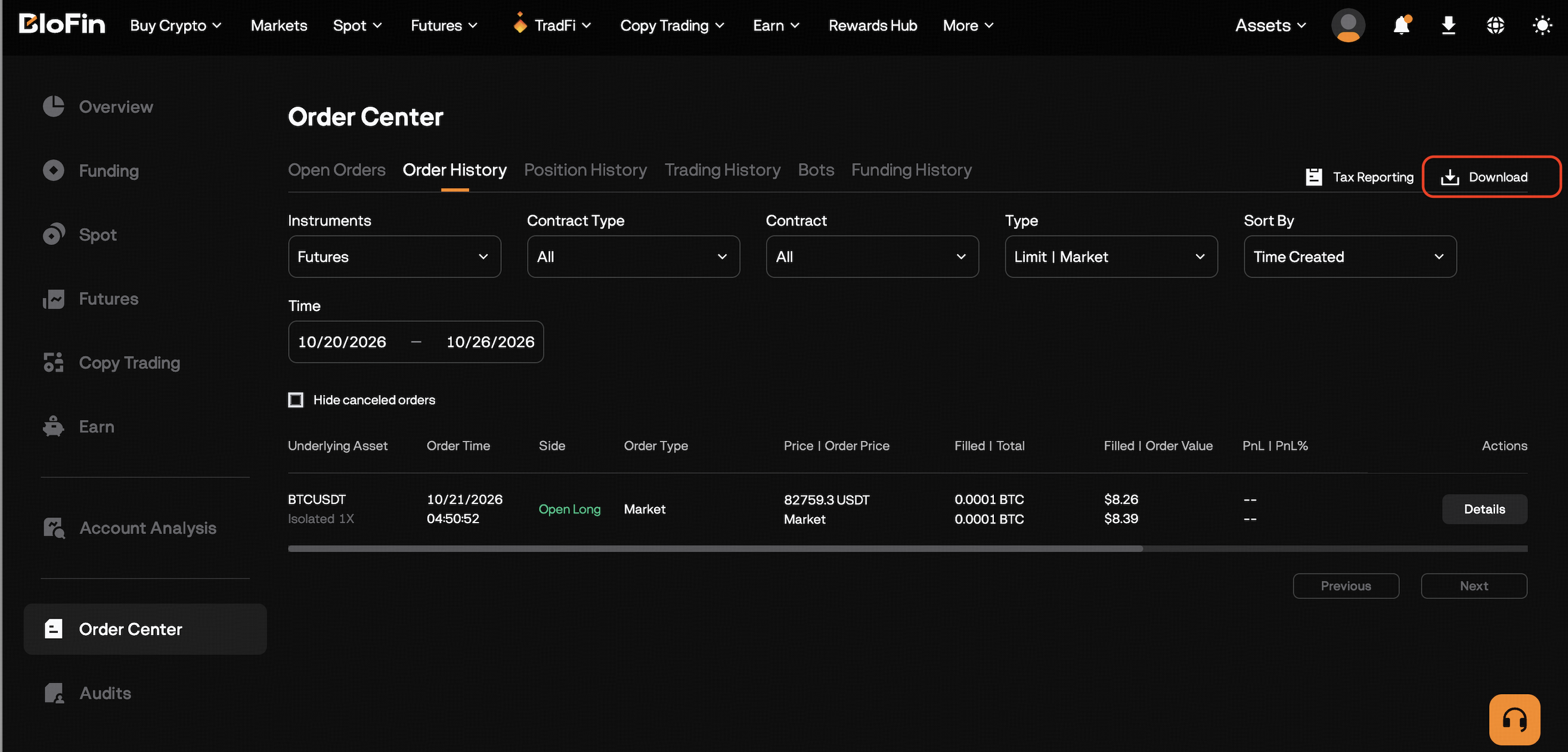
- Go to the tab containing the data you want to export, then click the Download button in the top-right corner.
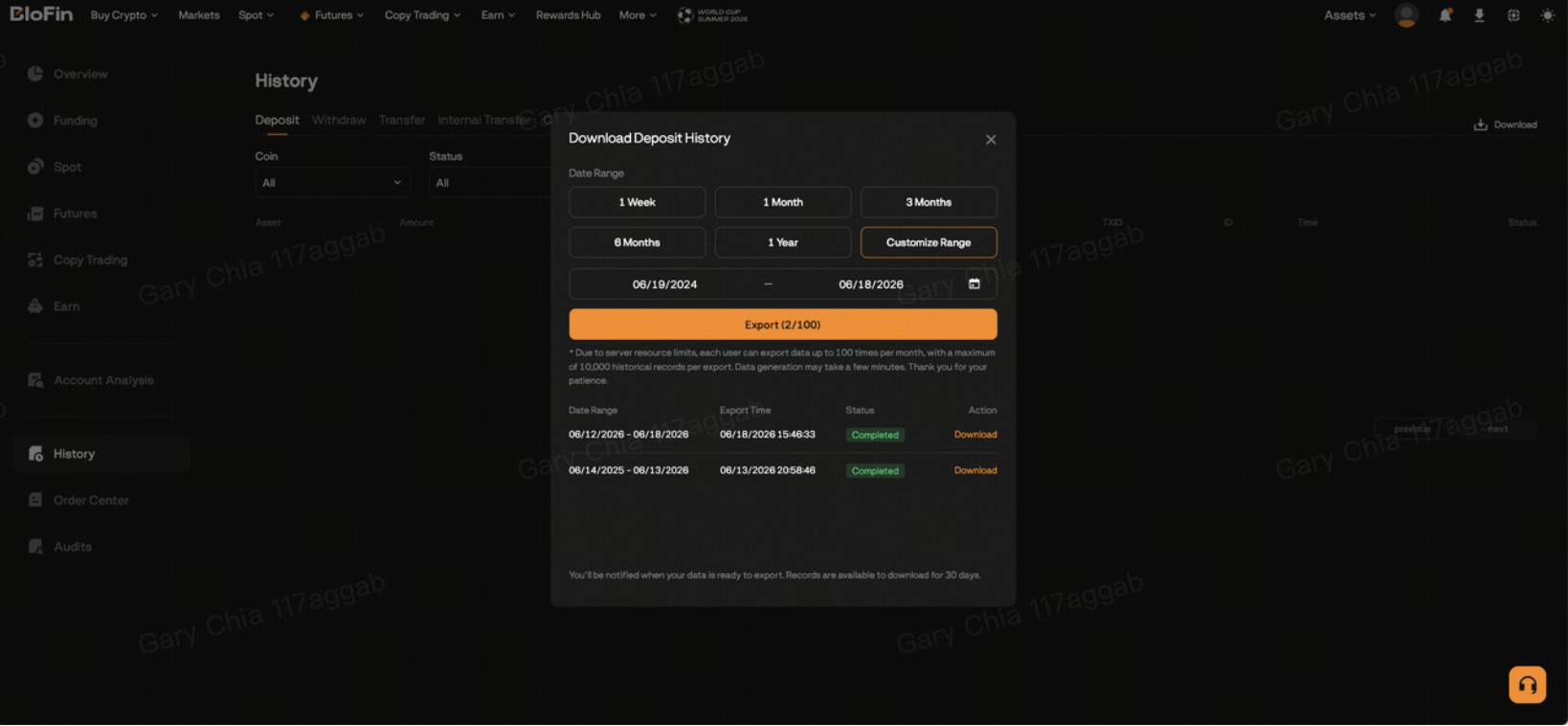
Step 3: Set the export parameters
- Choose a Date Range. You can select a preset option — 1 Week, 1 Month, 3 Months, 6 Months, 1 Year — or select Customize Range to set your own start and end dates.
Important Note: The maximum exportable range is the past 2 years.
Step 4: Download the exported file
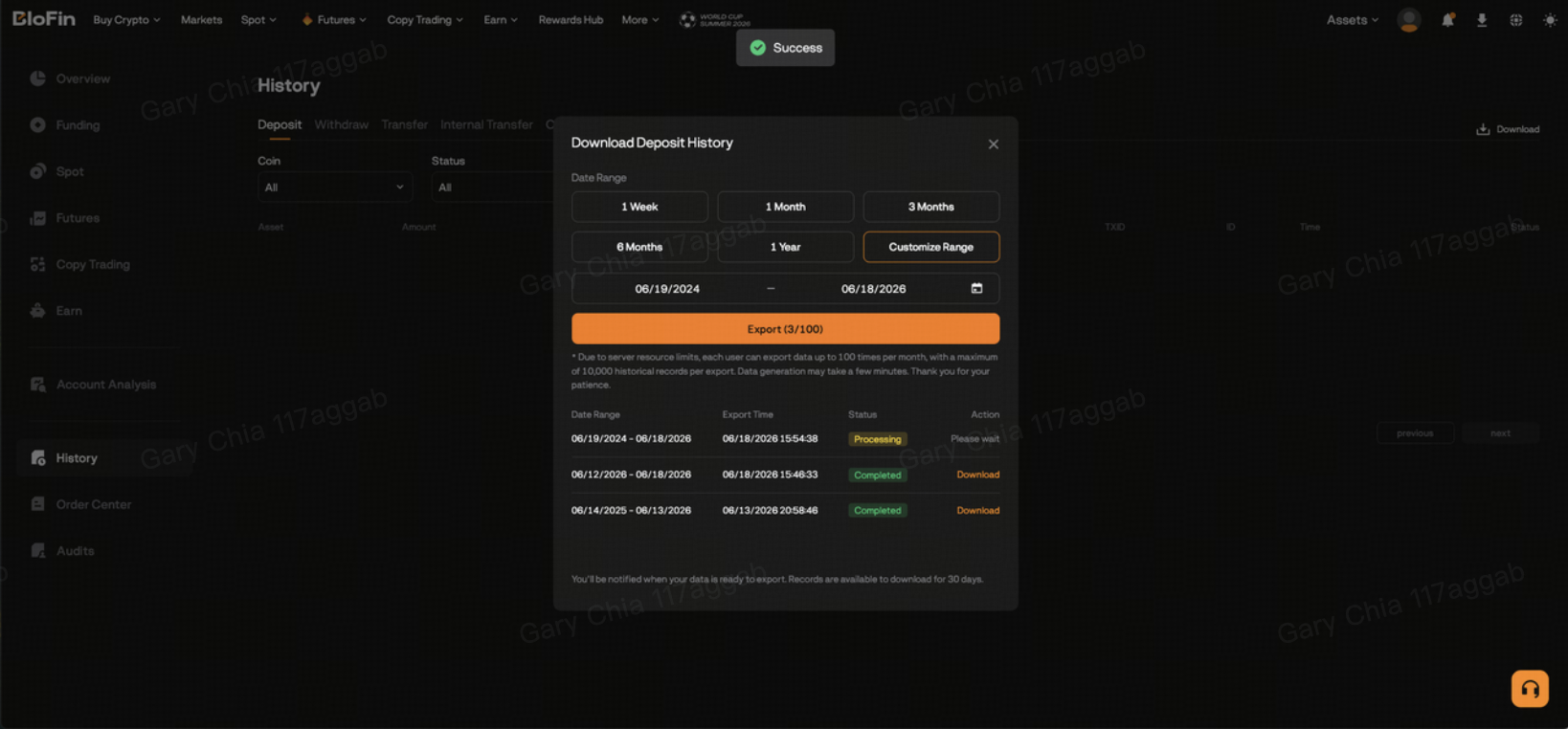
- Click Export. Data generation may take a few minutes — you don't need to keep the page open.
- Once your file is ready, you'll receive a notification. Return to the same Download pop-up and click Download next to the matching record in the list to save your file.
- Each export includes up to 10,000 records. If you select a time range containing more than that, only the most recent 10,000 records will be exported.
- The download link is valid for 30 days. Please ensure the file is downloaded before the link expires.
What is the difference between Futures Order History and Futures Position History?
Futures Order History contains individual order records, including execution details, PnL, fees, order options, and status.
Futures Position History contains position-level information, including opening and closing times, entry and exit prices, Realized PnL, Closed PnL, trading fees, and funding fees.
These exports contain different information. You may need both when reviewing your Futures trading activity.
2. Which records should I download for PnL review or tax reporting?
For Futures PnL, start with Futures Position History. You can also download Futures Order History if you need individual order details.
For other activity, select the corresponding records, such as:
- Spot Order History for Spot trades.
- Deposit, Withdrawal, Transfer, and Internal Transfer History for asset movements.
- Convert History for conversions.
- Grid/DCA History for trading bot activity.
- Copy Trading Trade History for copy trades.
Each export covers a specific type of activity and may not contain everything you need in one file.
If you need information or a report format that is not available in these exports, contact BloFin Customer Support with your required date range and the details you need.
3. How do I download Copy Trading records?
Copy Trading records are accessed separately from standard trading records.
For copiers:
Copy Trading → My Copies → Trades → Trade History → Download
For traders:
Copy Trading Profile → My Trader Profile → Trades → Trade History / Order History → Download
Select your required date range and export the applicable records.
Copy Trading Futures Trade History includes details such as entry and closing prices, opening and closing fees, PnL, ROE%, and profit sharing.
4. What are the export limits?
| Item | Limit |
|---|---|
| Historical data available for self-export | Past 2 years |
| Maximum records per export | 10,000 |
| Export frequency | 100 exports per data type per month |
| Generated file availability | 30 days |
If your selected period contains more than 10,000 records, divide it into shorter periods and export each separately.
5. What should I do if I cannot find Download or the export fails?
Make sure you are on the relevant history page on the BloFin website.
If the issue continues, contact Customer Support via live chat and provide:
- The record type you need.
- Your required date range.
- The step where the issue occurs.
- Any error message.
- A screenshot showing the issue.
This information will help us investigate and guide you through the next step.