
About Third-Party Authorization on BloFin
October 9, 2026 at 06:37 PMThird-party applications — such as trading terminals, strategy platforms, and portfolio trackers — can connect to your BloFin account to provide their services. This article explains what third-party authorization is, what each permission allows, and how to review or revoke an application's access at any time.
What is third-party authorization?
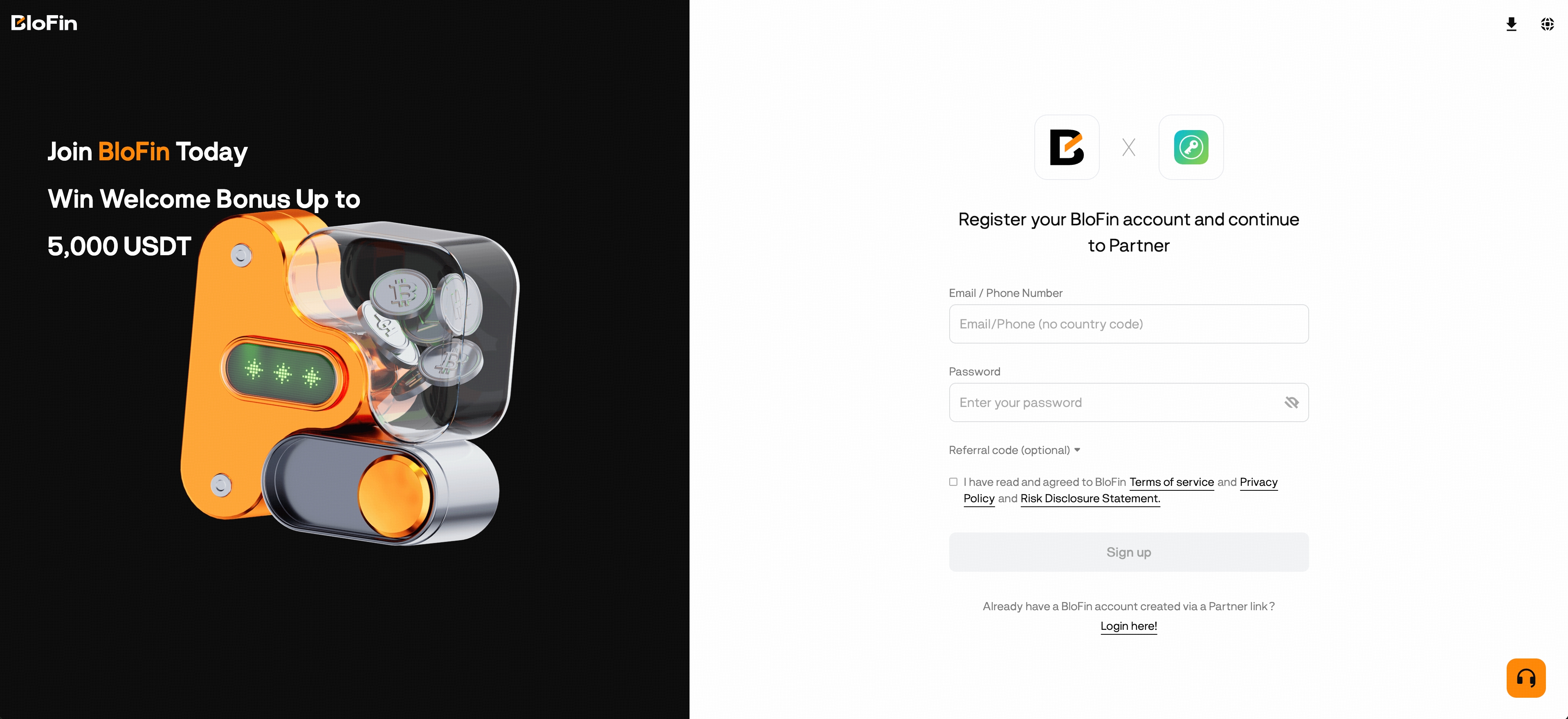
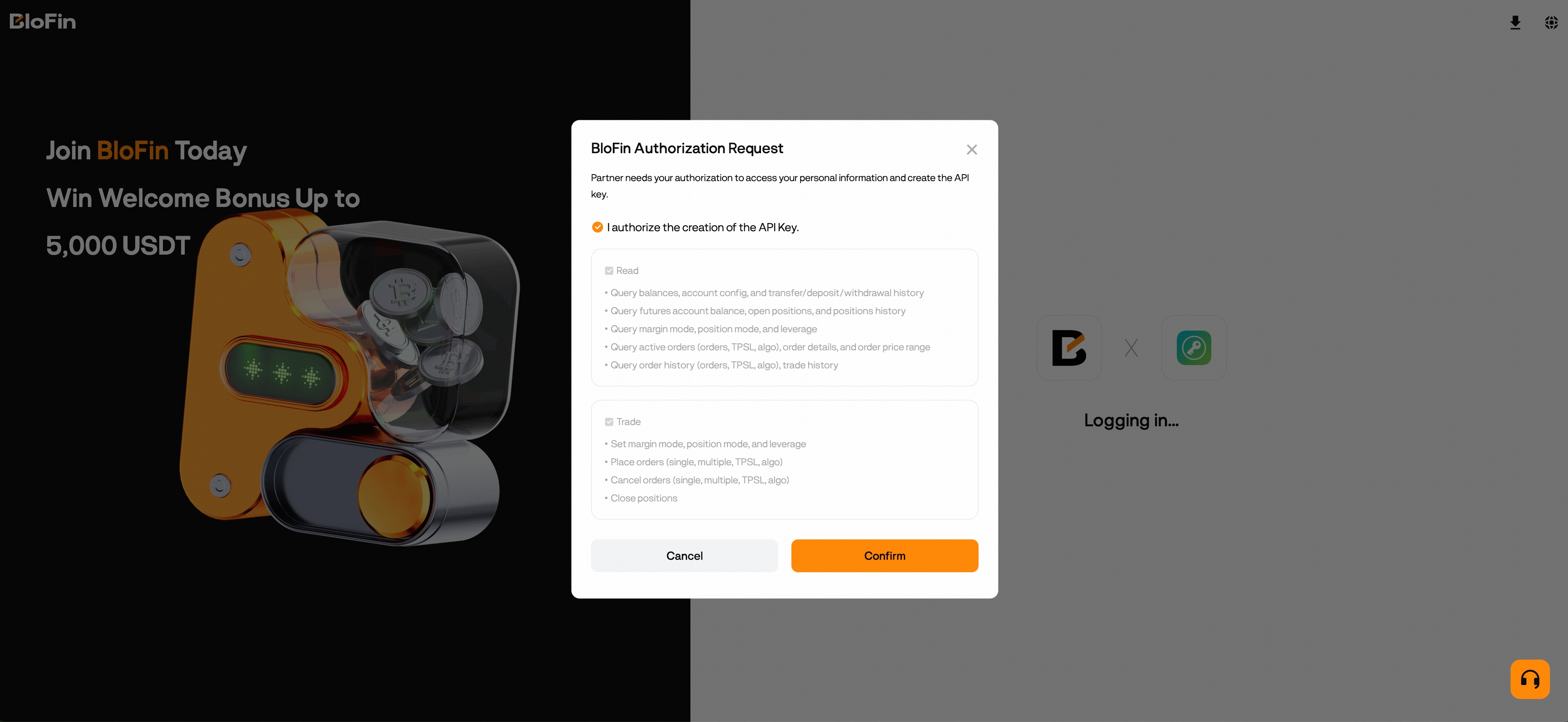
When you connect a third-party application to BloFin, you will be redirected to a BloFin authorization page where you sign in (if you haven't already) and confirm the permissions the application is requesting. Once you confirm, the application can only access your account within those permissions.
Three things to know:
- Your password is never shared. Authorization uses the OAuth standard: the application receives limited access credentials issued by BloFin, not your login credentials. A legitimate application will never ask you to type your BloFin password into its own interface.
- Access is limited to what you approved. The permissions shown on the authorization page are the complete list of what the application can do. No application can withdraw your assets to an external address, unless it is BloFin Wallet (see below).
- You stay in control. You can review every authorized application and revoke its access at any time, and the revocation takes effect immediately.
What each permission allows
When you authorize an application, you will see one or more of the following permissions. These match the permissions of the API key the application uses to access your account.
| Permission | What it allows | What it does not allow |
| Read | View your balances, positions, orders, trade history, and account information such as deposit records. | Any action on your account or assets. |
| Trade | Place, modify, and cancel orders on your behalf. | Withdrawals or transfers of any kind. |
| Transfer | Move funds between your own BloFin accounts (for example, between spot and futures, or between your sub-account and main account). | Withdrawals to any external address. |
| Withdrawal | BloFin Wallet only. Transfer exchange assets to your own BloFin Wallet address. | Transfers to any other address. |
Notes:
- Sub-accounts never include Transfer. When an application is authorized on a sub-account, the Transfer permission is not available. The application's access is fully contained within that sub-account's assets.
- BloFin Wallet is an official BloFin application (marked "Official" in your authorization list). It is the only application that can hold the Withdrawal permission, and withdrawals are locked to your own BloFin Wallet address.
How to review your authorizations
On the web: Sign in and go to Account → Third-Party Authorization.
In the app: Go to Profile → Account & Security → Third-Party Authorization.
You will see every application currently authorized on your account, with its permissions, the date you authorized it, and when it last accessed your account. Select any application to see its details, including a plain-language explanation of each permission.
Two tips for reviewing:
- Check "Last used." If an application you no longer use still has access, revoke it — an authorization you've forgotten about is unnecessary exposure.
- Check the permissions. Applications that can trade or move funds deserve more scrutiny than read-only ones.
If you manage sub-accounts, use the account selector on this page to review each sub-account's authorizations. A sub-account that logs in directly will only see its own authorizations.
About API keys created by applications
When you authorize an application, it automatically creates one or more API keys on your account to access BloFin's services. You may notice these keys on the API Management page, where they show a Manage button instead of Edit/Delete.
These keys belong to the authorization, not to you individually, and they cannot be edited or deleted one by one. To remove them, revoke the application's authorization: all of its keys are deleted together. This prevents a situation where a key appears deleted but the application silently recreates it.
How to revoke an authorization
- Go to Third-Party Authorization (paths above).
- Find the application and select Revoke — either from the list or from the application's detail view.
- Review the confirmation dialog and confirm.
Revocation takes effect immediately.
What happens:
- The application loses all access to your account, and every API key it created is deleted.
- Any strategies, bots, or signals running through the application will stop working.
- Open orders already placed through the application are not cancelled automatically. Review your open orders after revoking and cancel any you no longer want.
- Revocation cannot be undone. To use the application again, simply go through its connection flow and authorize it again.
You will receive a notification (in-app message, email, and push) confirming the revocation.
Security recommendations
- Review your authorizations regularly. Remove anything you don't recognize or no longer use.
- Act on authorization notifications. Every time a new application is authorized on your account, BloFin notifies you immediately. If you receive a notification for an authorization you didn't make, revoke it right away and change your password.
- Never enter your BloFin password into a third-party application. Authorization always happens on a BloFin page (check that the address begins with
https://blofin.com). An application that asks for your password directly can take full control of your account, so please do not provide it. - Authorize on a sub-account when possible. If you use trading bots or strategy platforms, connecting them to a dedicated sub-account limits their access to only the funds you place there.
If you suspect unauthorized access
- Revoke the suspicious application immediately on the Third-Party Authorization page.
- Change your BloFin password.
- Review your open orders and recent trade history for activity you don't recognize.
- Contact BloFin Support if you find any unauthorized activity.
Troubleshooting third-party applications
Third-party applications are built and operated by external developers, not by BloFin. If an application isn't working correctly — connection errors, features not loading, unexpected behavior inside the application — please contact the application's own support team.
If an application reports that its connection to BloFin has expired or been removed, its authorization may have been revoked or replaced. You can restore access by going through the application's connection flow again.