
How to Remove and Reset Google Authenticator (2FA)? (App)
August 19, 2025 at 01:57 AM1. All security settings are available
To enhance the security of your account and assets, we strongly recommend linking Google Authenticator to your account.
To protect your funds, the withdrawal function will be suspended for 24 hours after resetting verification methods.
If all of your security items are working fine and you can log into your BloFin account successfully, please follow these steps to remove and reset your google authenticator:
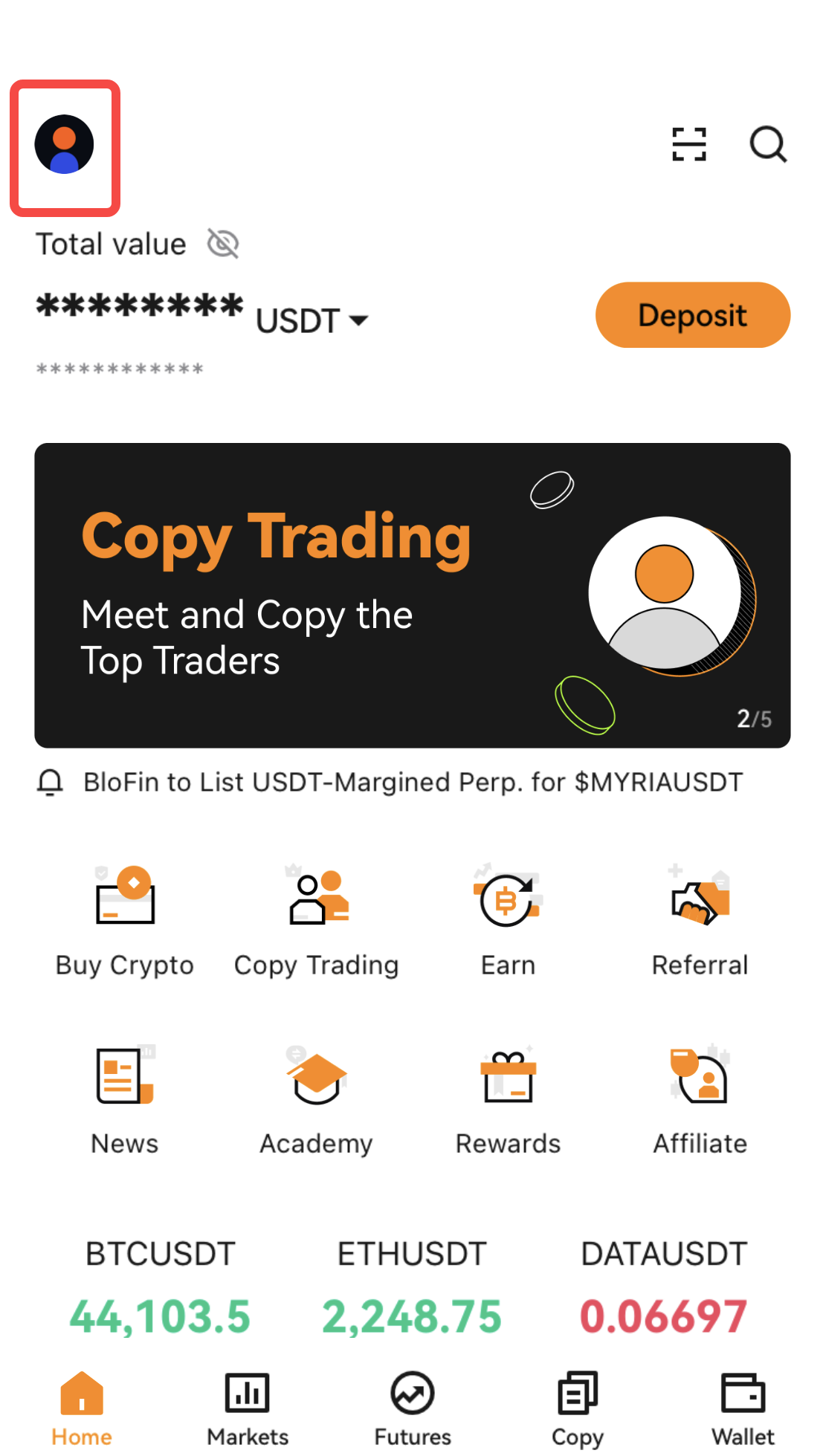
1. Log in to your BloFin account and click on your user avatar.
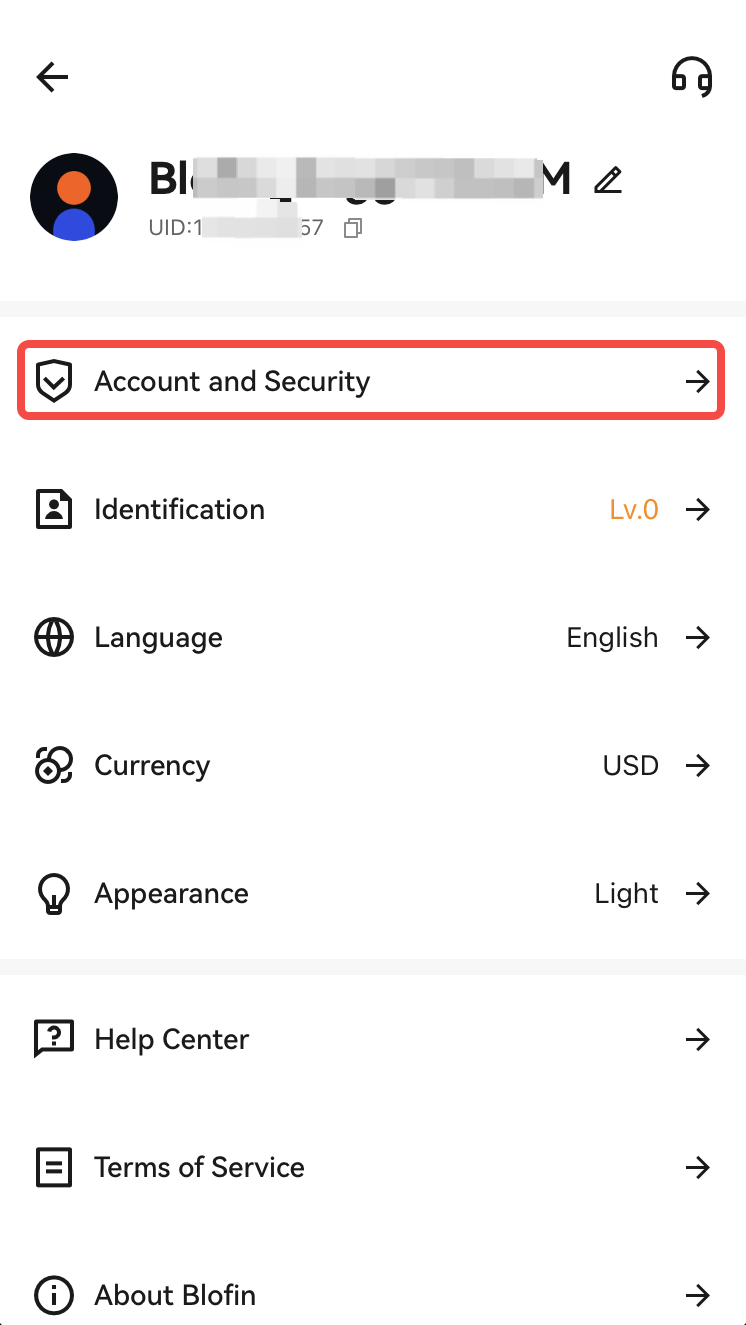
2. Select [Account & Security].
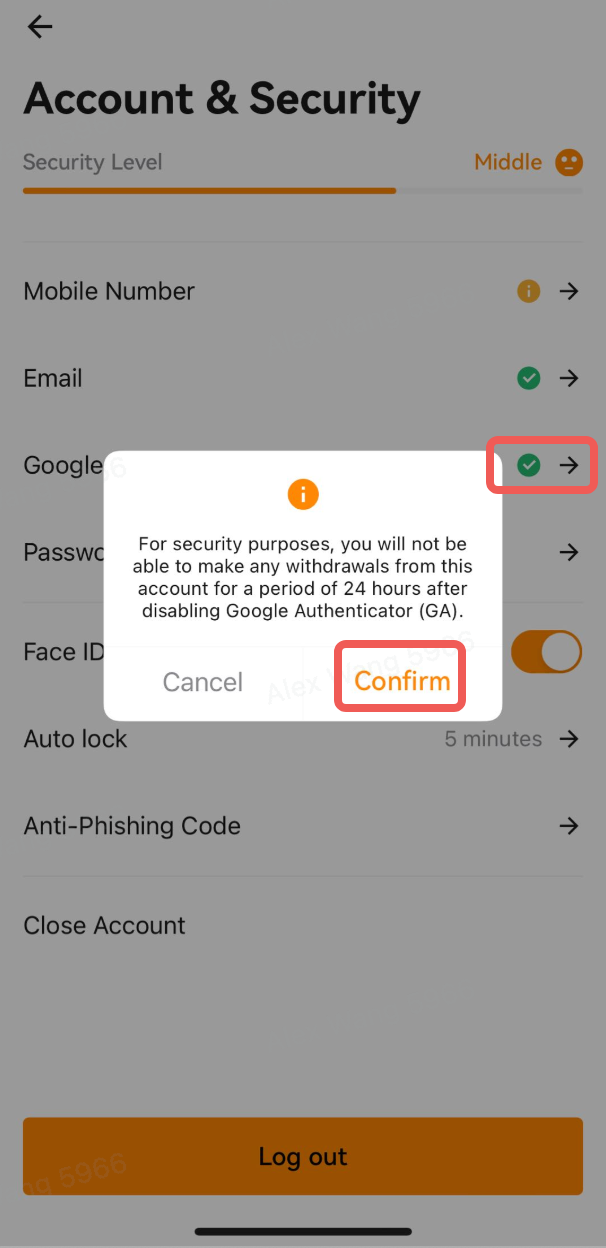
3. Go to Google Authenticator (GA) session and click [→]. A pop-up window will appear, click [Confirm] to proceed to Google Authentication.
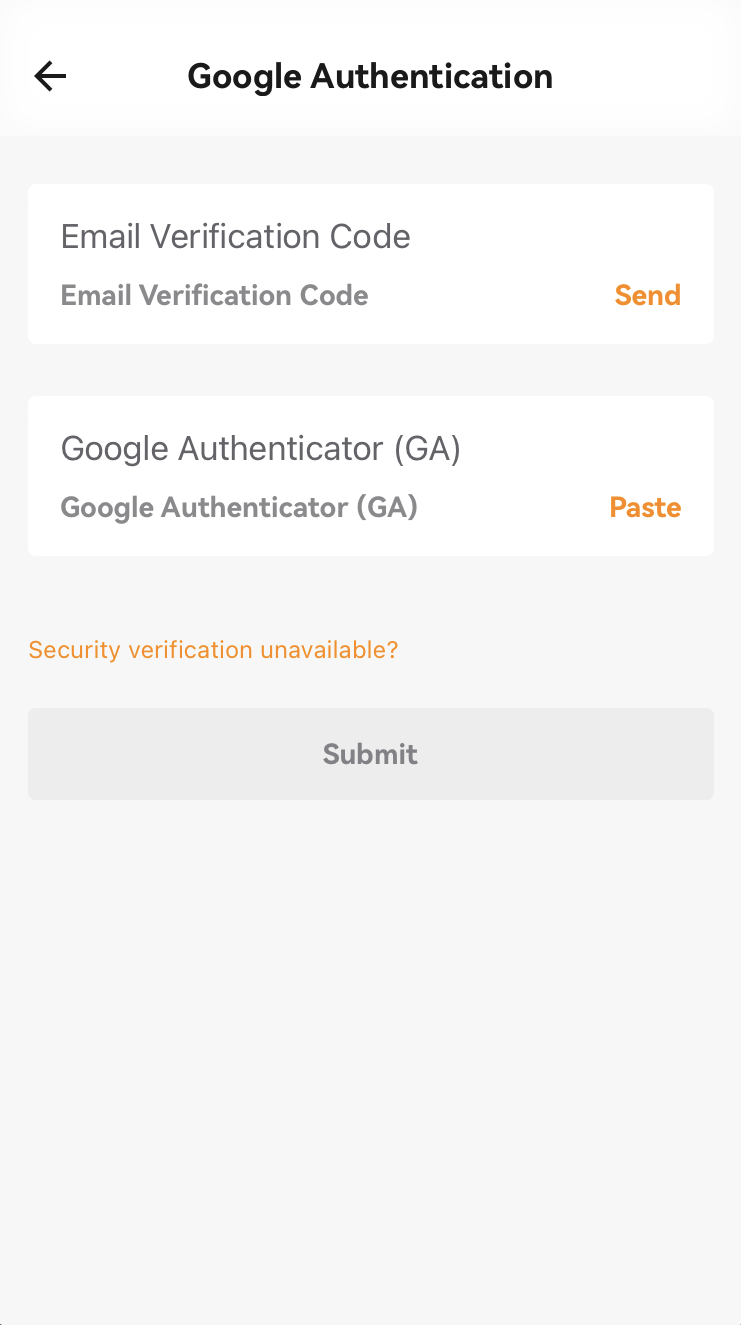
4. Verify your email code/SMS code, and Google Authenticator code.
2. Google Authenticator code (2FA) is unavailable but you still remember your login password
If your account is bound to [phone number/Email + Google Authenticator] simultaneously, follow the steps below to reset Google Authenticator:
If your google authenticator is unavailable but you still remember your login password or you can log into your account, please follow the guide below the change or remove your email/phone number.
Please note that withdrawals will be unavailable within 48 hours after resetting the security features to protect your assets.
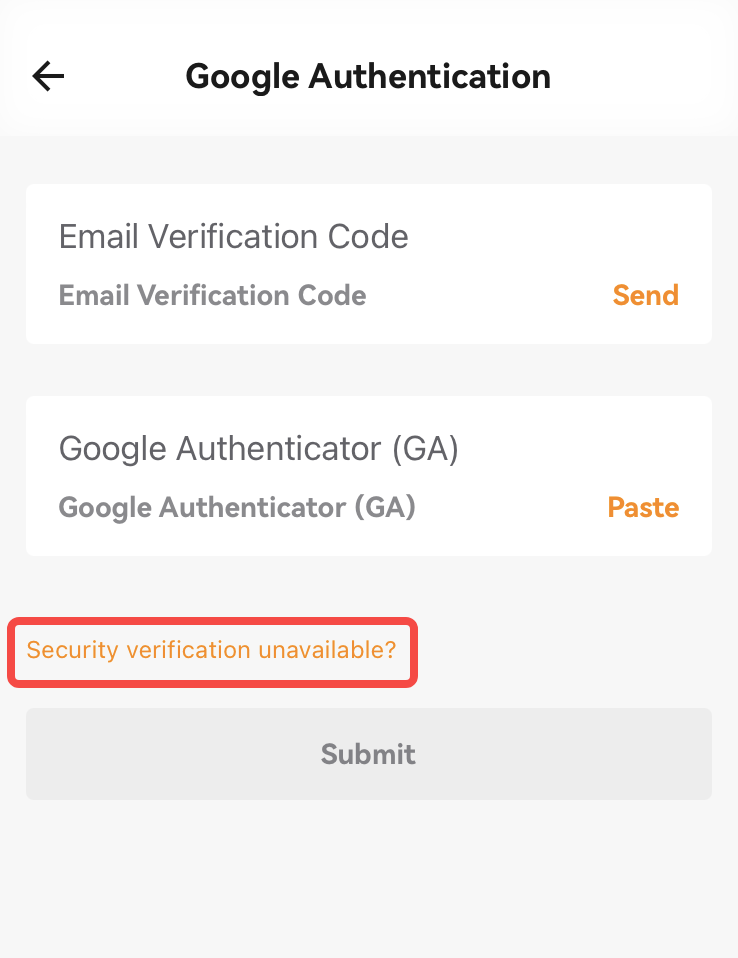
1. Tap [Security verification unavailable] to access the Reset Security Verification interface.
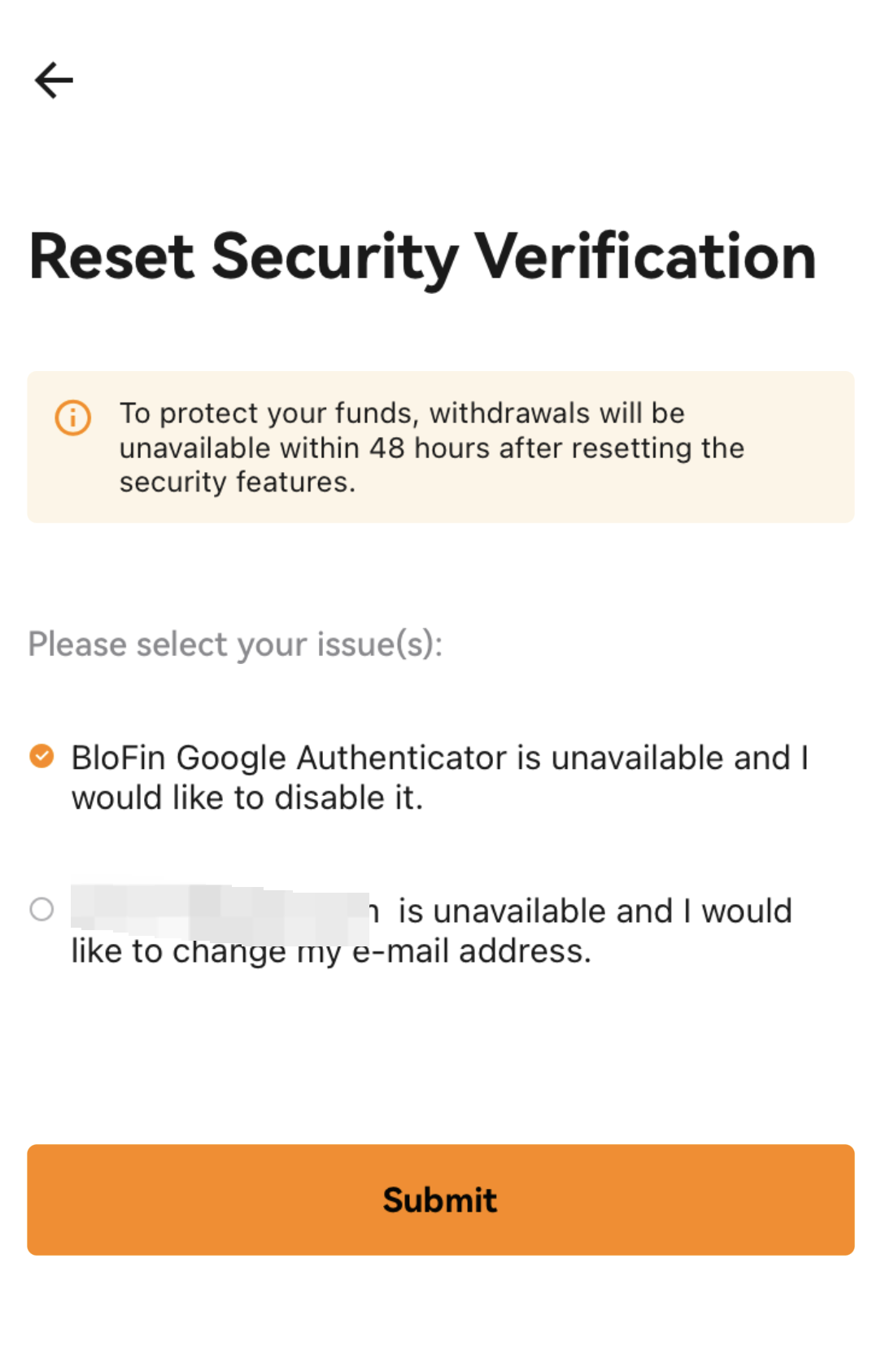
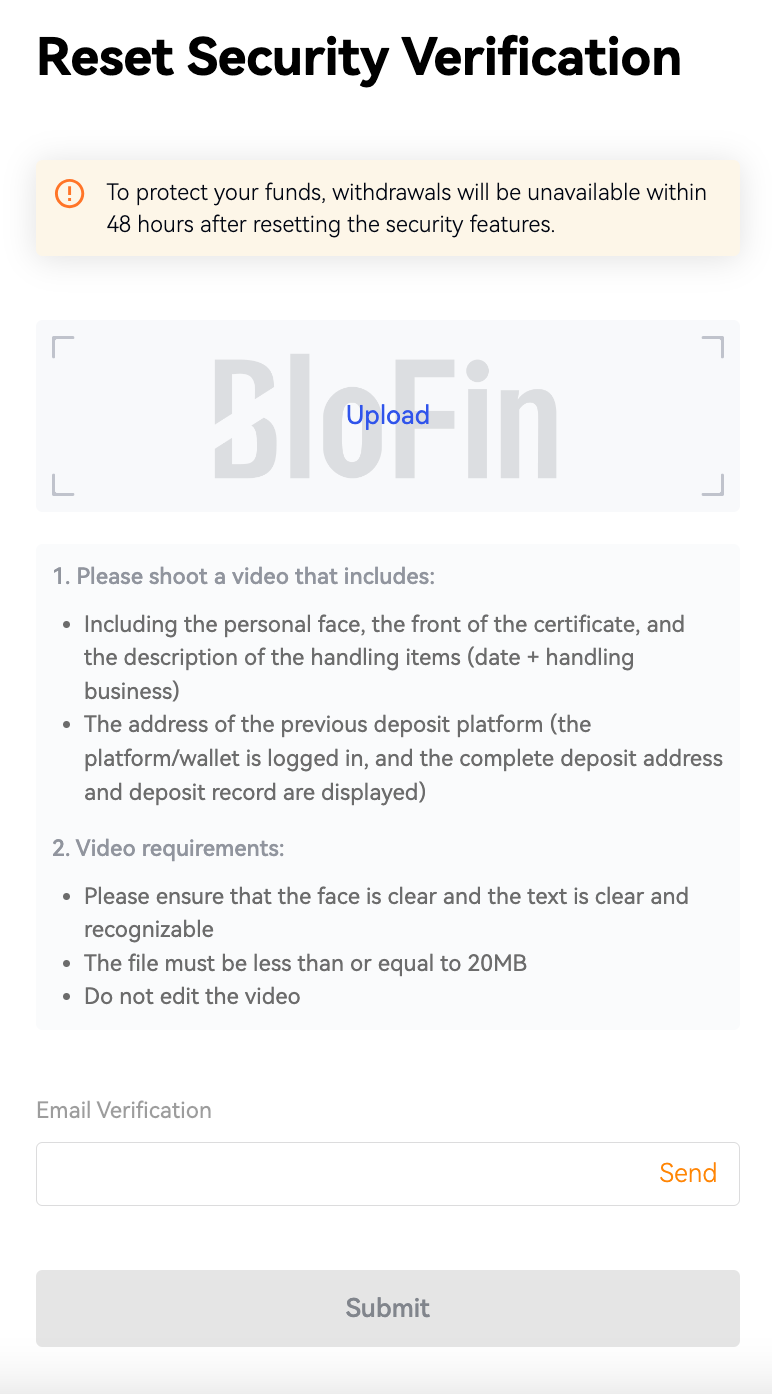
3. Follow the detailed instructions and requirements to prepare and upload a video.
4. Verify your email code and SMS code, then click [Submit].
5. Your request will be reviewed within 24 hours, and the result will be sent to you via email.
3. If you forget your login password and can not access your account
Please contact our support team via live chat or email at [email protected] for further assistance.