
How to Remove and Reset Google Authenticator (2FA)? (Web)
August 19, 2025 at 01:55 AM1. All security settings are available
To enhance the security of your account and assets, we strongly recommend linking Google Authenticator to your account.
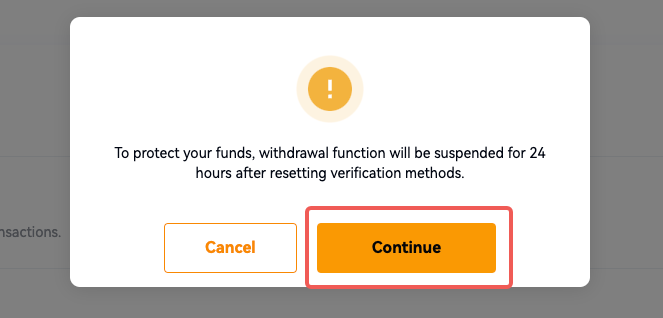
To protect your funds, the withdrawal function will be suspended for 24 hours after resetting verification methods.
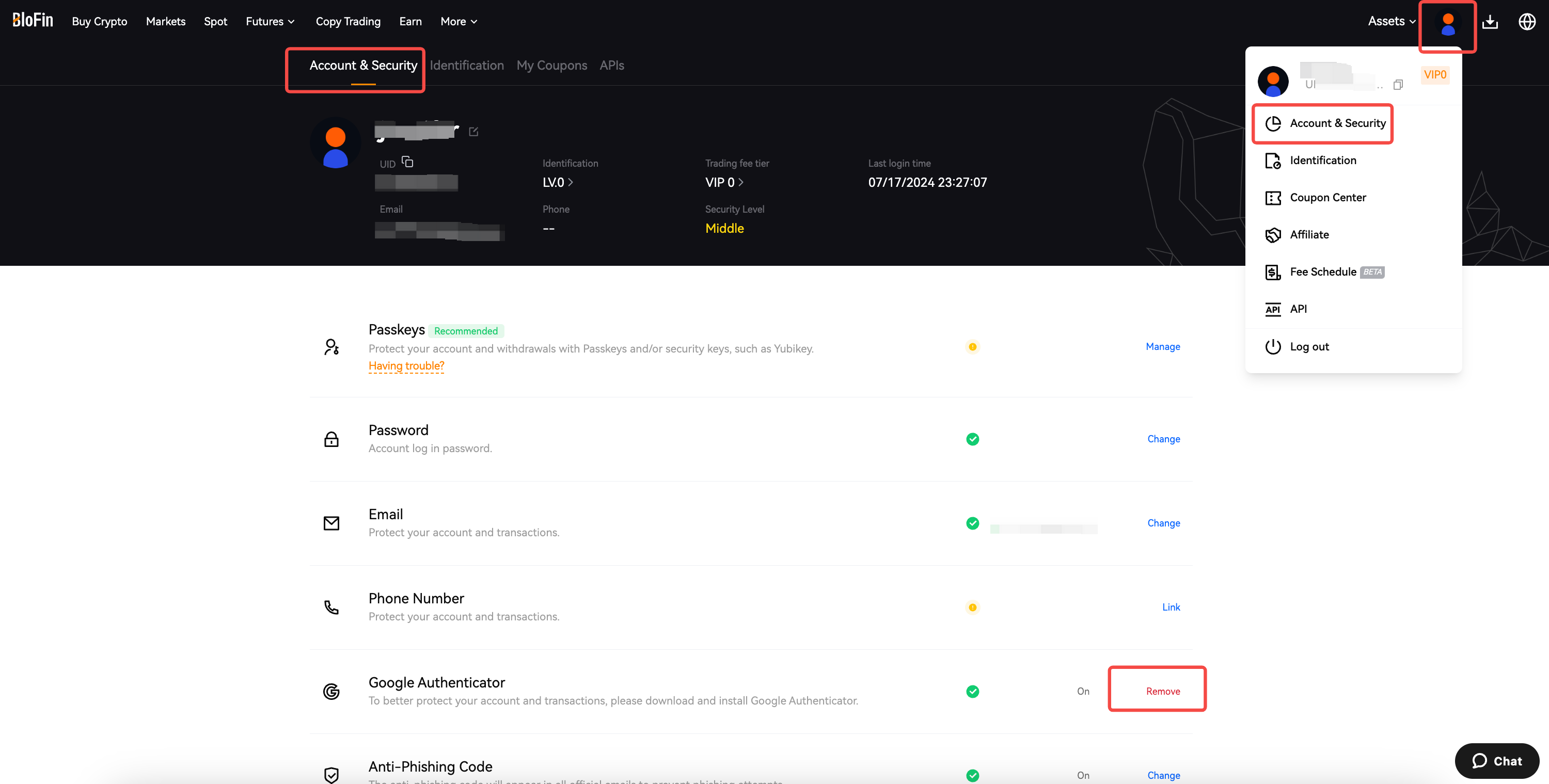
1. Log in to your BloFin account and click on your user avatar in the upper right corner.
2.Select [Account & Security] to the account and security page.
3. Select Google Authenticator (GA) section, click [Remove].
4. A pop-up window will appear, click [Continue] to proceed to Remove Google Authenticator Verification.
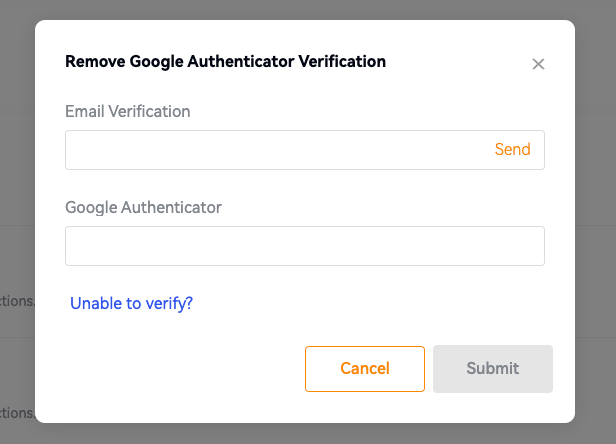
2. Google Authenticator code (2FA) is unavailable but you still remember your login password
If your account is bound to [phone number/Email + Google Authenticator] simultaneously, follow the steps below to reset Google Authenticator:
If your google authenticator is unavailable but you still remember your login password or you can log into your account, please follow the guide below the change or remove your email/phone number.
Please note that withdrawals will be unavailable within 48 hours after resetting the security features to protect your assets.
Web
1. Click the link to reset Google Authenticator (2FA): https://blofin.com/reset-security.
Alternatively, fill in your registration email/phone number and login password, then click on [Unable to verify] on the security verification page to reset your Google Authenticator.
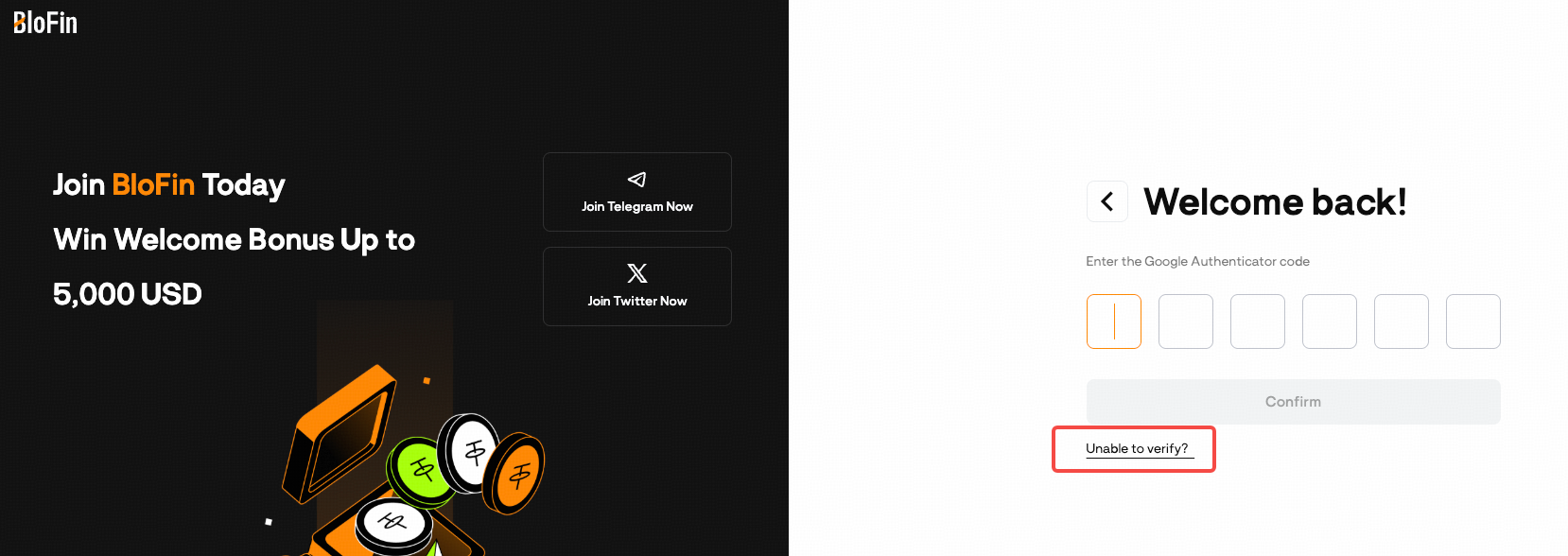
2. On the Reset Security Verification page, select your issues and click [Start Reset].
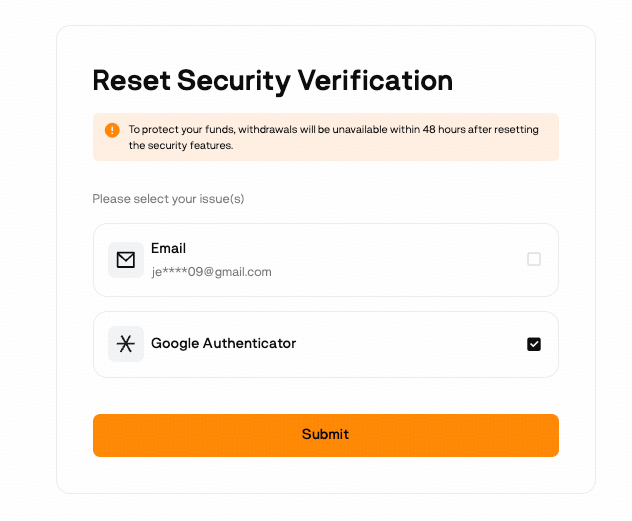
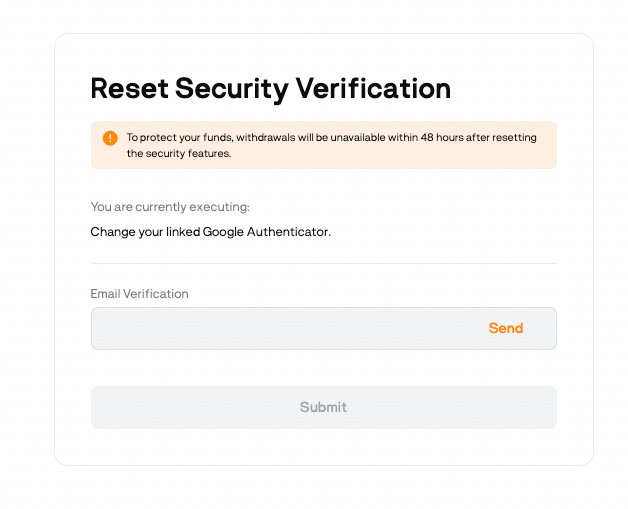
4. Next, KYC verification and facial recognition
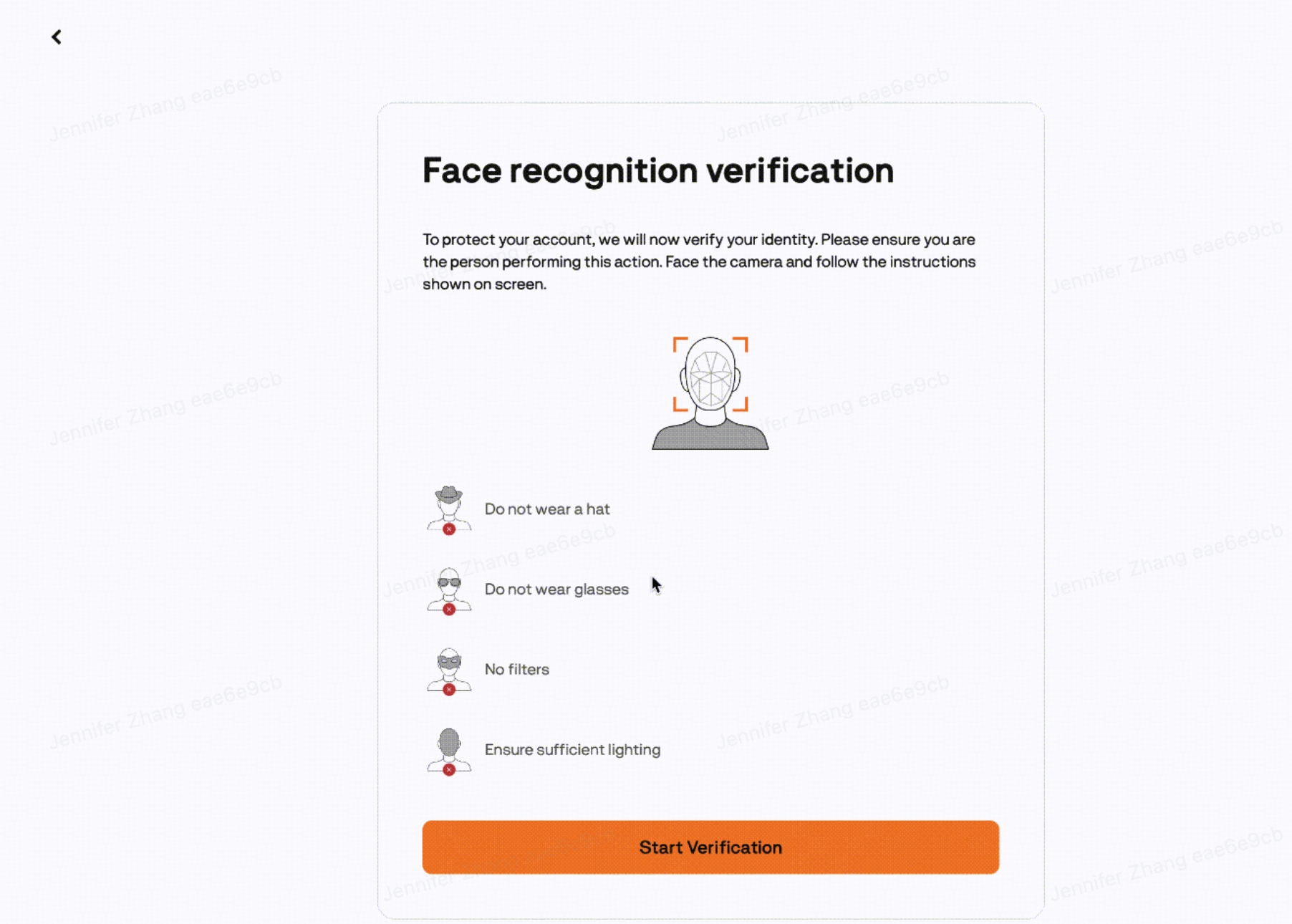
For KYC-verified accounts, after security verification you’ll proceed to [face recognition verification]. Once completed, continue to the next page to upload your videos.
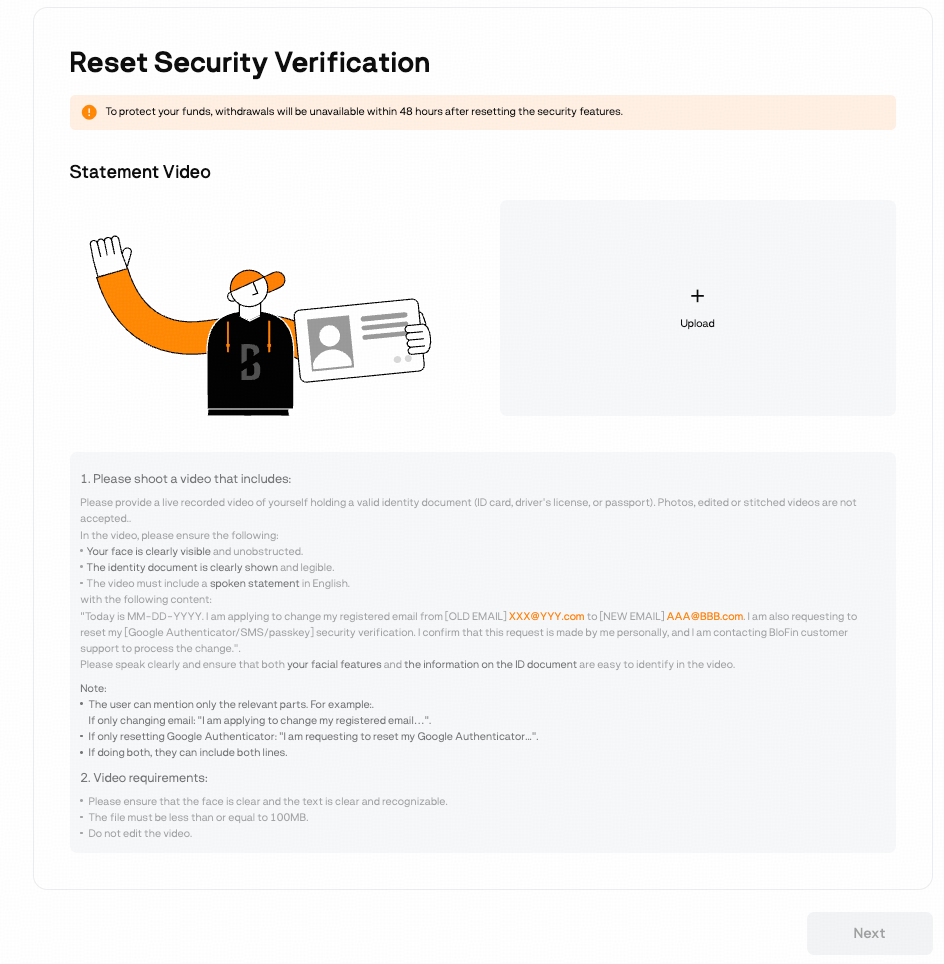
5. On the statement videos page, upload your identity verification and source of funds videos, then answer the security questions.
1) Identity verification video.
In the video, please ensure the following:
Your face is clearly visible and unobstructed.
The identity document is clearly shown and legible.
The video must include a spoken statement of your request in English.
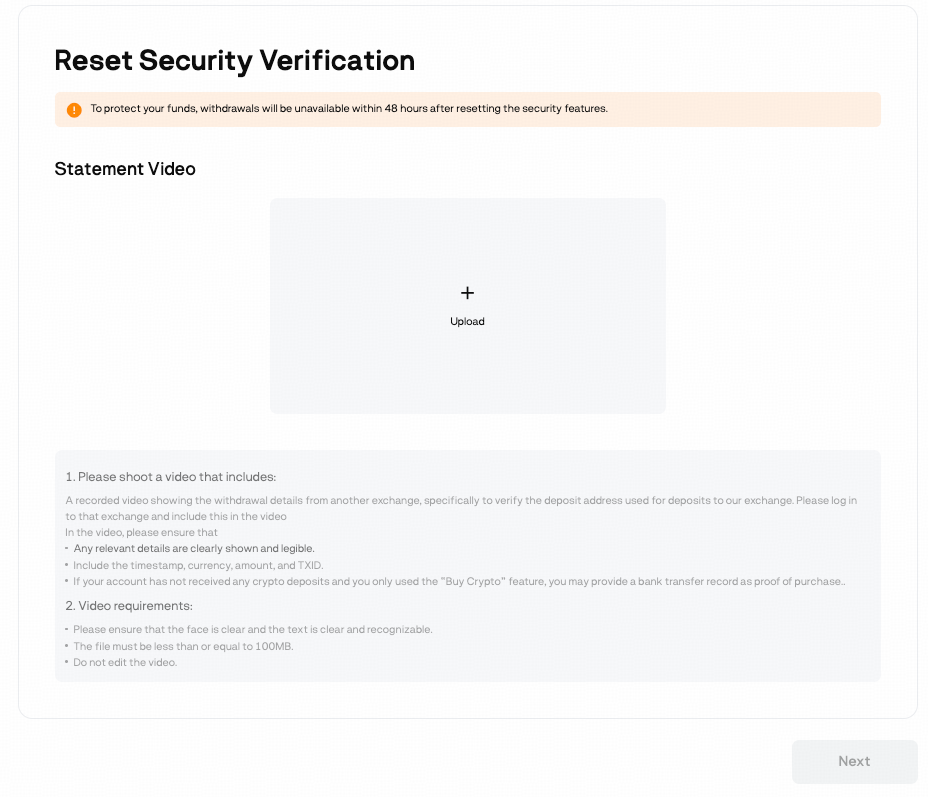
2) Source of Funds video for one deposit record
In the video, please ensure the following:
Any relevant withdrawal details on the sending platform are clearly shown and legible.
Include the timestamp, currency, amount, and TXID.
If your account has not received any crypto deposits and you only used the “Buy Crypto” feature, you may provide a bank transfer record as proof of purchase.
Note: If you have no any on-chain deposit or fiat deposit records, you don't need to upload the SOF video.
3) Security questions
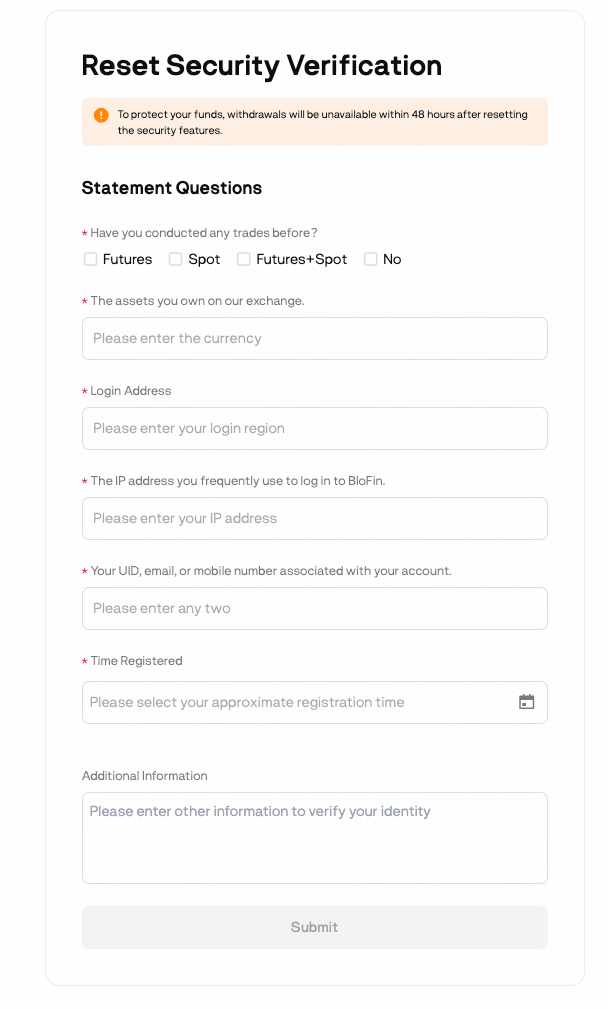
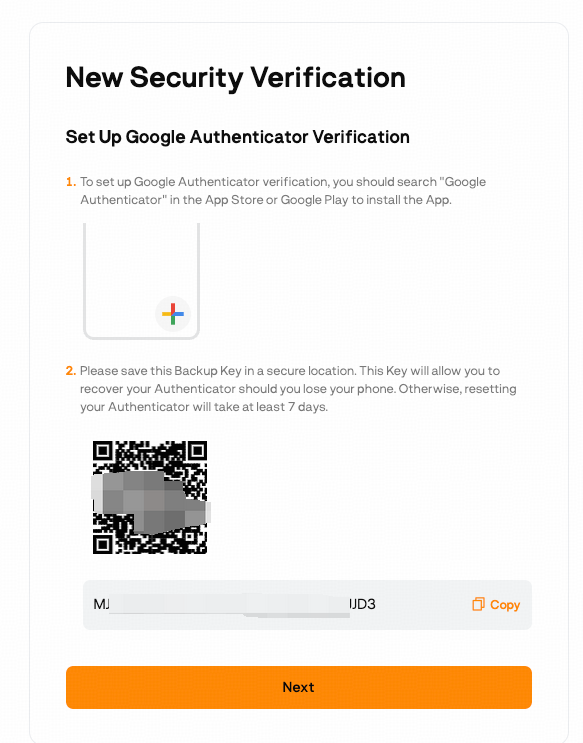
6. Click [Submit] to next step to complete the [New Security Verification].
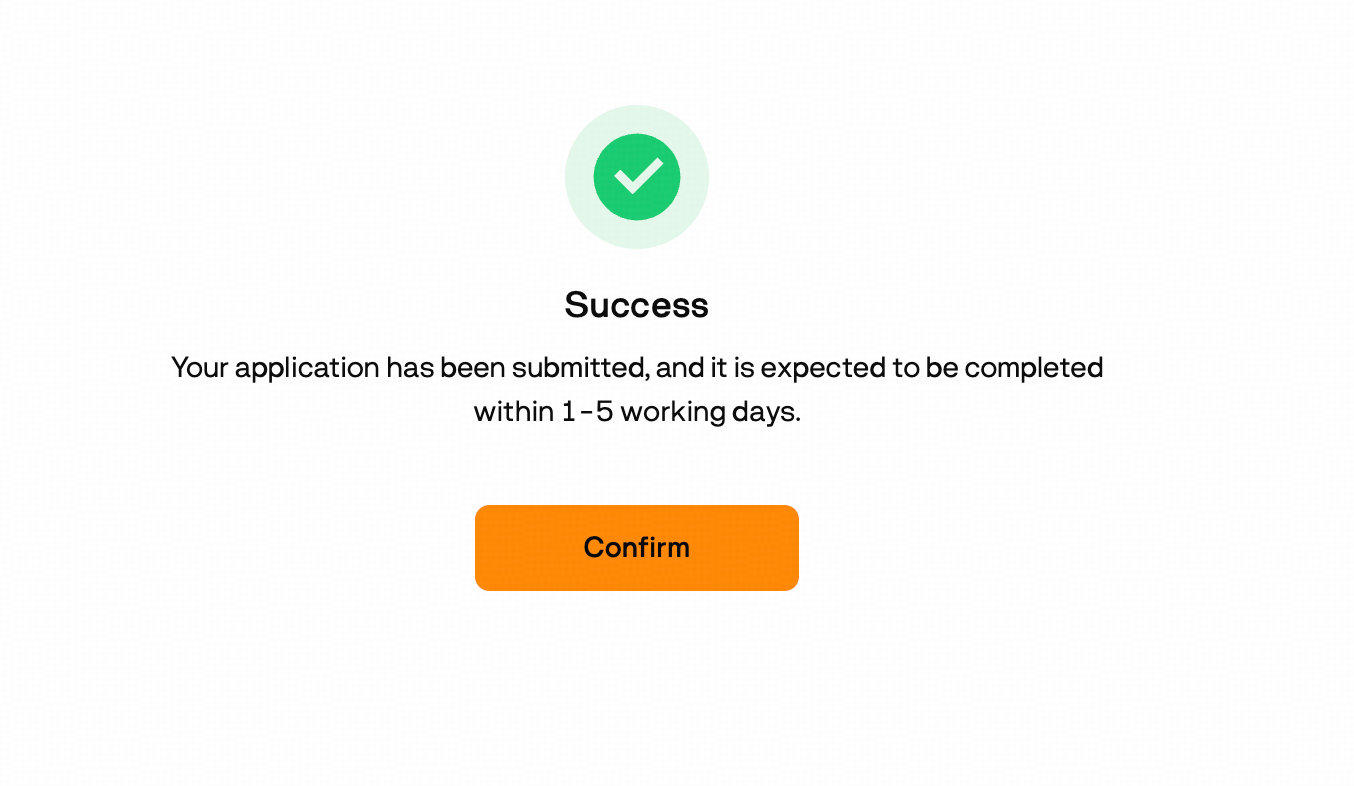
7. Click [Confirm] to submit your request. Processing usually requires 1–5 business days, after which you will receive system email notification and push notification.
3. If you forget your login password and can not access your account
Please contact our support team via live chat or email at [email protected] for further assistance.